The App List
The main window displays the apps detected on your PC. Use its filters, sorting controls, and menus to find apps and perform actions on them.
The scan
O&O AppBuster starts scanning as soon as it opens. Apps stream into the list as they are found, and a counter above the list shows the progress (N apps found …). When the scan is complete, the counter is replaced by the Smart View filter chips.
Sizes on disk are calculated afterwards in the background, so Storage values keep filling in for a few seconds after the list is otherwise ready.
To scan again, press F5 or use File → Refresh. O&O AppBuster also notices installations that happen while it is open and refreshes by itself.
Cards or Details
The switch at the top right of the list toggles between two layouts. Your choice is saved and used again next time.
Cards
Each app is a wide row with its icon, its name, and a subline of the facts you chose under View → App information. This is the more readable layout and the default.
Details
This layout presents app information in sortable columns. Use it to compare several apps, for example by their storage use.
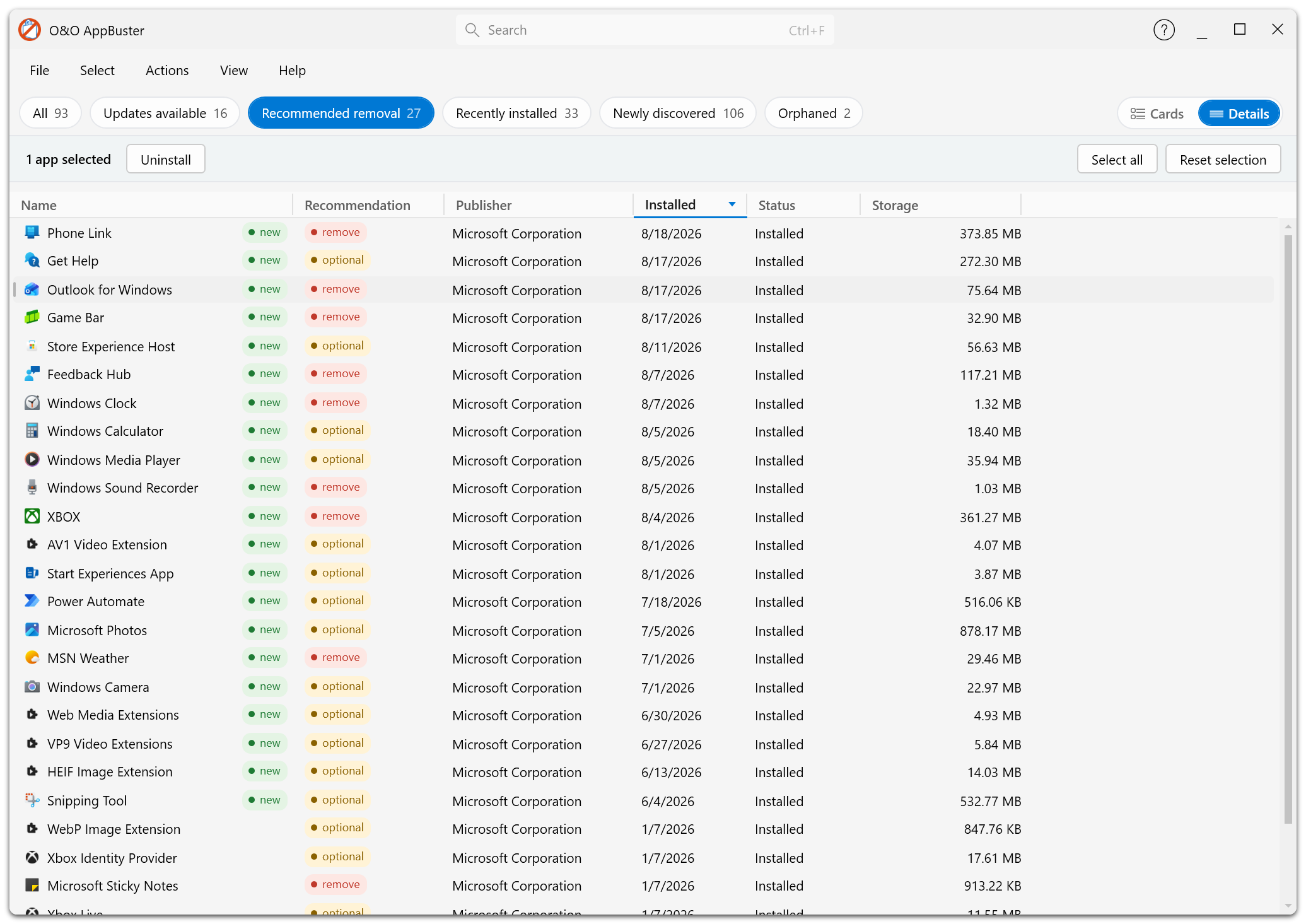
The Details layout puts every piece of information into its own sortable column.
Both layouts show the same apps and offer the same actions.
Choosing what is shown per app
View → App information controls which facts appear — as columns in the Details layout and in the card subline in the Cards layout. One setting drives both.
| Information | Meaning |
|---|---|
| Name | The app's display name. Always shown. |
| Recommendation | keep, optional or remove — see Recommendations. |
| Publisher | Who publishes the app. |
| Storage | Space used on disk — app files and app data. |
| Status | Installed, Installable, Staged (not installed) or Unremovable. |
| Installed | The date the app was installed. |
| Version | The installed version number. |
| Update | Whether a newer version is available via winget — see Updates. |
| Available | Who the app is installed for: your user account, a number of users, or the whole computer. |
| Type | The app category — see App categories. |
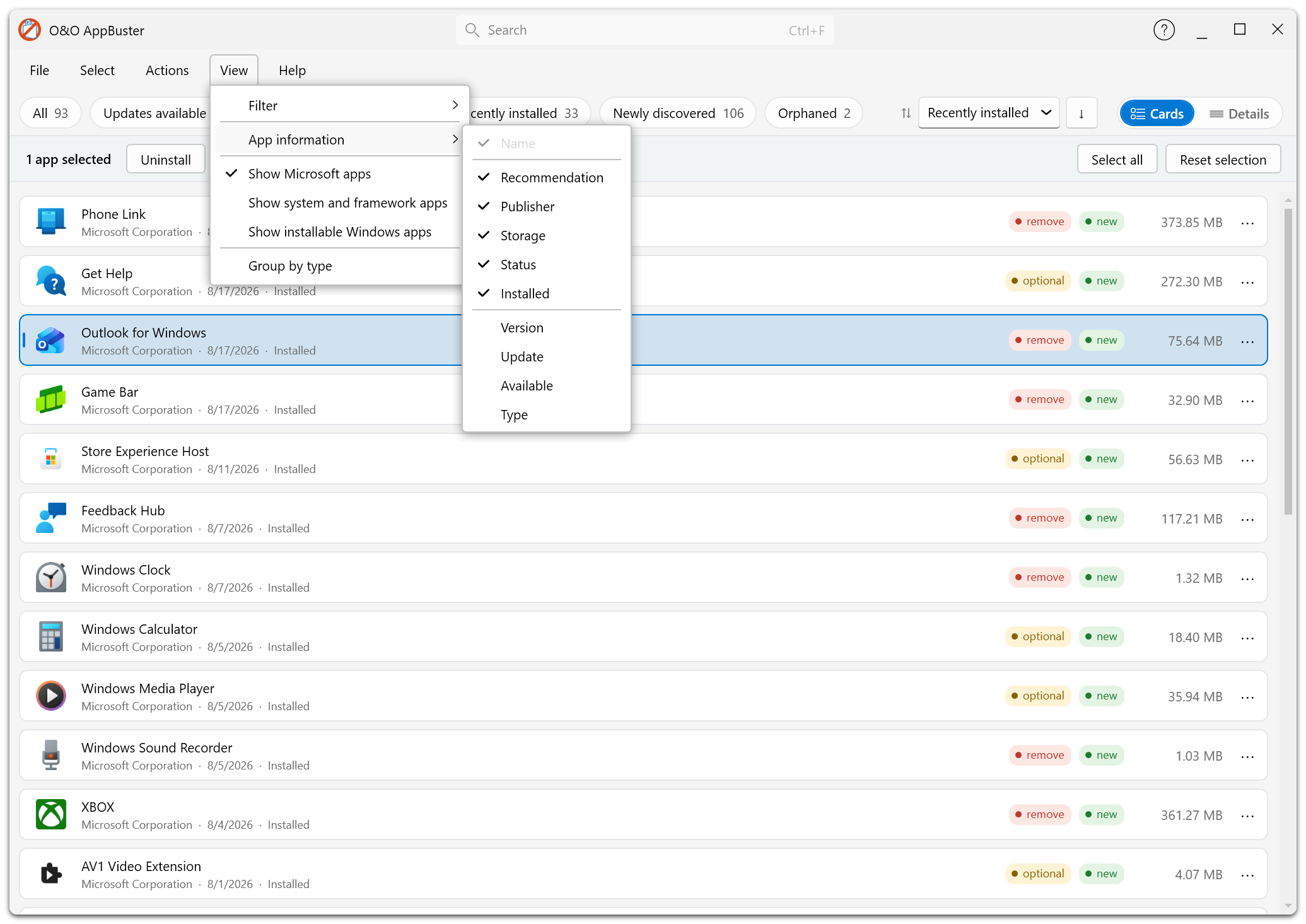
View → App information decides which facts are shown per app — as columns in the Details layout and in the card subline in the Cards layout.
Sorting
The sort control next to the view switch orders the list. The available criteria are:
Recently installed (the default, newest first) · Name · Storage · Publisher · Recommendation · Version · Status · Available · Type · Updates available
The button beside it reverses the direction. In the Details layout you can also click a column header, and the sort control follows along.
Sort by Storage to see immediately where your disk space went. Combined with the Recommended removal chip, this is the fastest way to free up a noticeable amount of space.
Searching
The search box sits in the window's title bar. Type a few characters and the list is filtered as you type; the search covers the app name and its description.
If the current Smart View has no match but another one does, O&O AppBuster switches to the first view that has results, so you are not left looking at an empty list. If nothing matches anywhere, it tells you so.
Clear the search box to see the full list again.
Group by type
View → Group by type adds one tab above the list for each app category in the current view. Select a tab to limit the list to that category without changing your other filters.
Selecting apps
Tick the checkbox of an app to select it. As soon as at least one app is selected, an action bar appears above the list showing how many apps are selected, together with the actions that apply to them (Uninstall, and Update when relevant), plus Select all and Reset selection.
The Select menu offers bulk selections:
- Select all apps recommended for removal
- Select all optionally recommended apps
- Select all Windows apps
- Select all desktop apps
- Select all
- Reset selection
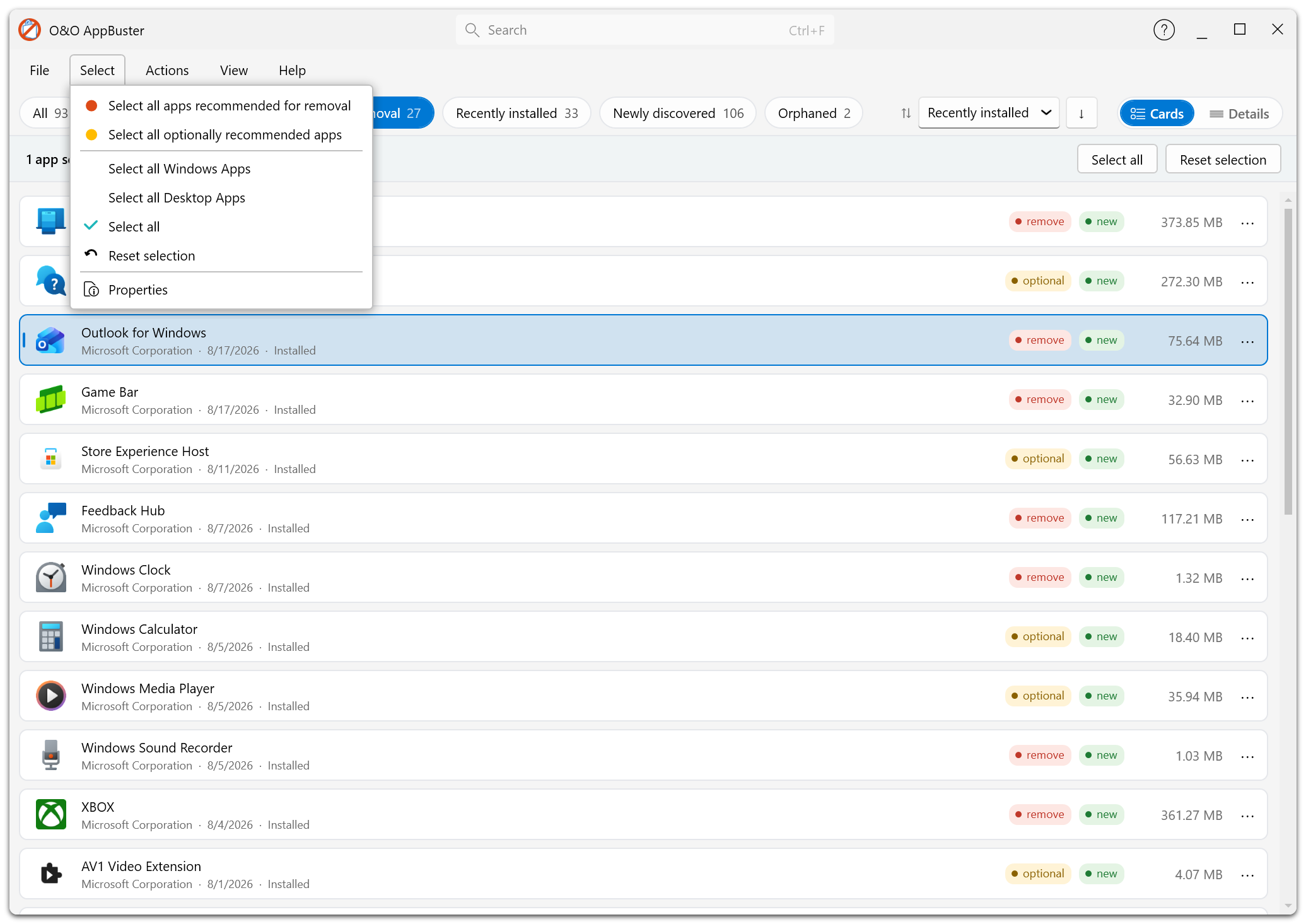
The Select menu turns recommendations and app categories directly into a selection.
Acting on a single app
Right-click an app (or use the button on its row) for the actions that apply to it:
| Action | Applies to |
|---|---|
| Uninstall | Apps that can be removed |
| Install | Windows apps that are available on the PC but not installed for you |
| Update | Apps for which winget reports a newer version |
| Modify | Desktop apps whose installer offers a repair or change option |
| Properties | Any app |
The Actions menu additionally offers Copy to clipboard (all collected information about the selected app) and Browse folder… (opens the app's install location in Windows Explorer).
Properties and details
Properties opens a dialog with everything O&O AppBuster knows about the app:
- Name, type and install date
- Version and platform (x86, x64, ARM, ARM64, neutral)
- Publisher
- Size — split into app files and app data, with a total
- Install location
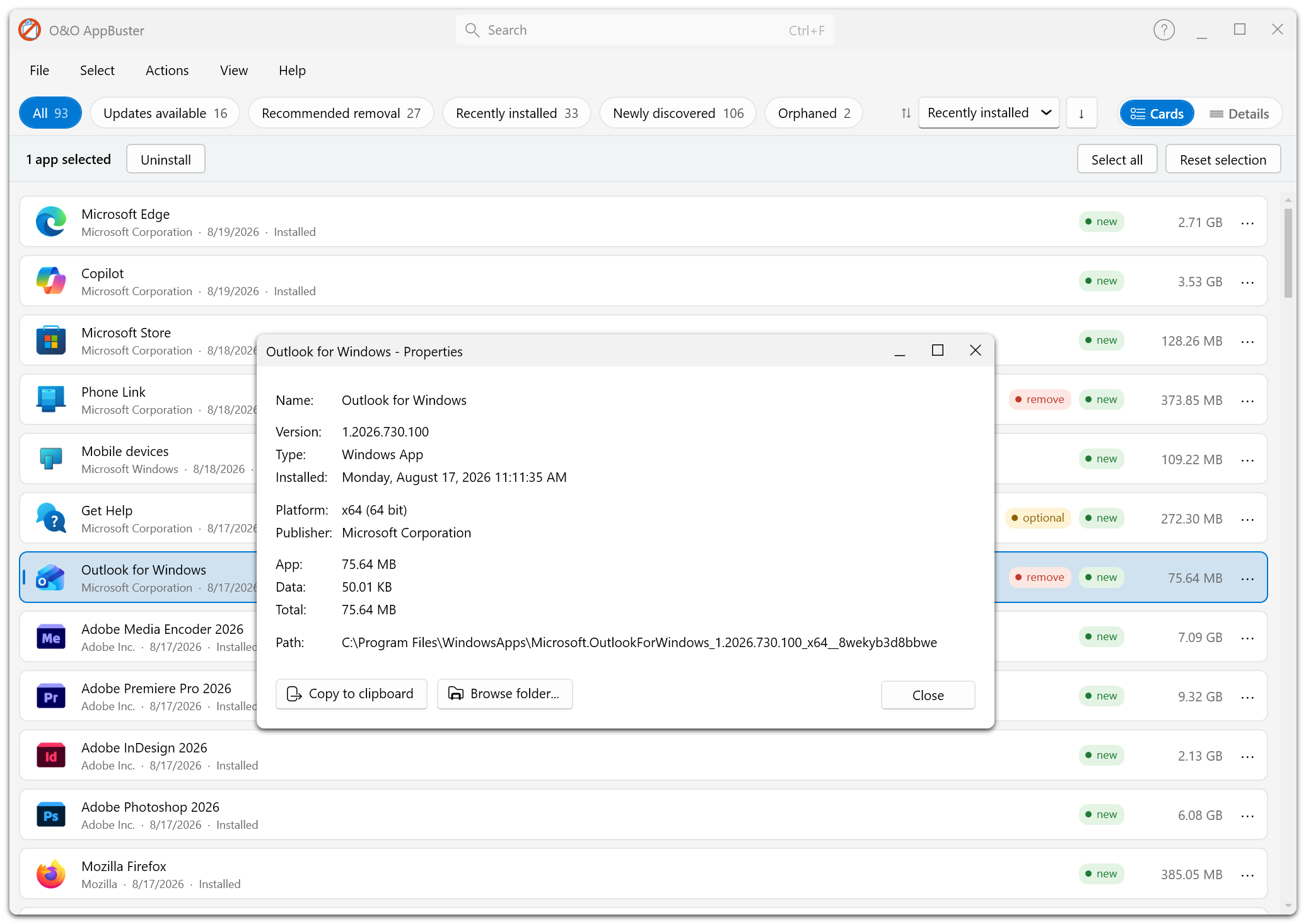
The Properties dialog: version, type, install date, platform, publisher, size split into app files and app data, and the install location — all copyable to the clipboard.
For orphaned apps this dialog additionally shows the interpretation of the leftover: a readable name, the original identifier, the presumed vendor and product family, the likely purpose, and how confident O&O AppBuster is about that interpretation. See Orphaned apps.
The information can be copied to the clipboard — useful when you want to look something up or send it to support.
The "apps are hidden" notice
Some View menu options hide apps permanently rather than just filtering the current view — for instance Show Microsoft apps when switched off. Whenever such a setting is actually removing apps from the list, a thin notice appears above the list telling you how many are hidden, with a Show all button that clears those settings in one click.
This exists so that a list which is quietly shorter than expected always explains itself.