Recommendations
Before removing an app, you need to know whether Windows or another program may depend on it. O&O AppBuster provides a recommendation for every app in the list to help you decide.
The three levels
| Recommendation | Tooltip in the program | What it means |
|---|---|---|
| keep | Keep application | Leave this alone. Either Windows or another app depends on it, or O&O AppBuster has no reason to consider it disposable. |
| optional | Keep or remove application | Removing it is safe. Whether you want it is up to you. |
| remove | Remove application | Typical bloatware. Nothing depends on it, and removing it has no side effects. |
The recommendation is shown in the Recommendation column (Details layout) or in the card subline (Cards layout), provided that piece of information is switched on under View → App information.
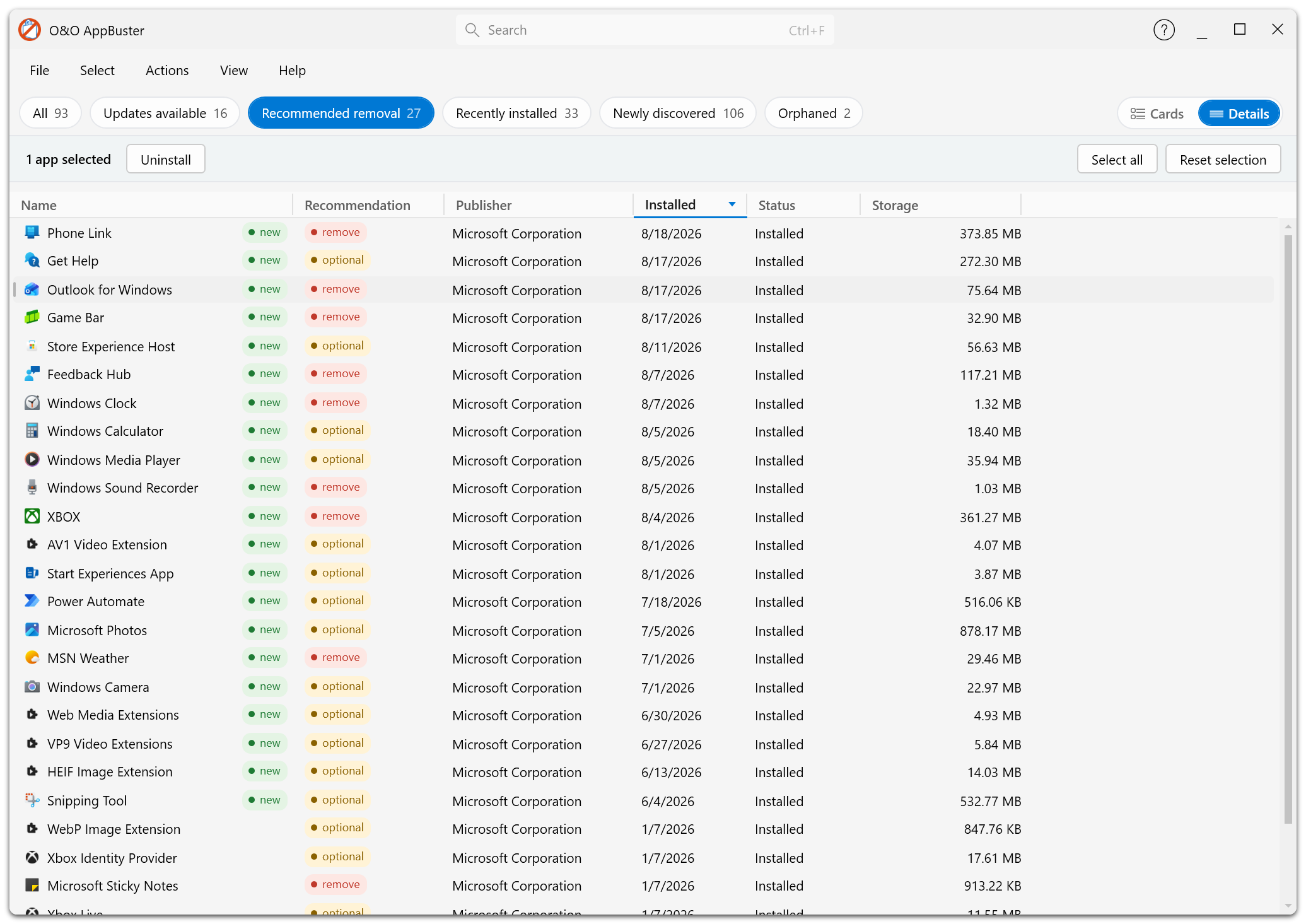
The Recommendation column next to each app, showing remove and optional at a glance.
How a recommendation is determined
O&O AppBuster uses a curated list of known apps, maintained by O&O and matched on the app's package identity together with its publisher ID. That means the recommendation for Microsoft.BingWeather published by Microsoft is a deliberate decision, not a guess based on the name.
The important consequence:
Any app that is not on the curated list receives the keep recommendation. This does not necessarily mean the app is required; it means O&O AppBuster does not have enough information to recommend its removal.
This is a fail-safe design. A wrong keep costs you some disk space; a wrong remove could break something.
What is typically recommended for removal
Without being an exhaustive list, apps classified as remove are usually:
- Preinstalled Microsoft extras: news, weather, finance, sports and travel apps, 3D Builder, the Cortana app, video editors, and similar
- Games and game hubs shipped with Windows
- Manufacturer add-ons that duplicate functionality Windows already has
- Companion apps that only make sense together with hardware you do not own
System apps and framework apps are never recommended for removal — they cannot be removed at all.
Working with recommendations
The Select menu turns recommendations directly into a selection:
- Select all apps recommended for removal — everything marked remove
- Select all optionally recommended apps — everything marked optional
Combined with the Recommended removal Smart View, this gives you the shortest possible path to a cleaner PC:
- Click the Recommended removal chip
- Select → Select all apps recommended for removal
- Untick the ones you use
- Uninstall
Recommendations are advice
A recommendation describes technical consequences, not your preferences. O&O AppBuster does not know that you check the Weather app every morning, or that the Xbox app matters to you.
Always review the selected apps before you confirm a removal. Recommendations provide guidance, but the final choice remains yours.
Look at the Installed date and the app's Properties. An app that has been sitting on the PC since the day it was set up and that you cannot even place is a safer candidate than something you installed last week.
Sorting and filtering by recommendation
- Sort → Recommendation groups the list by recommendation level.
- View → Group by type additionally splits the list by app category, which makes it easy to see, for example, which Windows apps are recommended for removal while ignoring desktop programs entirely.