Settings
Open the settings dialog with File → Settings. Display options that affect the app list directly are available from the View menu.
General
Language
O&O AppBuster is available in:
English · German · French · Spanish · Italian · Russian · Japanese · Chinese
By default it follows your Windows display language. Changing the language requires a restart of the program; you are asked whether to restart immediately.
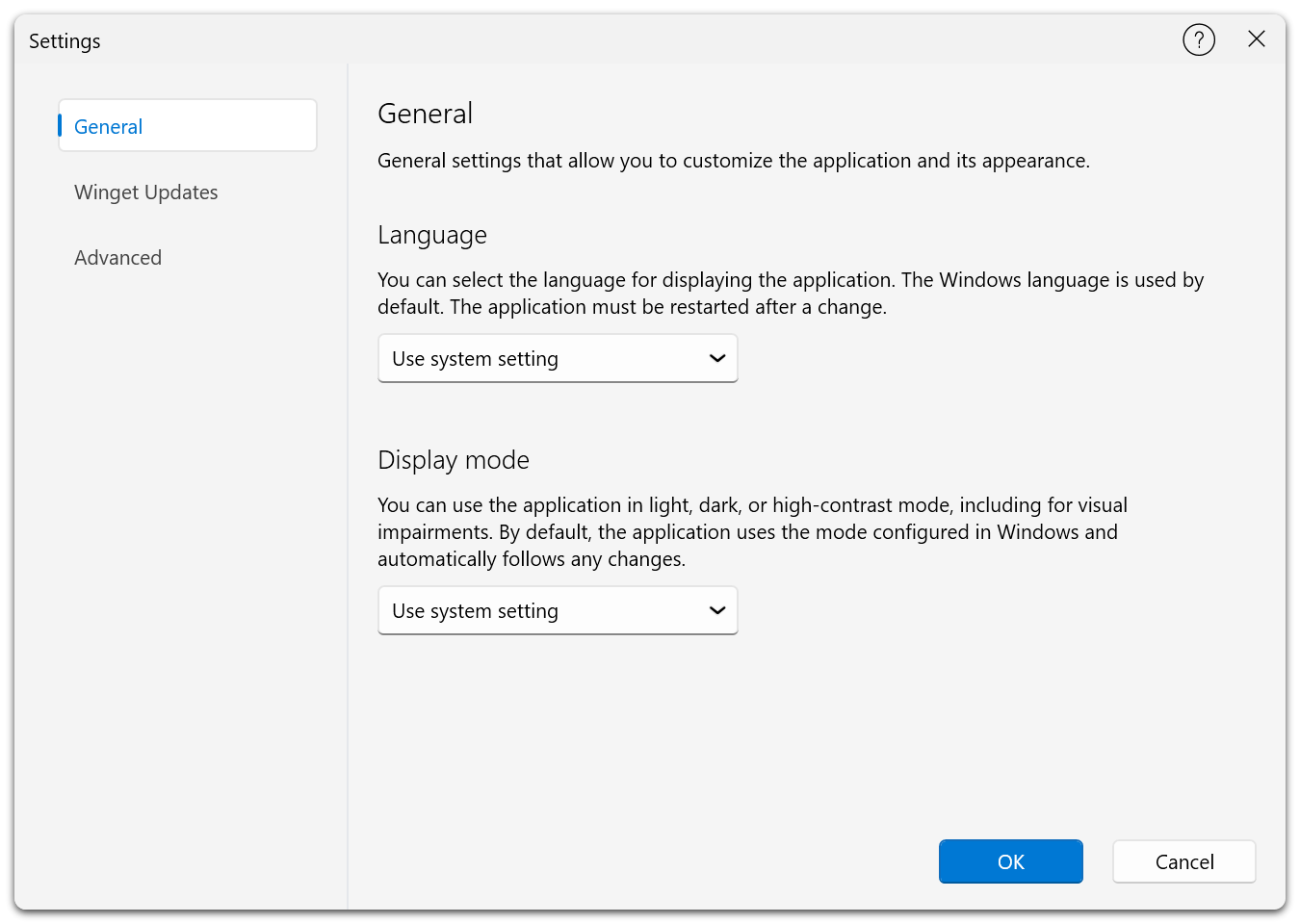
Settings → General holds the display language and the colour scheme. Both follow Windows unless you choose otherwise.
Display mode
The colour scheme of the program window:
| Option | Effect |
|---|---|
| Use system setting | Follows the Windows light/dark setting. The default. |
| Light | Always light. |
| Dark | Always dark. |
| High contrast black | High-contrast theme on a dark background. |
| High contrast white | High-contrast theme on a light background. |
The change takes effect at once.
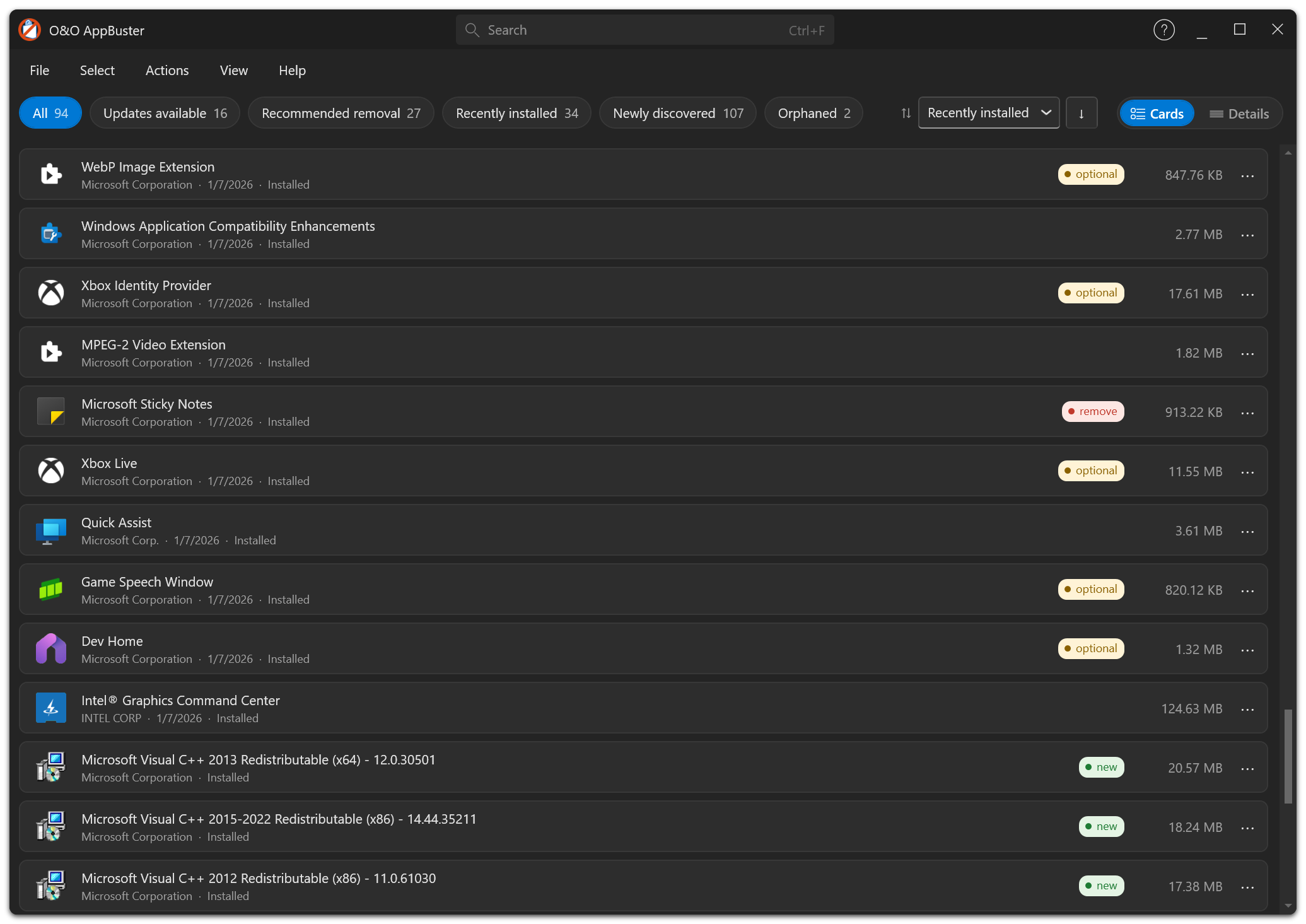
O&O AppBuster in dark mode. Set it explicitly here, or leave it to follow the Windows light/dark setting.
Winget Updates
Search for updates with Winget
Switches the update feature on or off. When it is on, O&O AppBuster asks the Windows Package Manager in the background whether newer versions of your apps exist.
Changing this setting requires a restart, which O&O AppBuster offers to perform for you.
If winget is not installed on the system, the option is disabled and a note explains how to add it (install App Installer from the Microsoft Store).
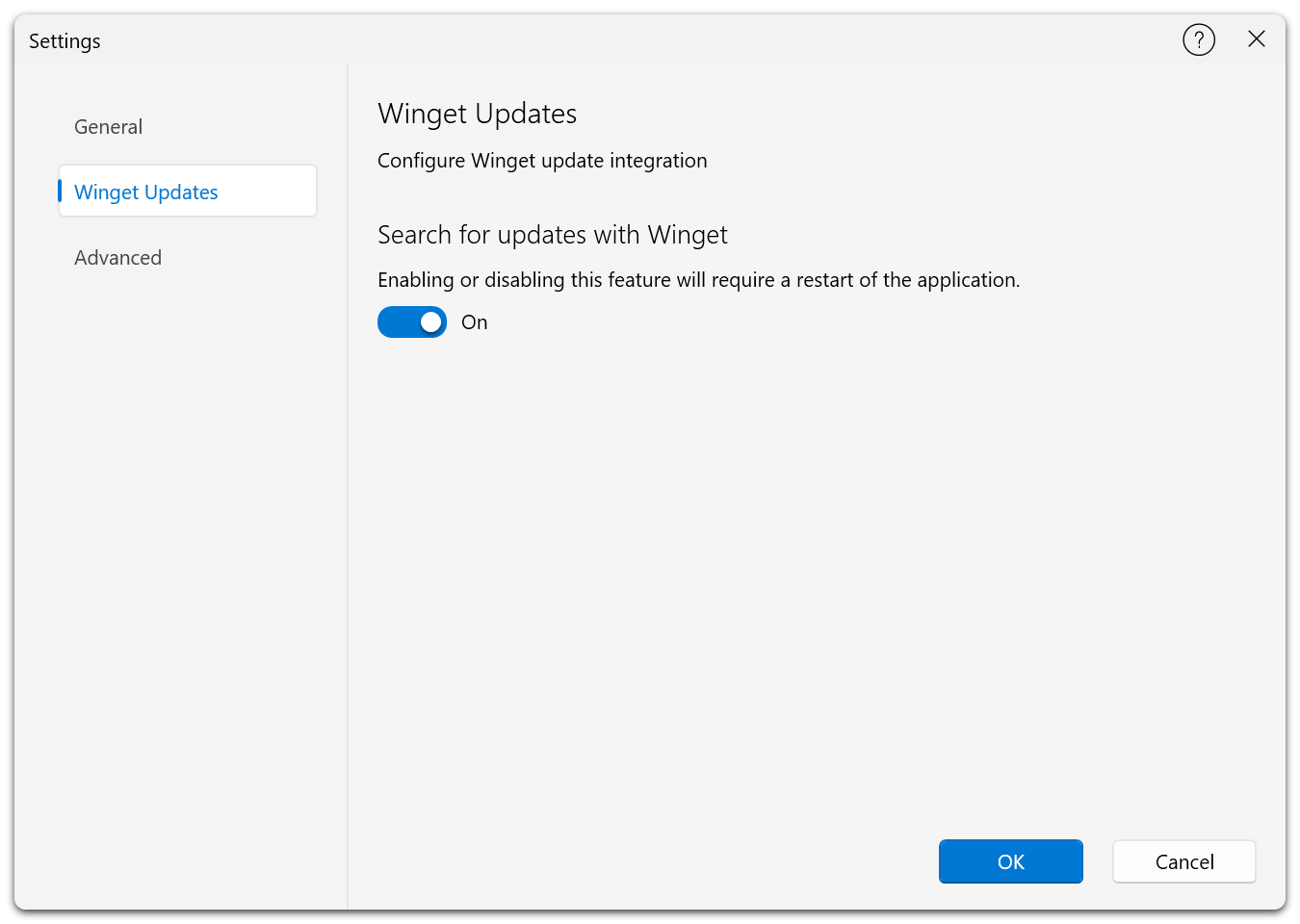
Settings → Winget Updates switches the background update check on or off. The change takes effect after a restart.
➡️ Updates
Advanced
Writing the application log
O&O AppBuster can record a detailed log of everything it does. This is switched off by default, because it is only useful for technical analysis.
The log is written next to the configuration file:
%LocalAppData%\OO Software\OO AppBuster\OOAppBuster.log
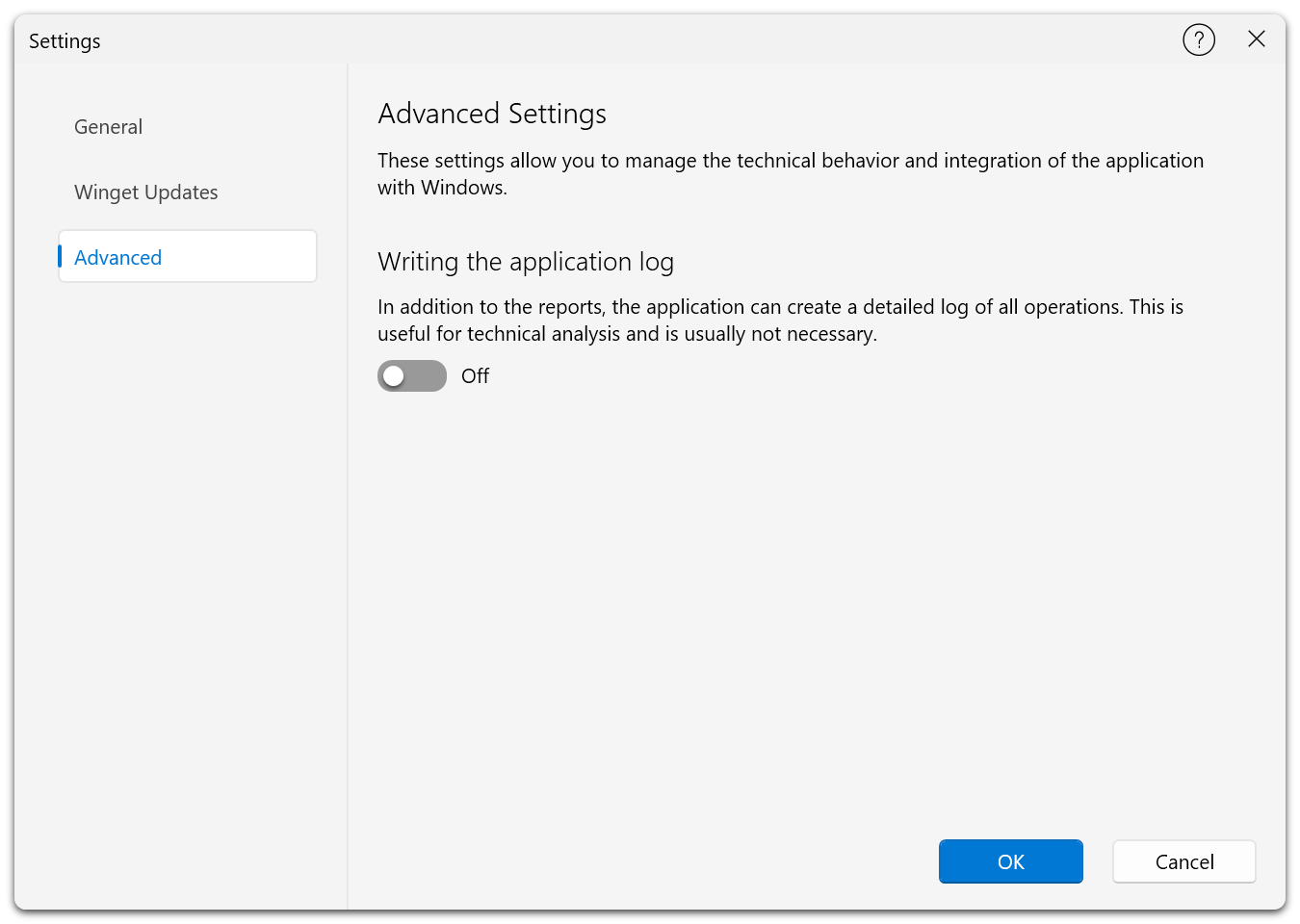
Settings → Advanced holds the single switch for the application log. It is off by default and only needed for technical analysis.
Switch logging on, restart O&O AppBuster, reproduce the problem, then send the log file to O&O support. Switch it off again afterwards — there is no reason to keep writing it during normal use.
Where settings are stored
Everything you configure — language, colour scheme, view mode, chosen columns, window position, and whether the product window should appear when you close the program — is stored in one file in your user profile:
%LocalAppData%\OO Software\OO AppBuster\OOAppBuster.cfg
Because O&O AppBuster needs no installation, deleting this file is all it takes to reset the program to its defaults. Nothing else is left behind on the system.
Command-line parameters
For unattended and scripted use, O&O AppBuster accepts a few parameters:
| Parameter | Effect |
|---|---|
/lang:<code> | Starts in the given language, e.g. /lang:de. |
/quiet | Unattended run. Also suppresses the product window when the program closes. |
/nosrp | Does not prompt for a system restore point. |
/force | Starts even when a start condition would normally prevent it. |
/ignoreos | Skips the operating-system check. |
/exportlng | Exports the language resources. |
Parameters are a convenience for administrators, not the primary way to use the program.
Product suggestions when you close the program
When you close O&O AppBuster, it may open O&O Tools for Windows. This window contains links to several other O&O products and an optional newsletter sign-up form. It does not install or download a product automatically.
Select Do not show this message again to prevent the window from opening automatically in future. You can still open it whenever you want from Help → Explore more O&O products....
The window is not shown during a /quiet run or if you have already opened it during the current session. Your choice and newsletter subscription status are stored in the configuration file described above.