Smart Views
A Smart View is a ready-made filter for the app list. The row of chips above the list holds the common ones, and each chip carries the number of apps it would show. Clicking a chip narrows the list; clicking All brings everything back.
Smart Views filter the app list by category or status. For example, select Newly discovered to see apps that appeared since your previous session.
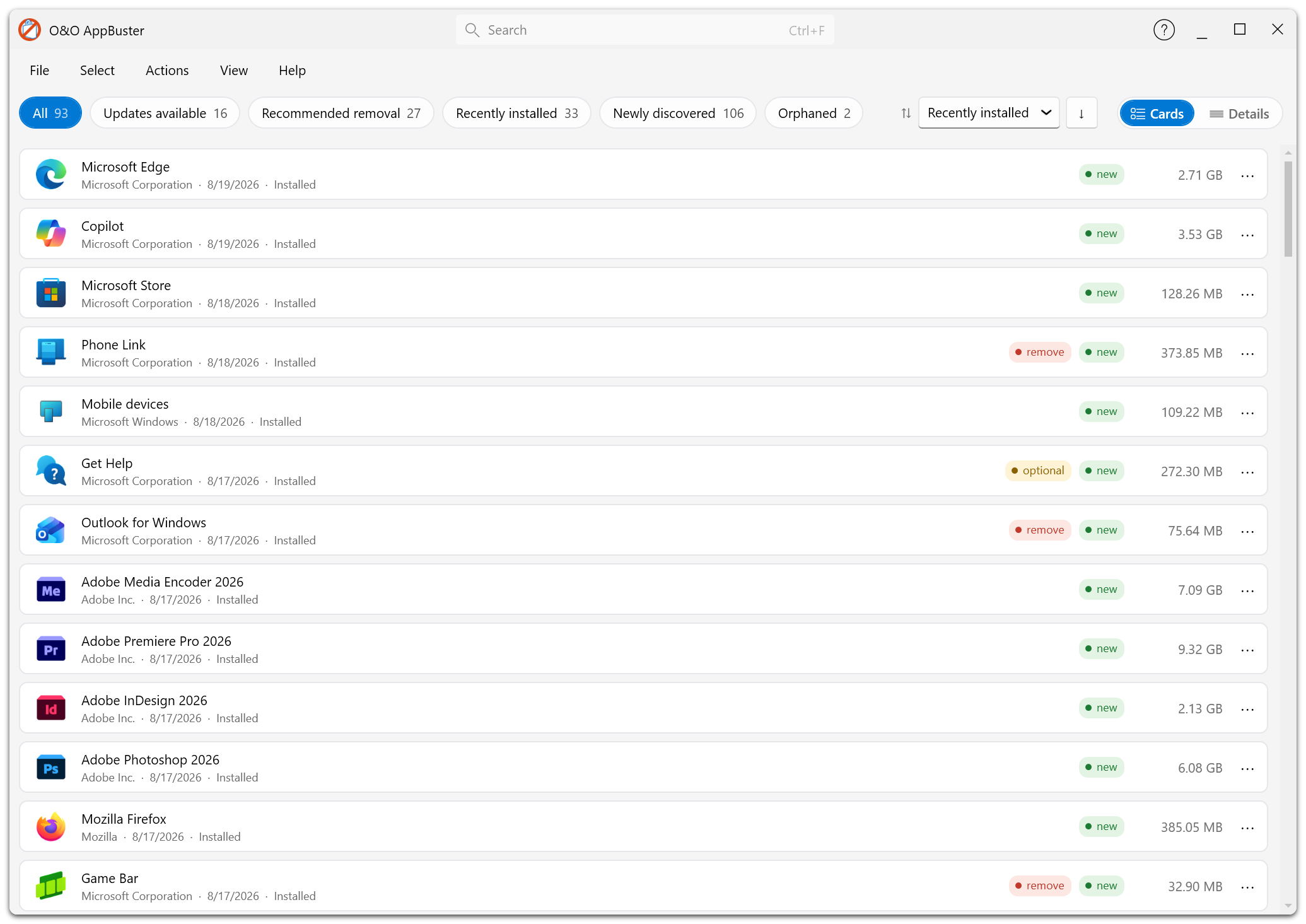
The chip row above the list. Each chip carries the number of apps it would show; All brings the complete list back.
The Smart Views
| Smart View | Shows |
|---|---|
| All | Every app in the list. The starting point. |
| Updates available | Apps for which the Windows Package Manager reports a newer version. |
| Recommended removal | Apps carrying a remove recommendation. |
| Recently installed | Apps installed within the last 30 days. |
| Newly discovered | Apps that were not present the last time you used O&O AppBuster. |
| Hidden | Windows apps that exist on the PC but are not registered for your account. |
| Orphaned | Leftovers of apps that were already uninstalled. |
| Defect | MSI apps whose installer package is missing, so Windows cannot remove them. |
| System | Windows components. Information only — they cannot be removed. |
| Framework | Runtimes other apps depend on. Information only. |
The full set is also available under View → Filter, which is useful when the window is narrow and not every chip fits.
Chips appear only when they are relevant
A button appears only when its category contains at least one app. If O&O AppBuster finds no orphaned or defective entries, the corresponding buttons are not shown.
Likewise, Updates available only appears when the update feature is switched on and the Windows Package Manager is present on your system. See Updates.
How Smart Views interact with the rest
- Search works inside the current view. If your search term has no hit in the current view but does elsewhere, O&O AppBuster switches to the first view that has results.
- Sorting and the Cards / Details choice are independent of the selected view.
- Selection is kept when you switch views. If you select five apps in one view and then switch, those five are still selected — the action bar keeps telling you how many.
Because a selection survives a view change, it is worth glancing at the count in the action bar before clicking Uninstall. If it says more than you expect, use Reset selection and start again.
Suggested workflows
A quick clean-up
- Recommended removal → Select → Select all apps recommended for removal
- Untick what you actually use
- Uninstall
Free up disk space
- All, sort by Storage descending
- Work down from the top and decide app by app
Find out what Windows just installed
- Newly discovered — everything that appeared since your last session
- When you have looked at them, they stop being "new" once you mark them as viewed
Clean up after old uninstallations
- Orphaned — leftover registrations and data folders
- Defect — apps Windows can no longer uninstall on its own
Keep your software current
- Updates available
- Select the apps you want to update and click Update