Updates
While it is scanning, O&O AppBuster can also check whether newer versions of your apps exist — and install them for you. The check uses the Windows Package Manager (winget), the update mechanism that comes with Windows.
Requirements
The update feature needs winget on your system. It is part of the App Installer package and is preinstalled on current Windows 11 systems.
- If
wingetis present, the feature is available and switched on by default. - If it is not, the option in the settings is disabled and explains why: The Windows Package Manager (winget) is not installed on this system, so app updates are unavailable. Install "App Installer" from the Microsoft Store to enable this feature.
Everything else in O&O AppBuster works regardless.
Switching the feature on or off
Settings → Winget Updates → Search for updates with Winget
Changing this setting requires a restart of O&O AppBuster; you are asked whether to restart immediately. The restart avoids a half-updated interface and stops background checks cleanly.
Reasons you might switch it off:
- You manage updates yourself and do not want the extra background work.
- The check makes the initial scan take longer than you like on a slow PC.
- Your organisation deploys software centrally and updates are not your call.
Finding updates
The update check runs in the background after the app list has been built, so the list is usable while it works.
When it finds something:
- The affected apps get an entry in the Update column (An update is available via winget).
- The Updates available Smart View chip appears with the number of apps concerned.
- The action bar offers an Update button when at least one selected app has an update.
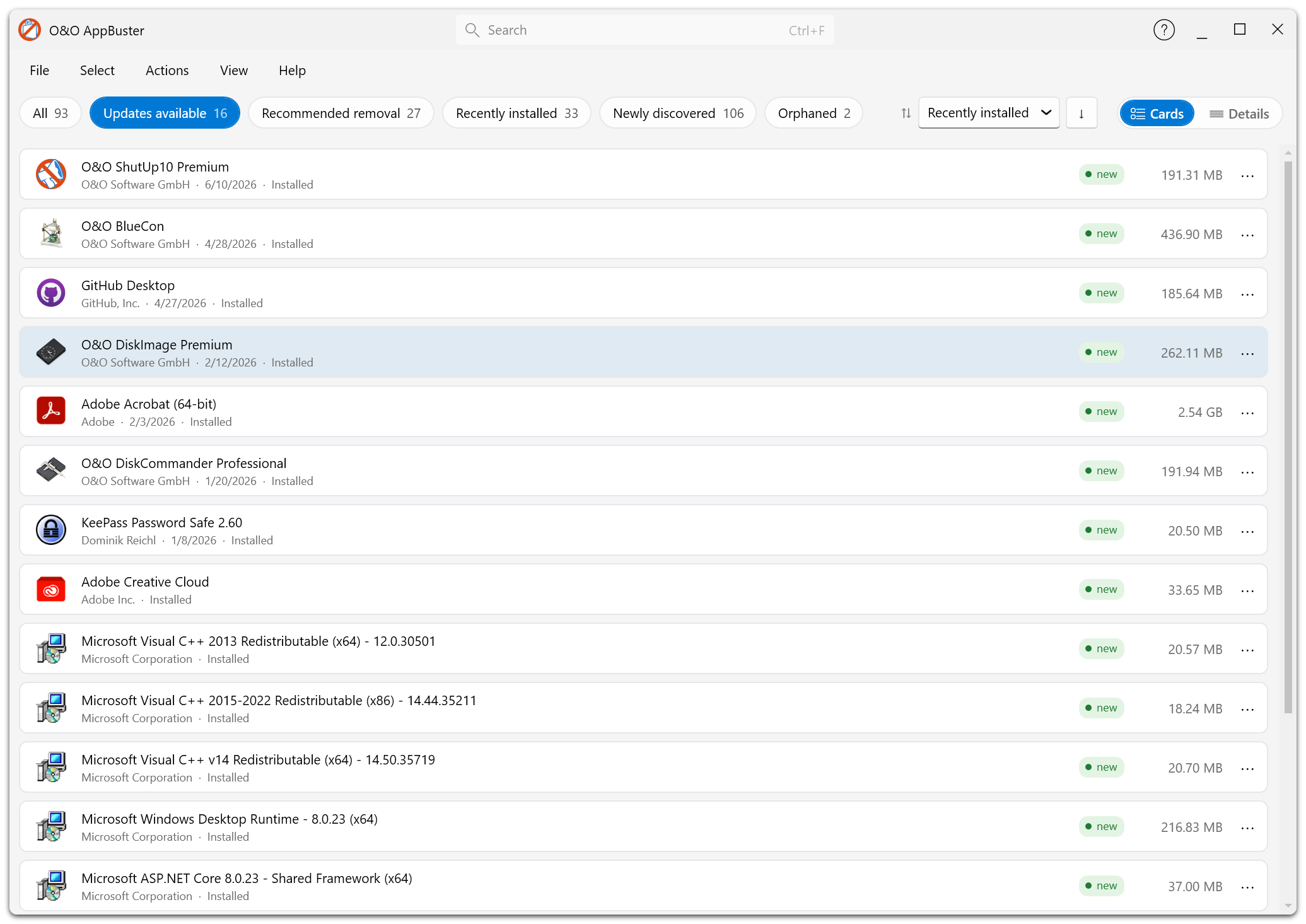
The Updates available view lists exactly those apps for which the Windows Package Manager reports a newer version.
Installing updates
- Click the Updates available chip.
- Select the apps you want to update.
- Click Update, or use Actions → Update selected apps via winget.
- Confirm the dialog.
A progress dialog shows which app is being updated. Afterwards each app is marked Updated or Update failed.
Updates are carried out by the Windows Package Manager, not by O&O AppBuster itself. That means:
- A console window may briefly appear.
- An individual app's installer may ask you a question that you have to answer.
- An individual update may fail without the rest of the run being affected.
The confirmation dialog says as much before you start.
Results
The run ends with one of:
| Result | Meaning |
|---|---|
| Update completed. | Everything selected was updated. |
| Update completed with errors. | Some apps were updated, others were not. |
| An error occurred during the update. | The run could not be carried out. |
| Update cancelled by user. | You stopped the run. |
Failed updates are reported per app. The most common reasons are that the app is running, that the publisher's download is temporarily unavailable, or that the app is not in the winget catalogue under the name Windows registered for it.
What is not updated
- Windows apps from the Microsoft Store are updated by the Store itself, not by O&O AppBuster.
- Windows itself is updated by Windows Update. O&O AppBuster does not touch it.
- Apps installed outside the package manager's knowledge — portable programs, in-house tools, anything without a winget entry — cannot be updated this way. They still appear in the list; they just never show an available update.
Automation
O&O AppBuster updates apps when you tell it to. There is no scheduled or automatic update mode, and it does not run in the background when you close it.
If you want updates to happen without your involvement, winget upgrade --all in a scheduled task is the Windows-native way to do it.