First Steps
Follow these steps to download O&O AppBuster, review the apps on your PC, and remove your first app. Allow about ten minutes.
1. Download and start
- Download O&O AppBuster from the O&O Software website.
- Run the downloaded file. There is no installation.
- Windows shows a User Account Control (UAC) prompt. Confirm it with Yes.
Removing apps, cleaning up leftovers and creating a system restore point all require elevated rights. O&O AppBuster asks once at startup so that it does not have to ask again for every action. See System requirements.
2. Let the scan finish
O&O AppBuster immediately begins to enumerate the apps on your PC. While it works, a counter above the list shows how many apps have been found so far.
On a normal PC this takes a few seconds; on a machine with many desktop programs it can take longer. Sizes on disk are calculated in the background and keep filling in after the list has appeared, so the Storage figures may still change for a moment.
3. Get an overview
When the scan finishes, the main window displays the app list:
- The filter chips above the list are the Smart Views. Each one narrows the list to a category, and its number tells you how many apps are in it.
- The Cards / Details switch on the right changes how the list is drawn. Cards are easier to read; Details gives you a sortable table with columns.
- The sort control next to it orders the list — by name, size, install date and so on.
- View → App information decides which facts are shown per app.
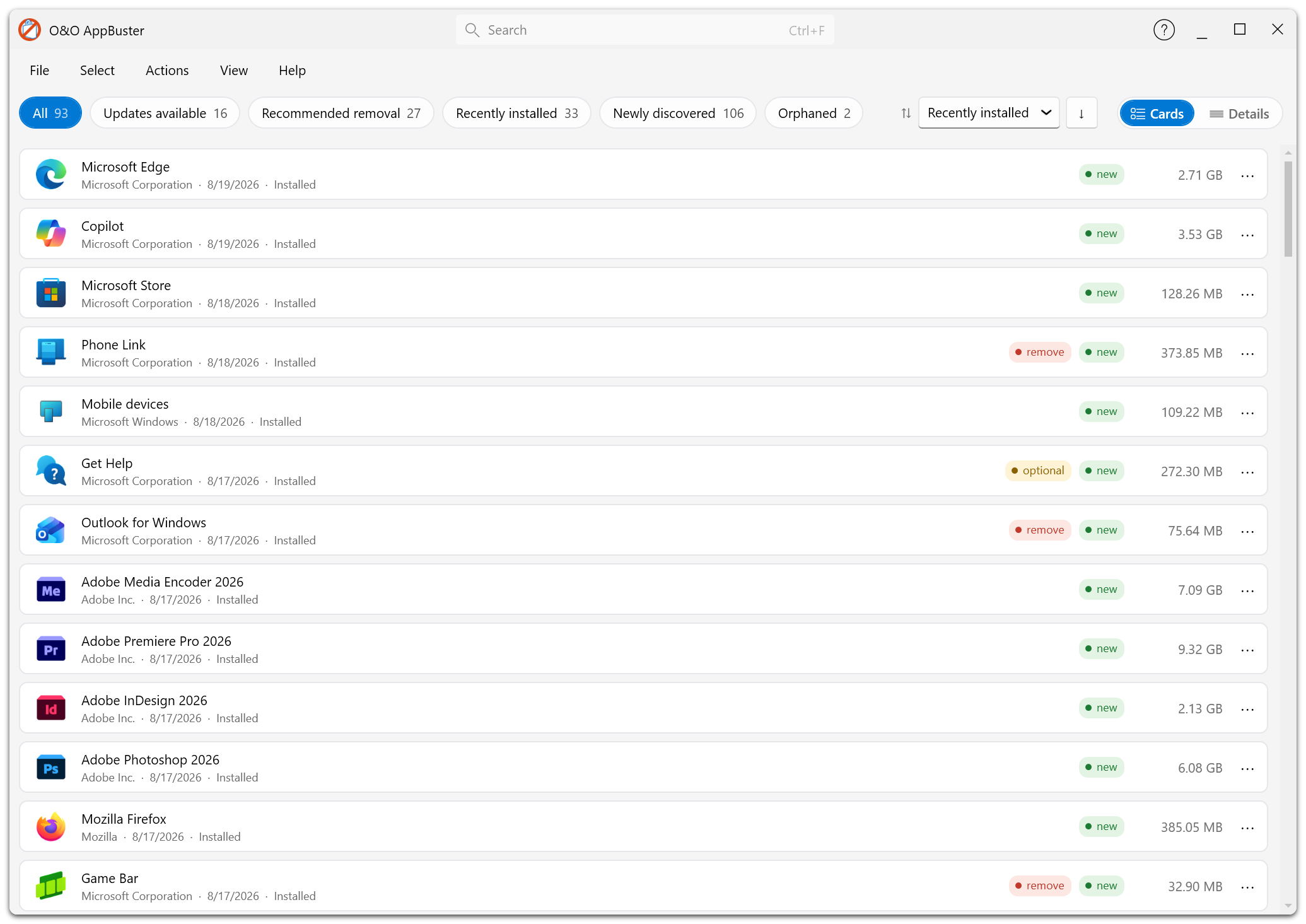
After the scan: the Smart View chips with their counts, the sort control, and the Cards / Details switch, all above the app list.
➡️ The app list
4. Create a system restore point
Before your first change, create a restore point. It is the fastest way back if something turns out to be needed after all.
- Open Actions → Create a system restore point.
- Confirm the prompt.
- Wait until the message System Restore Point being created… disappears.
O&O AppBuster also offers to create one by itself before the first change of a session.
If Windows System Protection is switched off, O&O AppBuster tells you and explains how to switch it on. You can proceed without a restore point, but on a first clean-up we would not.
5. Start with the recommendations
The safest way to begin is to let O&O AppBuster suggest what to remove.
- Click the Recommended removal chip above the list. Only apps carrying a remove recommendation are shown now.
- Review the list. O&O has marked these apps as candidates for removal, typically preinstalled games, news and weather apps, and similar extras.
- If you want everything in the list: Select → Select all apps recommended for removal.
- Untick anything you would like to keep after all.
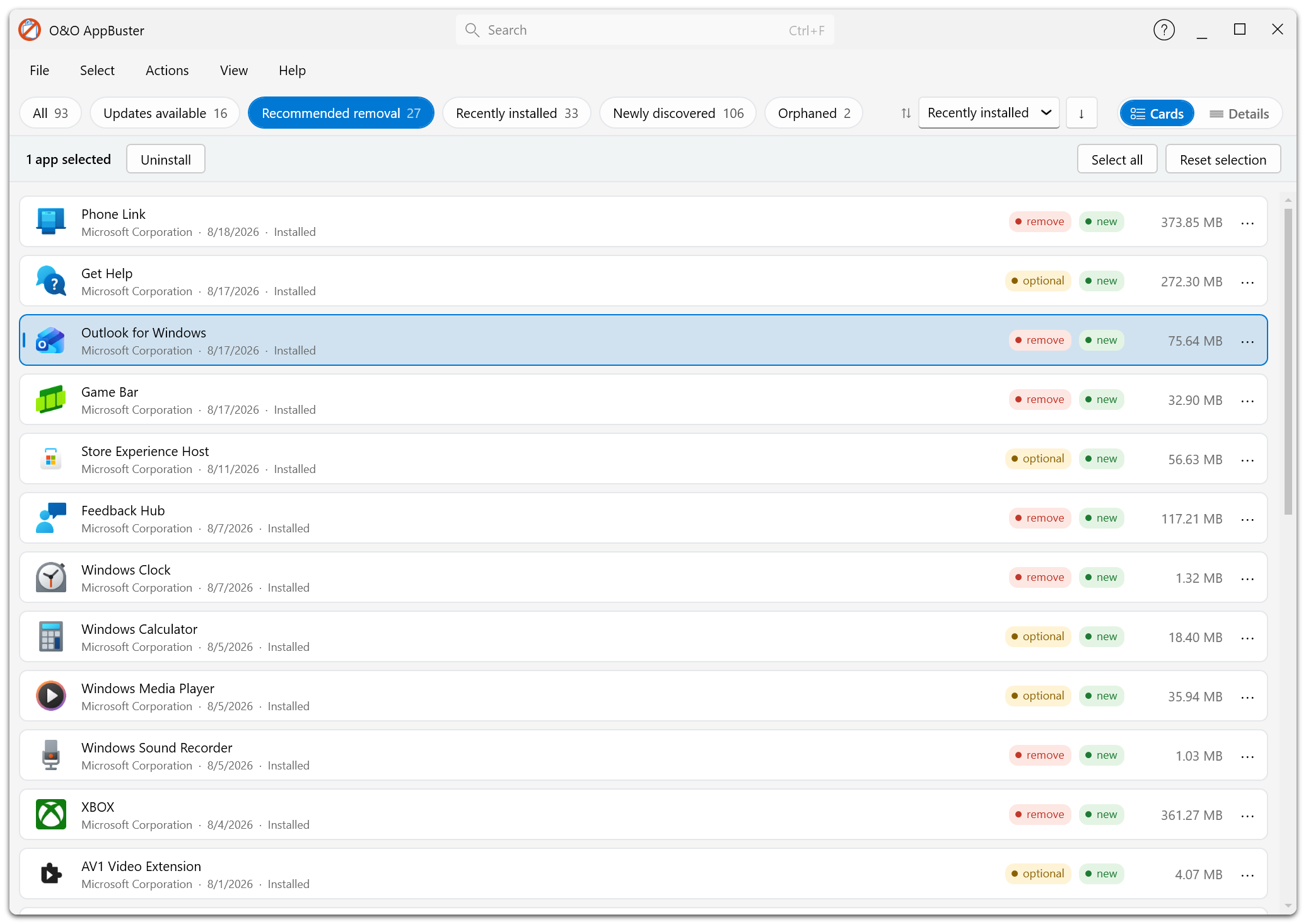
The Recommended removal view contains apps marked remove or optional. Review each app before selecting it.
remove means "nothing depends on this app". It does not mean you do not want it. If you use the Weather app every morning, keep it.
6. Remove the selected apps
As soon as at least one app is selected, an action bar appears above the list showing how many apps are selected.
- Click Uninstall.
- The removal dialog opens. Check the list of apps it is about to remove — click Review all › to see every entry.
- Choose the removal scope:
| Scope | What happens |
|---|---|
| Current user | The app is removed from your account only. |
| All users | The app is removed from every account on this PC. |
| Entire PC — including files | The app is removed everywhere and its leftover files are deleted from disk. The most thorough option. |
- Click Remove apps.
A progress dialog shows which app is currently being processed. When it has finished, you get a result summary: how many apps were removed and, if applicable, which ones were skipped and why.
The removal scope applies to Windows apps. Desktop apps are always removed by their own uninstaller — you may see its window and have to confirm its dialogs. Some uninstallers ask questions; O&O AppBuster cannot answer them for you.
7. Deal with what was skipped
Occasionally an app cannot be removed straight away, usually because one of its files is in use.
The result dialog lists these apps separately and offers:
- Close these programs and remove — O&O AppBuster releases the file and retries.
- Remove on next restart — Windows deletes the files during the next boot.
- Skip this app — leave it alone for now.
- Retry skipped — try the skipped apps again.
- Save log… — write a removal report to a file.
8. Optional: clean up leftovers
If earlier uninstallations left traces on your PC, O&O AppBuster shows two more chips:
- Orphaned — registrations and data folders of apps that are no longer installed.
- Defect — apps whose installer package is missing, so Windows can neither uninstall nor repair them.
You can clean up both categories in the same way as a normal removal. Before deleting an entry, review the notes for that category and check its properties.
➡️ Orphaned apps · Defect apps
9. Optional: install updates
If the Windows Package Manager is available, the Updates available chip shows the apps for which a newer version exists. Select them and click Update.
➡️ Updates
10. Finish up
Refresh the list with F5 to see the result of your work, then close the program.
O&O AppBuster leaves nothing running in the background. It remembers which apps were on the PC, so the next time you start it, anything new will appear in the Newly discovered Smart View.
Feature updates to Windows like to reinstall apps you removed. Starting O&O AppBuster once after a big update and checking Newly discovered takes half a minute.
What next?
- Want to know what each category means before you delete anything? → App categories
- Want to change the language, colour scheme or logging? → Settings
- Something did not work as expected? → FAQ