O&O AppBuster Documentation
Welcome to the user guide for O&O AppBuster, the free app manager for Windows 10 and Windows 11 from O&O Software GmbH.
What is O&O AppBuster?
Windows includes many apps that you may never use. Installers, updates, and incomplete uninstallations can also leave entries and files behind. O&O AppBuster brings Windows apps, desktop programs, system components, and software remnants together in one clear list, so you can decide what stays on your PC.
Unlike the Windows Apps & features page, O&O AppBuster also finds hidden and incomplete app registrations. It groups the results into useful categories and provides a recommendation for each app.
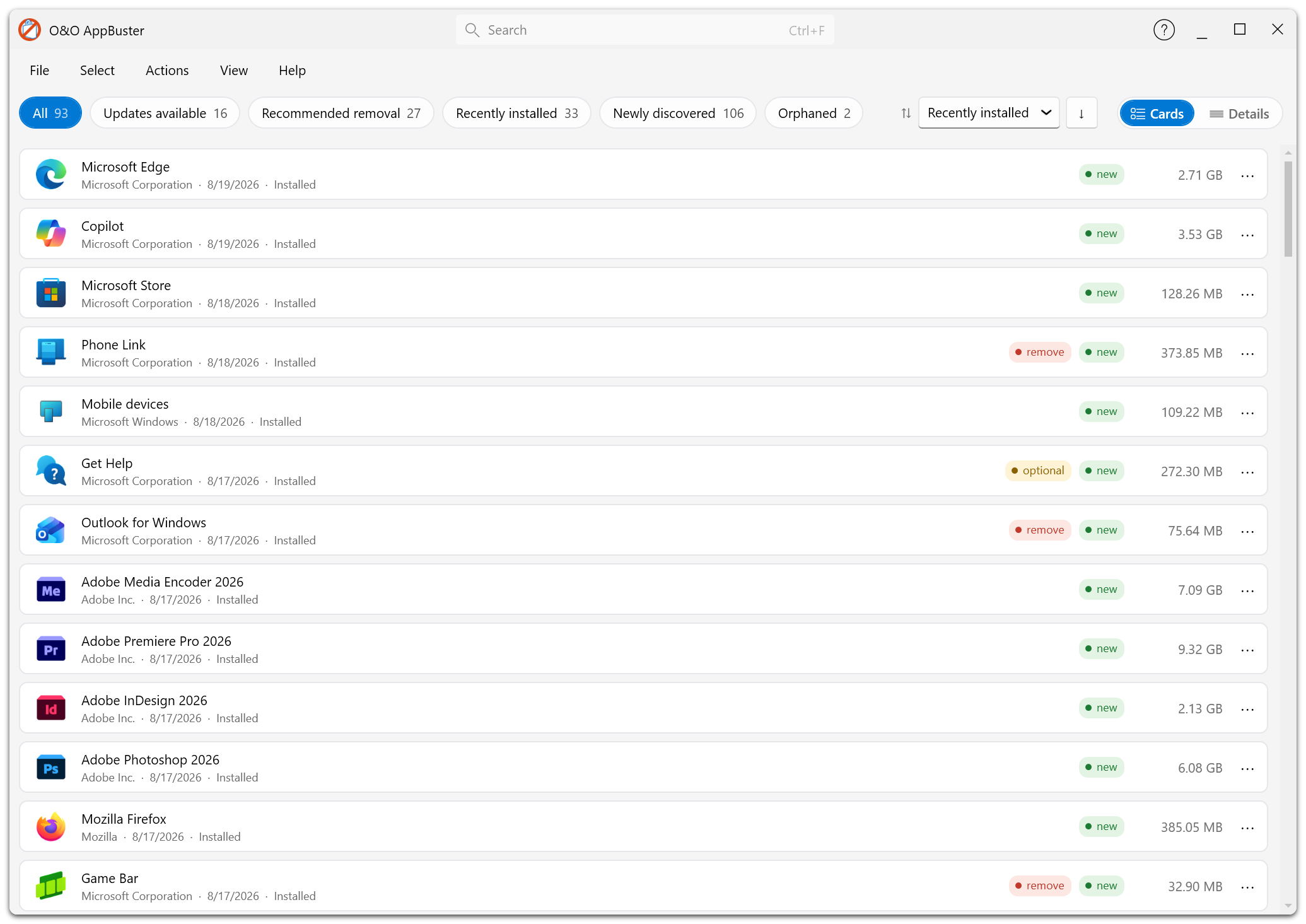
The main window shows the app list. Use the Smart View buttons above it to display the apps you need.
Key Benefits
- Everything in one list — View Windows apps, desktop programs, hidden apps, and remnants together.
- Clear recommendations — Use the keep, optional, and remove labels to help you decide.
- Remove what Windows will not — Preinstalled apps that have no Uninstall button in Windows can be removed here.
- Reversible — Removed Windows apps can be reinstalled from O&O AppBuster at any time, and a system restore point can be created before you begin.
- Cleans up leftovers — Orphaned registrations and broken installer entries that block reinstallation can be cleared away.
- Completely free — O&O AppBuster is freeware. There is no paid edition, no trial period and no feature that is held back.
What You Can Do
Remove and reinstall
O&O AppBuster removes apps for the current user, for every user on the PC, or from the machine as a whole — including the files left on disk. Windows apps that are still available on the computer can be reinstalled later, so a removal is not a one-way street.
Find what is hidden
Smart Views narrow the list down to what you are looking for with a single click: apps recommended for removal, apps installed in the last 30 days, apps that appeared since your last session, available updates, and the leftovers of previous uninstallations.
Understand before you act
Every app can be inspected before you touch it: publisher, version, install date, last use, size on disk, install location, and who the app is installed for. Recommendations and category labels put that information into context.
Clean up app remnants
Orphaned entries left behind by earlier uninstallations and defective installer registrations that make an app impossible to remove or reinstall are detected and can be cleaned up — including the registry keys and folders they left behind.
➡️ Orphaned apps · Defect apps
Freeware
O&O AppBuster is freeware. You may use it on as many PCs as you like and pass it on unchanged. There is no Professional, Premium or Enterprise edition of O&O AppBuster to upgrade to — the program you download is the complete program.
It also needs no installation: download the single executable, run it, and delete it again when you are done.
When you close O&O AppBuster, you can explore other O&O products and subscribe to the free O&O newsletter. You can also open this window at any time from Help → Explore more O&O products.... See More O&O products.
How to Use This Documentation
Use the sidebar navigation to explore the program:
- Getting Started explains what O&O AppBuster does, what "freeware" means in practice, what your PC needs, and how to get through your first session.
- Features describes the working parts of the program: the app list, Smart Views, recommendations, removing and installing apps, updates, system restore points and the settings.
- App Categories covers each kind of app O&O AppBuster distinguishes — and what you should know before removing one.
- More from O&O explains the product and newsletter window shown when you close the program.
- FAQ answers the questions that come up most often.