O&O UserManager
The O&O UserManager lets you control the local user management of your Windows systems.
- To open the O&O UserManager, click Start/Programs/Administrative Tools and then UserManager.
note
O&O UserManager can only manage local user accounts. No changes can be made to a domain controller.
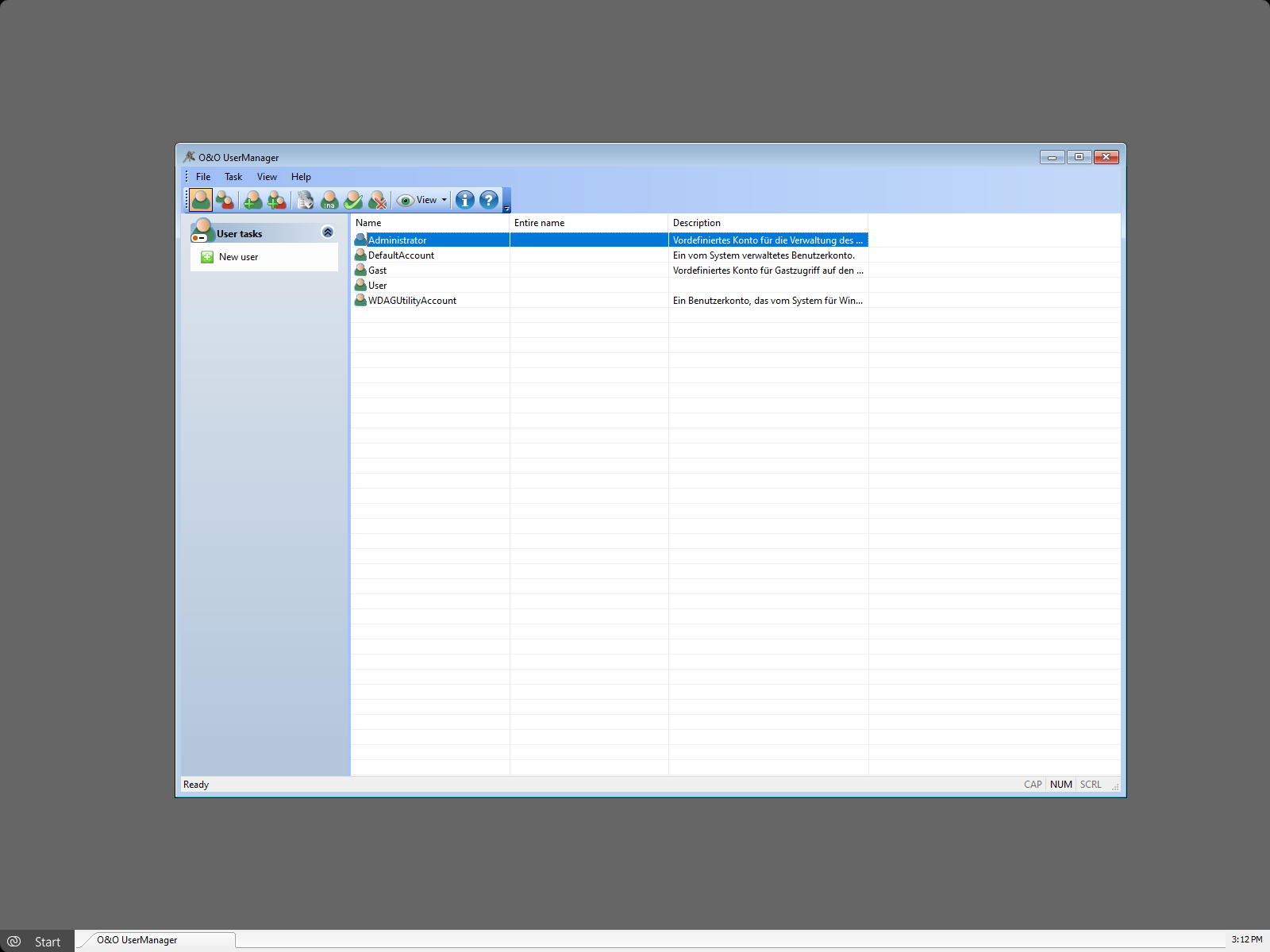
Change user profiles
- Select the icon Create user profile.
- Select the user in the user list whose profile you want to change.
- Make the desired modification e.g. password or name under user activities.
warning
If you want to change passwords with O&O BlueCon, you won't have access to encrypted files. The coding cannot be decrypted after the password is changed!
note
It is not possible to decrypt used passwords. But you can change passwords even if you don't know the old password. This is recommended if, for example, a user has forgotten his password.
Create user
- Select the icon User account.
- In the menu User activities you can create a user profile with New user.
- The new user will appear to the right of the user list.
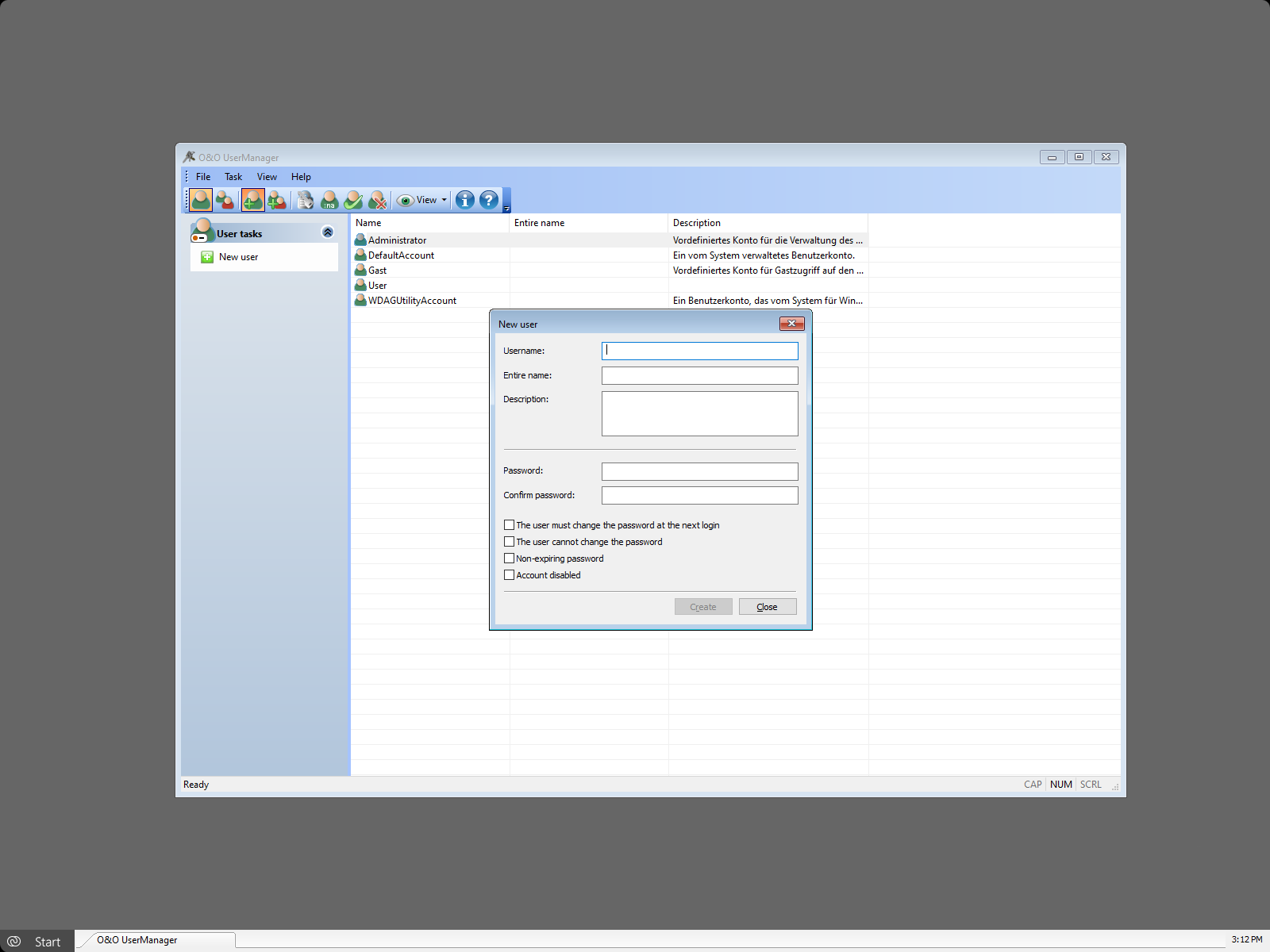
Create user groups
- Select the Icon User group.
- Click New group under Groups activities.
- You can add new users to the group in the dialogue window under Add.