Create a boot environment
With O&O BlueCon, you can quickly and easily create a bootable emergency medium. This allows access to systems that no longer start and provides all tools required for maintenance, repair, and recovery tasks.
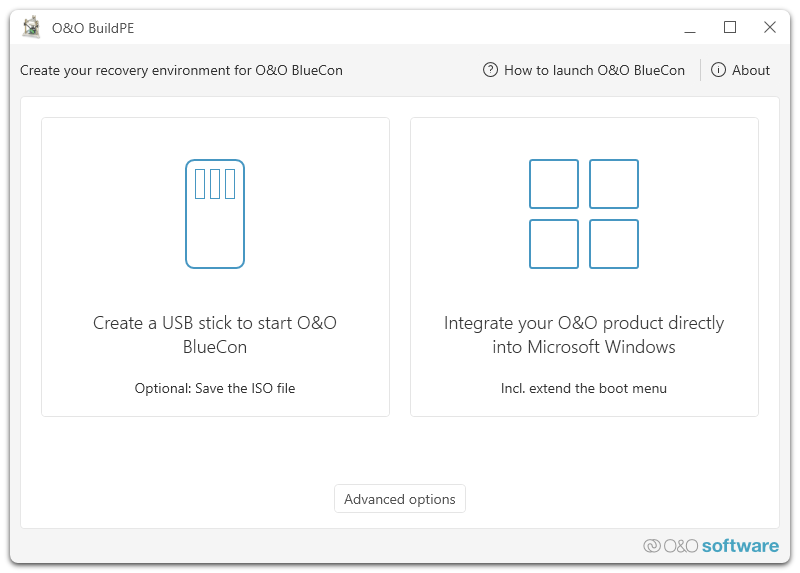
Before you begin, make sure that you have purchased and downloaded O&O BlueCon. You will also need a suitable storage medium for the boot environment—typically a USB flash drive with sufficient free space. Alternatively, O&O BlueCon can be integrated directly into an existing Windows installation.
Creating a USB Flash Drive, ISO, or WIM Image
Select the target medium on which the boot environment will be created. In most cases, a USB flash drive is recommended, as it is flexible and can be used directly as a boot device.
- Connect the USB flash drive to your computer
- Select the desired target medium (USB flash drive, ISO, or WIM)
- Start the creation process
Depending on the purchased license, O&O BlueCon automatically creates the version of the boot environment that is appropriate for you.
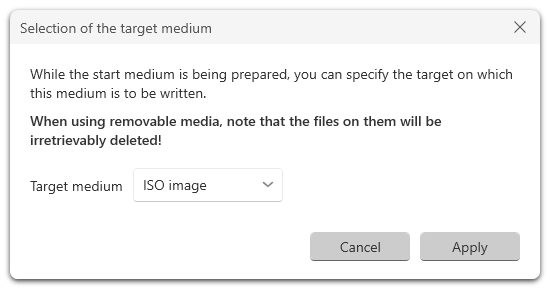
The selected USB flash drive will be completely overwritten during the creation process. All data stored on it will be irreversibly lost!
Once the process is complete, you will receive a confirmation that the boot medium has been created successfully. The medium can then be safely removed from the computer.
Starting O&O BlueCon from the Boot Medium
To use the boot medium, restart your computer and configure the BIOS or UEFI boot order so that the system boots from the USB flash drive (or the corresponding medium).
After a successful start, you will have direct access to all O&O BlueCon tools and can immediately begin maintenance, repair, or recovery tasks.
Integrating O&O BlueCon into Microsoft Windows
Alternatively, O&O BlueCon can be integrated directly into the Windows Recovery Environment. This allows the system to be started into the O&O BlueCon environment via the Windows boot menu in case of errors—such as bluescreens, startup problems, or malware infections.
This method is particularly convenient, as no external boot medium is required.
Integrating the boot environment into remote systems is not supported for certain configurations.
After the integration process has completed successfully, you will receive a confirmation. Restart the computer and select O&O BlueCon from the list of available boot options in the boot menu. O&O BlueCon will then load and be immediately available.