O&O DeviceManager
O&O DeviceManager provides a comprehensive overview of the hardware installed on the system as well as system-relevant Windows services. It is divided into two main areas:
- Driver Management
- Service Management
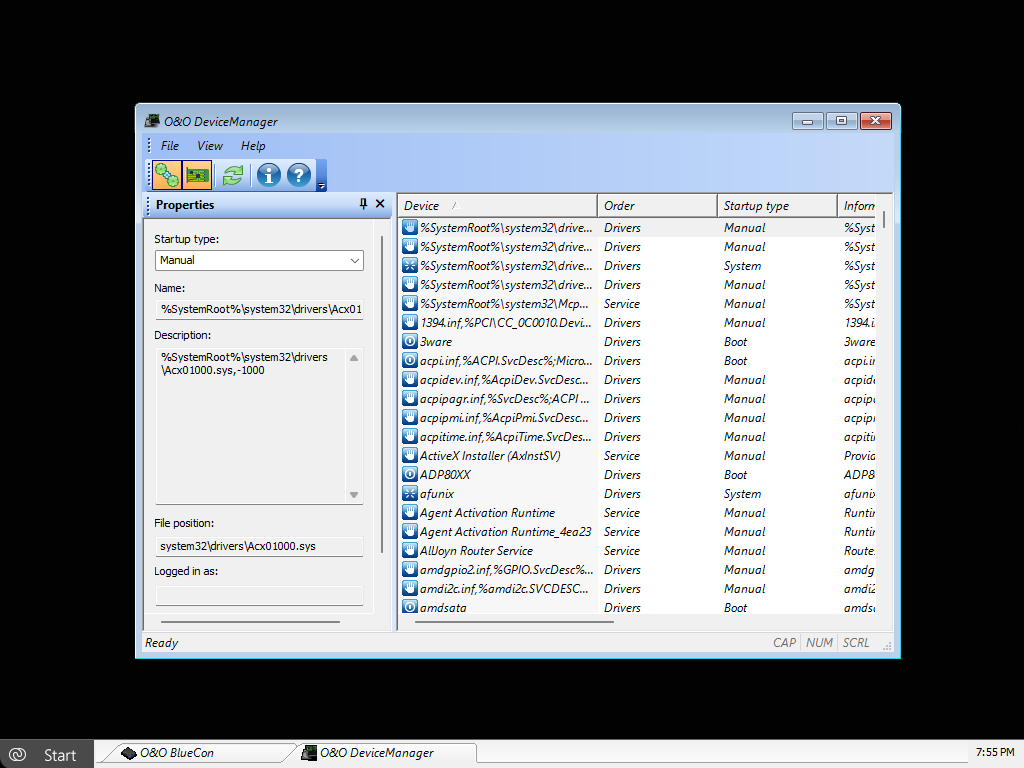
Starting O&O DeviceManager
- To open Driver Management, go to
Start / Programs / Administration / Driver Management - To open Service Management, go to
Start / Programs / Administration / Service Management
Driver Management
Driver Management allows you to specifically control the startup timing of hardware and software drivers. This function is particularly useful when faulty or incompatible drivers prevent Windows from starting or cause blue screens.
Select the Driver Management icon to display a list of all detected drivers. Then select the desired driver to modify its startup behavior.
Driver Startup Modes
The following startup options are available:
-
Disabled
The driver is not loaded.
This setting is suitable for completely preventing problematic drivers from starting. -
Boot
The driver is loaded very early during the boot process, before other system components start. -
System
The driver is loaded after boot drivers and initialized by the system at a later stage. -
Auto (Automatic)
The driver is automatically loaded after all boot and system drivers have started. -
Manual
The driver is not started automatically and must be activated manually if required.
Disabling essential drivers (e.g., for mass storage controllers or system buses) may prevent Windows from starting. Only make changes if you are certain of the driver’s function.
Service Management
In addition to Driver Management, Service Management is available. It allows you to modify the startup type of Windows services.
This is particularly useful for:
- disabling faulty services
- temporarily turning off unnecessary services
- restoring system startup after failed updates
Operation is analogous to Driver Management:
- Open Service Management.
- Select the desired service.
- Change the startup type according to your requirements.
Tip: Disabling non-critical services can help stabilize system startup, but should always be done selectively and with clear intent.
Typical Use Cases
- Windows no longer starts after driver installation
- Blue screens occurring directly during boot
- Failed Windows or driver updates
- Analysis of startup problems in offline systems