O&O FileExplorer
If a Windows system is damaged or no longer bootable, access to important files is often no longer possible. O&O FileExplorer allows full navigation through the computer’s file system and is primarily used for secure data backup and file management in emergency situations.
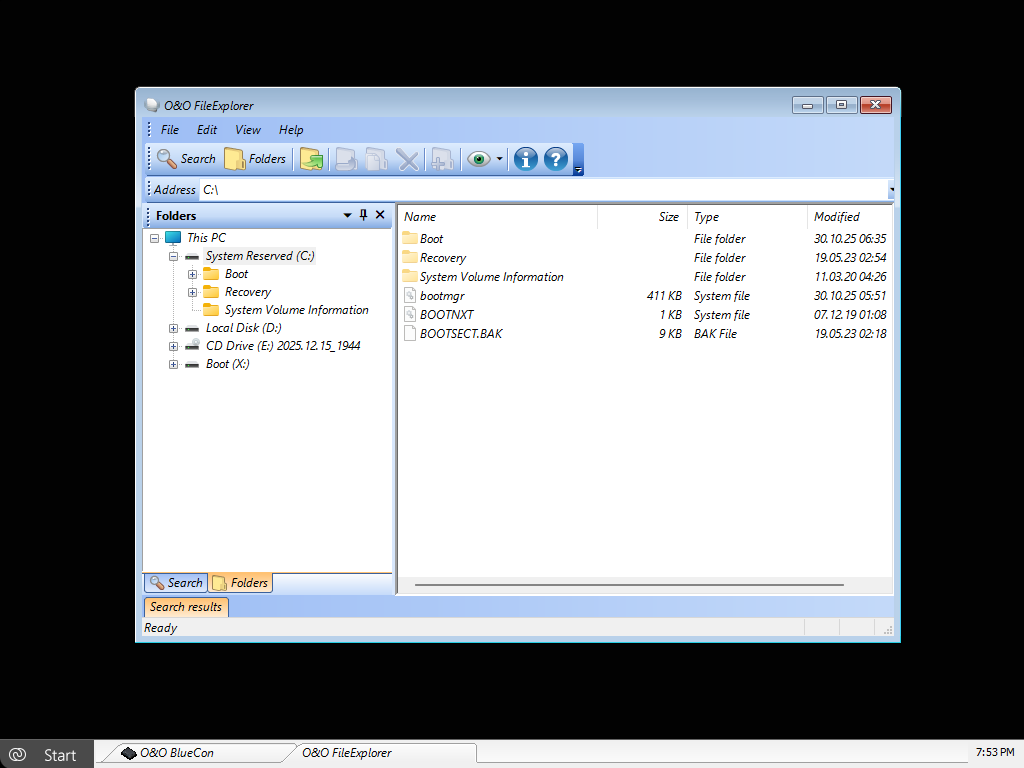
To open O&O FileExplorer, click Start / Programs / FileExplorer from the Start menu.
Searching for Files and Folders
The integrated search function allows you to specifically search for files or folders.
- Click Search in O&O FileExplorer.
- Enter the name of the file or folder you are looking for.
- Optionally, refine the search using additional criteria such as file type or storage location.
Tip: On large storage devices, it is recommended to limit the search to specific drives or folders to reduce search time.
Copying, Moving, or Deleting Files and Folders
Files and folders can be conveniently copied, moved, or deleted using the context menu. Alternatively, the corresponding functions are also available via the toolbar.
These functions are particularly useful for:
- backing up important user data
- cleaning up damaged directory structures
- selectively removing problematic files
If external storage devices are connected after O&O FileExplorer has been started, O&O FileExplorer must be restarted so that all drives are detected correctly.
Connecting a Network Drive
A special feature of O&O FileExplorer is the ability to connect network drives to Windows shares on remote systems. This is ideal for backing up data directly to servers, NAS systems, or other computers on the network.
To establish a network drive connection:
- In the O&O FileExplorer file menu, click Connect Network Drive.
- Select an available drive letter.
- Enter the UNC path to the desired share (e.g.,
\\Server\Share). - Log in using a valid user account for the target system.
Explicitly disconnecting network drives is not provided in O&O FileExplorer, as this is generally not required.
If disconnection is necessary, it can be performed via Start / Run using the following command:
NET USE <Drive>: /DELETE
Drive, File, and Permission Properties
Permissions
To view the access permissions of a file or folder, select Permissions from the file menu or the corresponding context menu.
File Properties
File properties can be viewed and managed via the context menu of a file. This includes:
- viewing and modifying file attributes
- viewing NTFS access permissions
Removing NTFS permissions may permanently prevent access to files. Adding NTFS permissions afterward is not possible in O&O BlueCon.
Drive Properties
By selecting Properties from the context menu of a drive, you can view detailed information such as:
- total capacity of the storage device
- used disk space
- available free space
This information is especially useful to ensure sufficient storage capacity is available for backups or data recovery operations.