Microsoft PowerShell
Microsoft PowerShell is used in O&O BlueCon as a command-line environment for entering commands directly. It allows the execution of individual commands as well as batch files, and is particularly suited for experienced administrators who want to perform system-level tasks manually or via scripts.
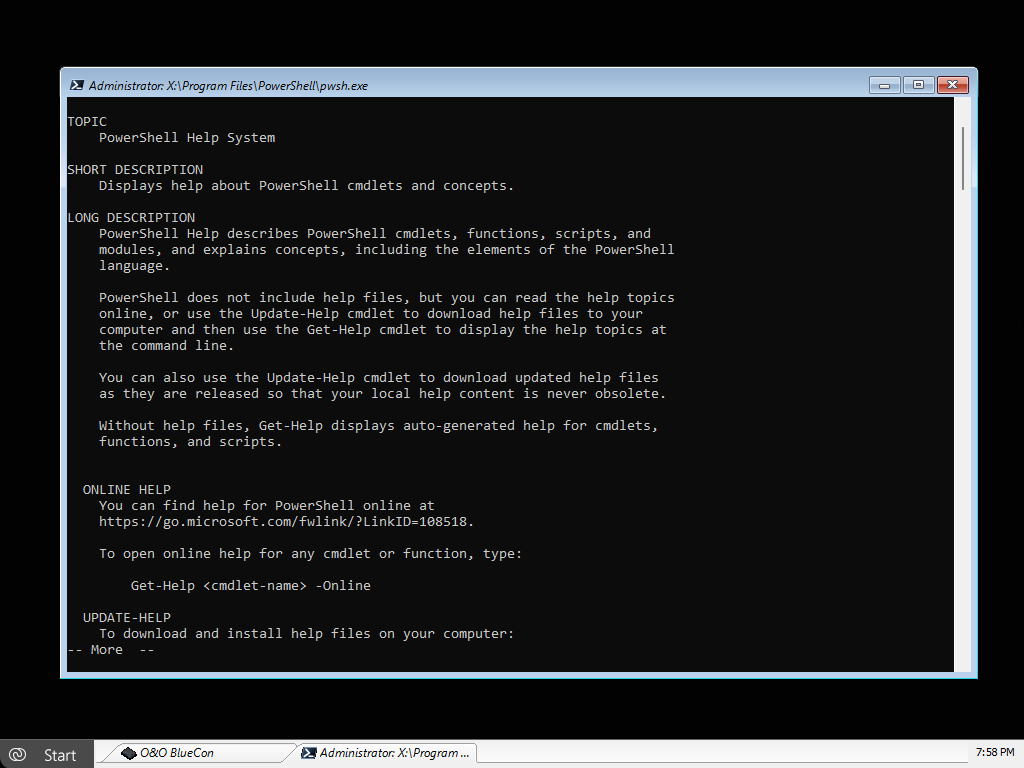
To open Microsoft PowerShell, click Start / Programs / Accessories / Command Prompt.
Using the command line, you can, among other things:
- retrieve system information
- perform file system operations
- manage network connections
- execute repair and diagnostic commands
The HELP command lists all available commands along with a brief description of their function. Please note that the output scrolls automatically once the bottom of the screen is reached.
Some commands offer the option to display output page by page. This can be controlled using appropriate parameters, for example: dir /p.
A detailed description of all available commands and their parameters can be found in the Command Reference of this documentation.
Batch Processing
Microsoft PowerShell provides support for batch processing, which allows multiple commands to be executed automatically in sequence. This is especially useful when recurring command sequences are required and individual commands do not need to be entered manually each time.
To create a batch file, proceed as follows:
- Create a new ASCII text file using a text editor, for example O&O Notepad.
- Enter the required commands along with their arguments.
Always use one command per line. - Save the file with the .BAT extension.
It is recommended to use a filename in 8.3 format, as short filenames are easier to access in console mode. - Start the batch file from Microsoft PowerShell, for example:
C:\TEST.BAT.
The commands contained in the batch file are then executed in the specified order.
To abort the execution of a batch file prematurely, press Ctrl + C.