O&O UpdateRemover
Removing Updates
If a Windows update causes problems—especially when the system no longer starts—you can use O&O UpdateRemover to selectively remove faulty updates, even outside the Windows Recovery Environment.
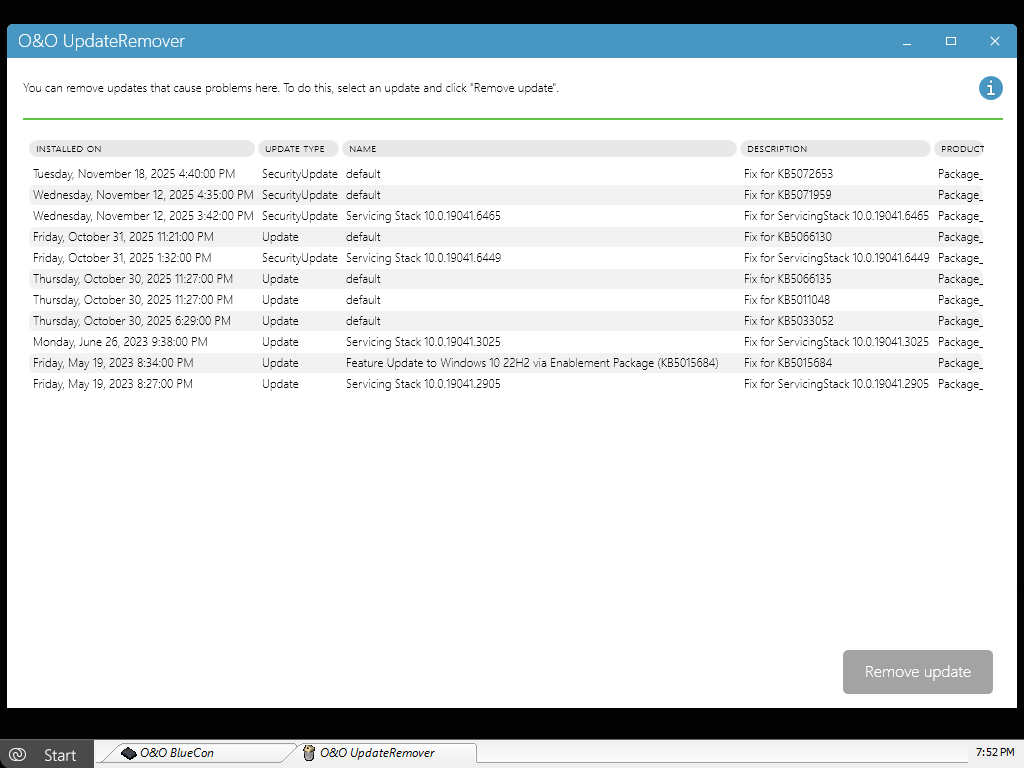
After starting O&O UpdateRemover, all Windows updates installed on the system are scanned. Depending on the system’s uptime and the number of installed updates, this process may take some time.
Once the list has been fully loaded, proceed as follows:
- Select the update to be removed by clicking it in the list.
- Click Remove update in the lower-right corner.
- The progress of the removal process is displayed in the lower section of the window.
Canceling an Update Removal
An ongoing removal process can be canceled at any time. Canceling does not cause the update to be reinstalled. Instead:
- the current action is terminated in a controlled manner
- the system is returned to a consistent state
In certain situations, it may be necessary to complete the removal of an update in order for the system to become bootable again.
If an incorrect update is removed by mistake, it can be reinstalled at any time after Windows has started successfully using the standard Windows Update features.
Typical Use Cases
- Windows no longer starts after an update
- Blue screens after Patch Tuesday updates
- Incompatible security or driver updates
- Failed automatic update installations