O&O UserManager
With O&O UserManager, you have full control over the local user management of a Windows system. This tool is designed specifically for emergency and maintenance scenarios where access to Windows is no longer possible, user passwords have been forgotten, or user accounts need to be managed offline.
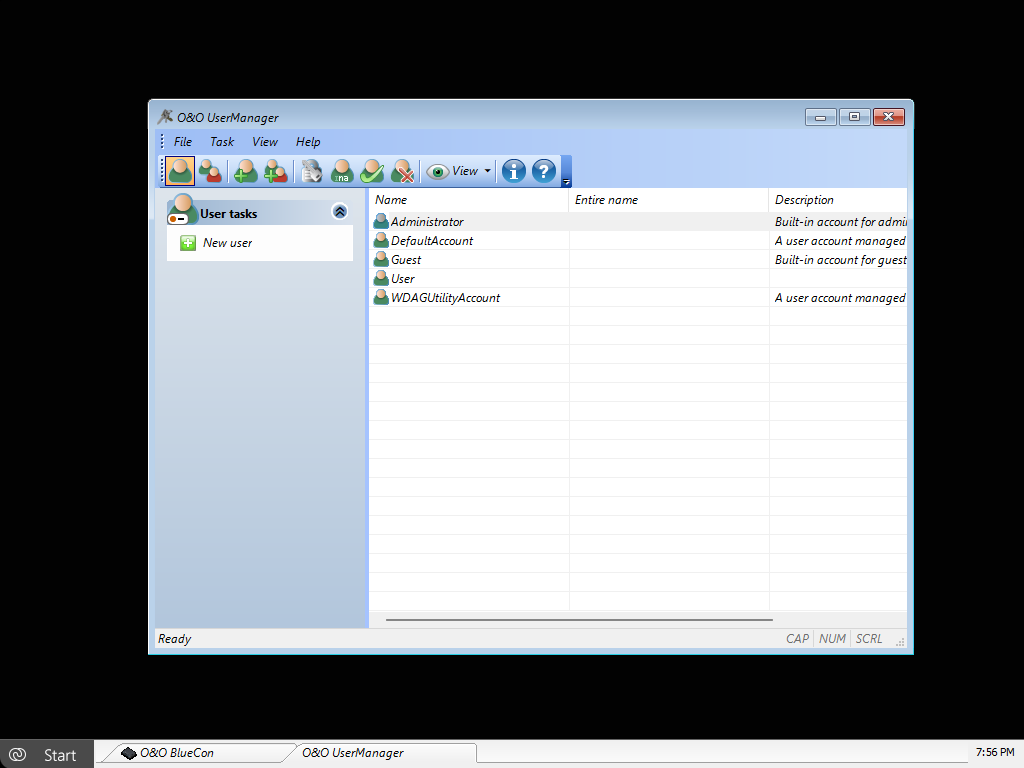
To open O&O UserManager, click Start / Programs / Administration / User Management.
O&O UserManager can manage local user accounts only. Changes to domain accounts or online accounts (e.g., Microsoft accounts) are not possible.
Using O&O UserManager, existing user profiles can be modified, new users can be created, and user groups can be managed. All actions are performed offline directly on the target system.
To modify an existing user profile, select the Create User Profile icon, then select the desired user from the list and perform the required action under User Actions, such as changing the password or user name.
If passwords are changed using O&O BlueCon, access to encrypted files (e.g., EFS) will no longer be possible. Existing encryption cannot be restored after a password change.
Existing passwords cannot be decrypted. However, passwords can be changed even if the original password is unknown. This is particularly useful when a user has forgotten their password.
New user accounts can also be created directly. To do so, select the User Accounts icon and create a new user profile via User Actions / New User. The newly created user will then appear in the user list.
Newly created users are not assigned to any user group by default and therefore do not have elevated privileges.
In addition, new user groups can be created. Select the User Group icon and create a new group via Group Actions / New Group. In the subsequent dialog, users can be assigned directly to the group.