Job settings
Select drives
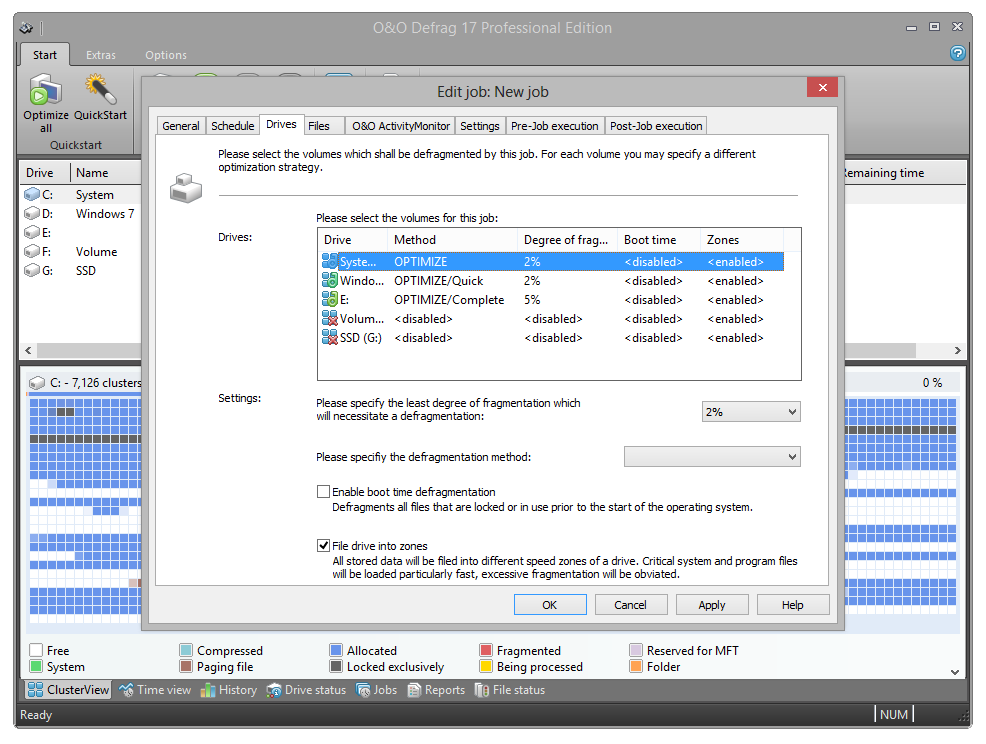
Specify the defragmentation method for each drive you want to optimize. You can also enable boot time defragmentation for each drive, so that blocked files can be defragmented when your system starts up.
By entering a minimal fragmentation level, you can define the fragmentation level at which defragmentation will automatically be started. You can thereby reduce significantly the number of defragmentation runs needed, if you don’t require a fully defragmented system all the time. A 0% level of fragmentation means that defragmentation is being run at all times. We would recommend you enter a value of between 2% and 6%.
You can also specify whether the data of a drive should be filed into zones during defragmentation. This division will allow for even faster system and program starts. In addition, important system and program files will be prevented from fragmentation.
Exclude and include files
You can specify individual settings for every job. These settings complement the global settings for this computer while the job is running.
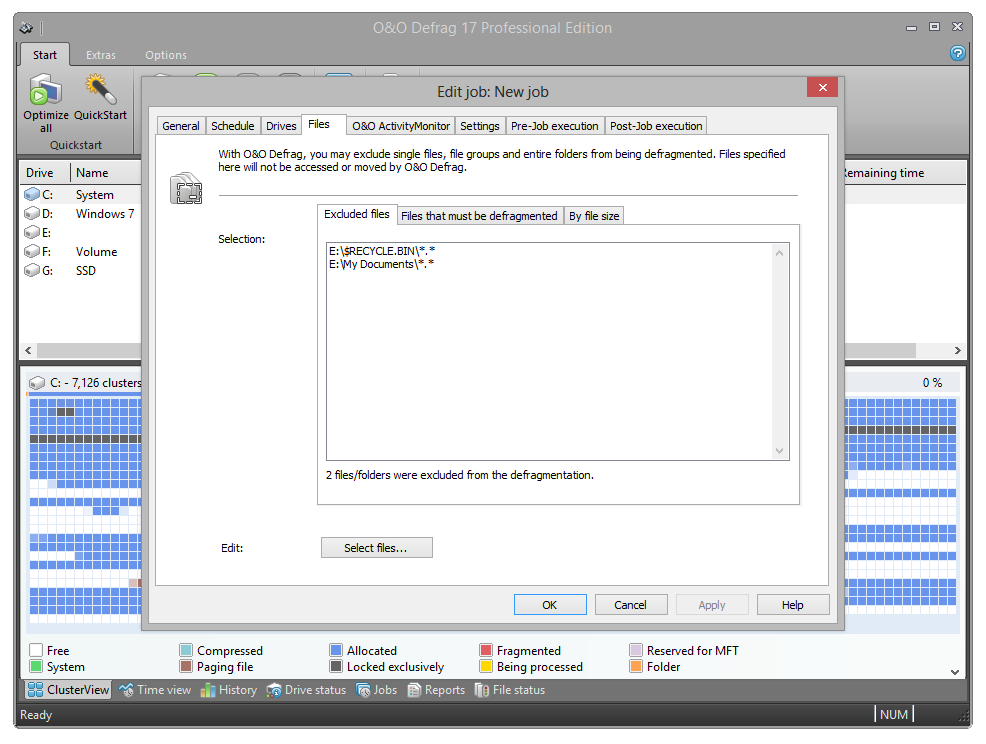
Under Files in the Job assistant, you can exclude files and folders from defragmentation. You can for instance exclude a complete folder, but still put certain files from it the list of files to be defragmented. In addition, you can also specify that large files should not be defragmented or moved due to time constraints.
Exclude files
Under Excluded files you can specify which files you want to exclude from defragmentation.
- Click Select files.
- Select the file or the folder you wish to exclude in the dialogue in the Explorer view and click Add. You can also allocate more files and folder to the selection.
- If you have made your selection, confirm your entries with Apply.
Include files at all costs
Under Files that must be defragmented you can specify which files must be defragmented, even if they have been excluded previously due to a higher ranking condition.
- Click Select files.
- Select the file or the folder you wish to exclude in the dialogue in the Explorer view and click Add. You can also allocate more files and folder to the selection.
- If you have made your selection, confirm your entries with Apply.
By size
Optionally, you can also exclude very large files from the defragmentation due to time constraints. In the dialogue specify the size above which a file should not be optimized or moved during defragmentation.
O&O ActivityMonitor for jobs
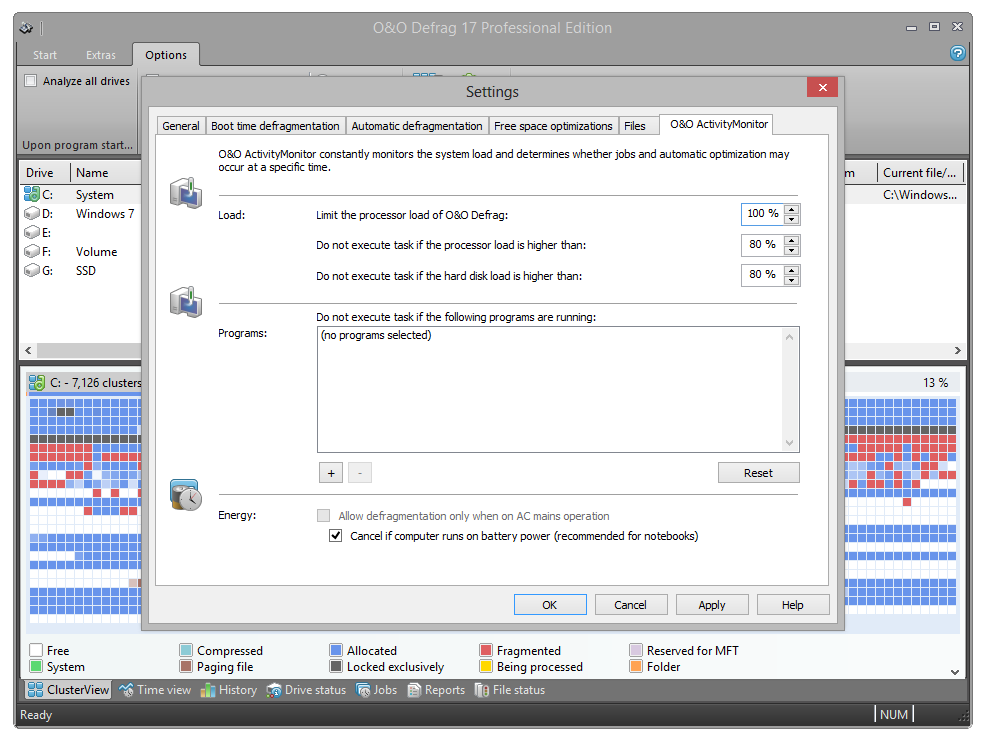
Under O&O ActivityMonitor, you can specify the start of a job depending on the system load as well as the maximum share of the CPU that may be used by O&O Defrag at one time.
System load
Here you can specify that O&O Defrag should not exceed the CPU by a certain value during a defragmentation. In addition, you also have the possibility to prevent a job from being run if the target drive is in heavy use or other programs are consuming much CPU.
Program list
Here you can specify that a job should not be run if certain other programs are currently being executed. These programs could include imaging programs, a virus scanner, or even games. For this, click the plus sign and select the programs in the browser window.
Energy
Jobs can also be scheduled to run only if the computer is working from a main power supply, which is very useful when using notebooks.
If a computer is in standby mode whenever a job is scheduled to start, the job cannot be executed. Here you can also set to reactivate the computer from the standby mode to successfully run a job.
Further job settings
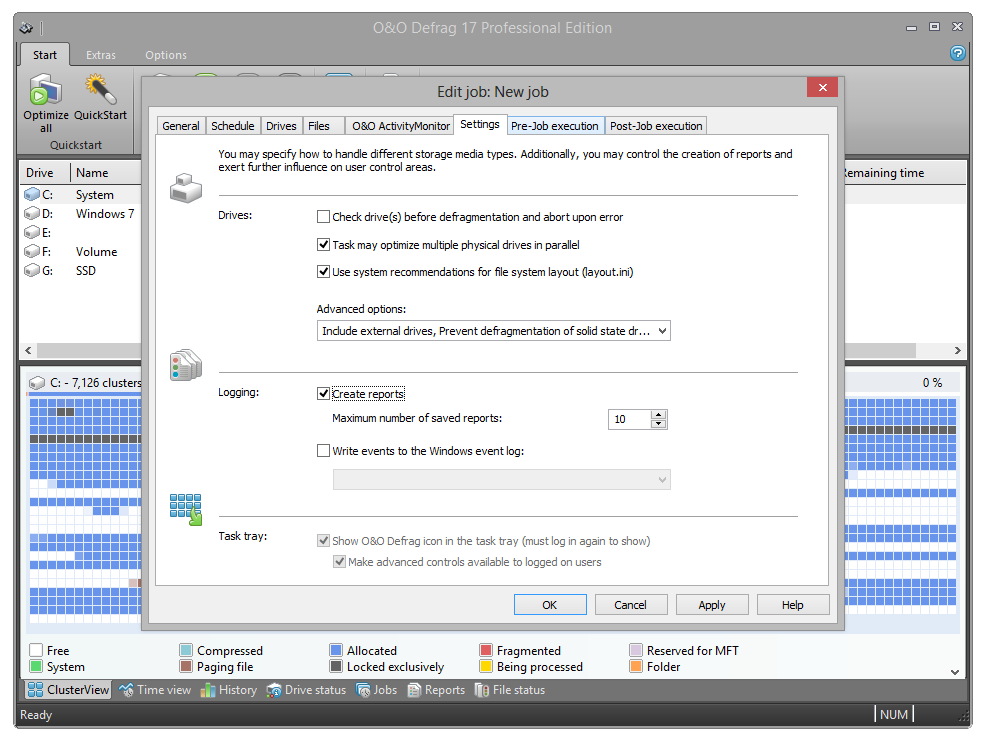
Under Settings in the job dialogue you can influence the default behavior of different drive types during the job execution.
Check drives before defragmentation and cancel if errors exist
You can have O&O Defrag check the integrity of your drives before a defragmentation. If O&O Defrag finds an error on one of your drives, the defragmentation will not be run (for safety reasons). Checking the drives corresponds with the Windows chkdsk function, yet, it only can run scans in the read-only mode and thus not correct errors. In case of error, you need to run the chkdsk command manually.
Job may defragment several physical data volumes at the same time
You can defragment your drives either parallel or sequentially. Sequential defragmentation means that one drive will be defragmented after the other, in alphabetical order.
During parallel defragmentation, partitions that are located physically on different hard disks are processed at the same time. This shortens the total time needed for completing defragmentation but also leads to a higher system load by O&O Defrag. If you only have one hard disk in your computer, all partitions on it will be defragmented sequentially.
Considering the system parameters on how to allocate files.
Only valid for Windows 7, Vista and XP: during defragmentation, the layout.ini file is used as reference to allocate files optimally on the hard disk. The optimal sequence for start files proposed by the operating system will be considered in order to initiate the system start as quick as possible.
Under Advanced options you can specify how different drive types are supposed to be handled during the completion of the job:
- Include removable drive
Removable drives (e.g. ZIP, Jaz or DVD RAM) can also be defragmented. - Include external drives
It is also possible to defragment drives that are connected by an external interface, such as a USB or FireWire. - Protect SSD drives from defragmentation
SSD-drives are subject to physical wear out of flash chips and this might be made worse as a result of defragmentation. Based on their special construction, defragmentation will not increase performance of SSDs. They should not be defragmented, see "SSD optimization". - File into zones
This option is enabled by default. The data is filed into different hard disks areas (zones) during the defragmentation based on access requirements, also see "Zone filing".
Reports and Logging
You can create status reports in an HTML format. A maximum of 999 reports can be created and saved.
Please enable this function if you want to log all O&O Defrag activities into the Windows Event log. You can specify the detail level for notifications - whereas level 1 only logs errors and level 4 stores all the information available. Please bear in mind that this might lead to many log entries, which in turn overwrite entries by other programs or systems.
Run scripts before and after a job
Running batch commands before and after a job enables you, for example, to pause certain Windows services before defragmenting and then continuing them afterwards. Files that are normally in use by other applications can now be defragmented online. If you use O&O Defrag on a Microsoft Exchange or SQL-Server, you can pause these services before defragmentation, optimize the drives and then automatically continue with the services. You no longer need to create a script to do this.
Please note: All commands must exist and be capable of running on the target computer. All commands are run under the SYSTEM username with the maximum system permissions.
Running scripts before a job
When this option is enabled, all the commands entered into the text field will be run before defragmentation. You can also import an existing file and insert its contents into the text field.
To do so, simply click the Import button and select the desired file in the dialog box (.BAT, .CMD, or .TXT). Confirm with OK.
Running scripts after a job
If this option is enabled, the commands entered in the text field will be run after defragmentation. The entering and running of commands after a job are similar to those run before a job.