Schedule defragmentation jobs
Defragmentation on a regular basis is the key to maintaining top performance. O&O Defrag offers you a sophisticated scheduling system so that you don’t have to run the defragmentation manually each time.
Defragmentation jobs allow you to define the time, the activity and the additional parameters for defragmentation. All job settings may be specified, as you can see from the settings dialogue.
You can create, edit and delete jobs. If you want to leave out a job for a short period of time, but don’t wish to cancel it completely, you can disable it. In this way, the job will not be run until you enable it once again.
- To create a new defragmentation job, select Create in the ribbon bar. You can then define all settings for the jobs in the O&O Defrag job dialogue.
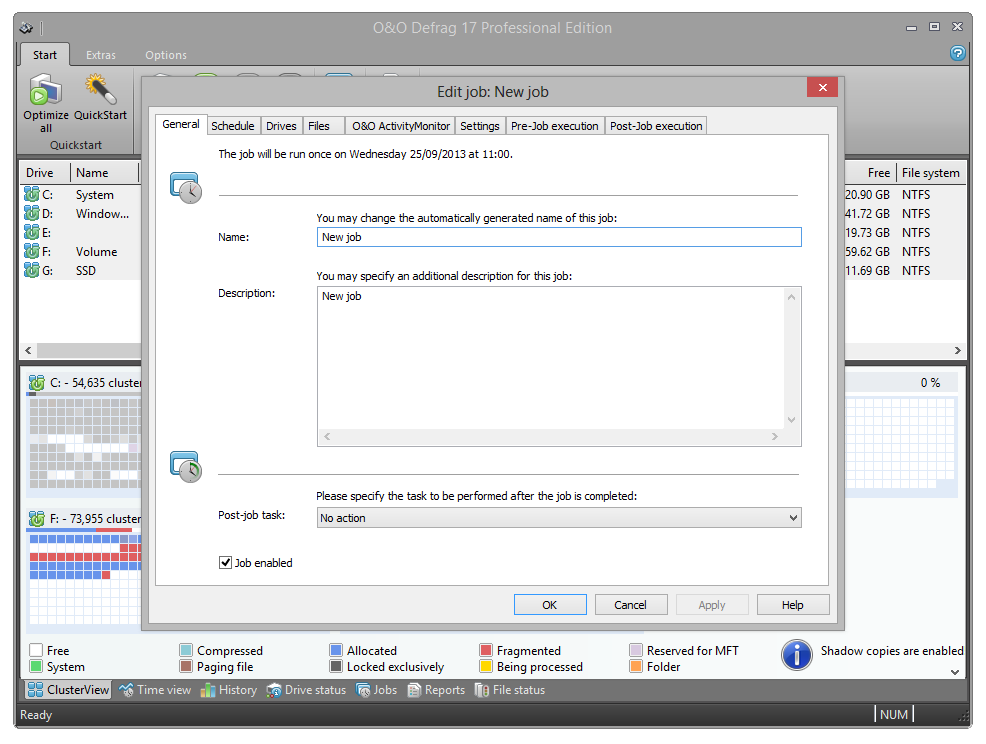
Create a job – General
Enter the name of your job. This name will later be used for creating reports and will provide information about the action the job runs. The name of the job is only important for this purpose and it is possible to use this name for other jobs too. In the field Notes you may enter text that can provide a few details about the job.
Post-job task
Here you can optionally select an activity you want completed after defragmentation. If your system BIOS supports power management functions, you can get O&O Defrag to shut down or restart your system when the defragmentation is finished.
Shut down: the operating system will be shut down after the defragmentation job has been completed.
Restart and run Boot time defragmentation: The computer will be restarted after the defragmentation has finished, and will then run a boot time defragmentation.
Restart and shut down after boot time defragmentation: The boot time defragmentation can be executed after the restart. You can then leave your computer while it is being defragmented – It will shut down afterward automatically.
Edit, duplicate or delete jobs
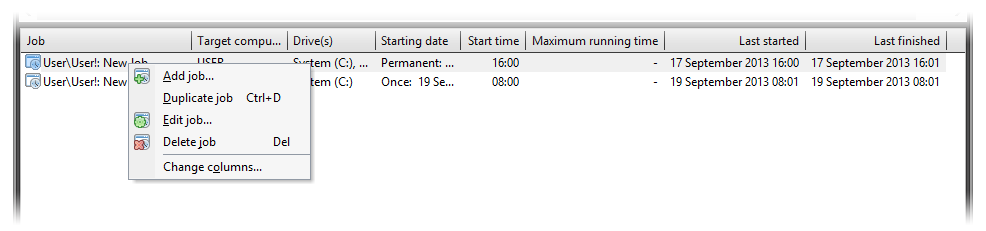
You can modify a job at a later time, by selecting it in the job view and then right-clicking and selecting Edit. The O&O Defrag job dialogue will appear with the options for that job. Make the changes and confirm your entries with OK.
Duplicate a job
If you are using an already existing job and want to edit it, you may duplicate it. Select the job from the job list, right-click it and select Duplicate job.
You can select the job with a double click, and then edit and save it in the corresponding job dialogue.
Delete a job
To delete a job, select it in the job list, right-click on it and select Delete job. The job will then be deleted. The execution of the job is cancelled immediately.