Plan a schedule
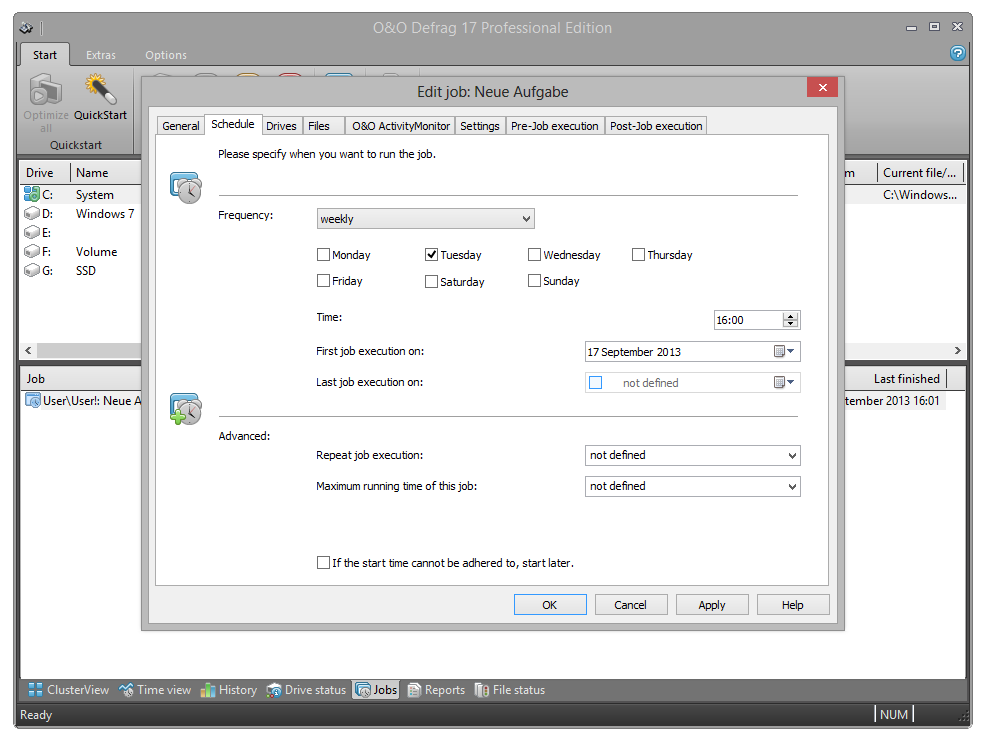
Under Schedule you can specify the time of execution. You can schedule a job for one time only or repeatedly at a specified week day, or whenever the Screen saver is running. The options for how this should be done will change according to the way you select to run the job.
With the help of the start and end date (First job execution/Last job execution) you can specify the time frame, in which the job is to be executed. The maximum running time limits the running of a job to a particular time frame, after which the job will stop whether it has finished or not. It will be continued at the next run.
You can also enter advanced options. If you want to run the job several times a day, enter the desired interval under Advanced/Repeat job execution.
The option If the start time cannot be adhered to, start later is meant for computers that are not switched on the whole time. Normally, a job is skipped if the computer is shut down, and will be continued whenever it is turned on again. If this option is enabled, the defragmentation will be run whenever the computer is switched back on. This ensures that your job won’t be ignored.
Screen saver mode
O&O Defrag can be instructed to always start when the screen saver is active. A defragmentation will be run automatically, if your computer is not in use.
Create a new job for doing this and in the Schedule tab, select Frequency/ScreenSaver. All other settings are specified by O&O Defrag itself.
As soon as the screen saver ends (login, etc), the running defragmentation stops.
Make sure that the screen saver is enabled. Otherwise, it is not possible to start the O&O Defrag screen saver mode. More information on enabling the screen saver can be found in the Windows help file.