Rules for individual drives
You can customize the default configuration according to your wishes and create new settings for individual drives or drive groups.
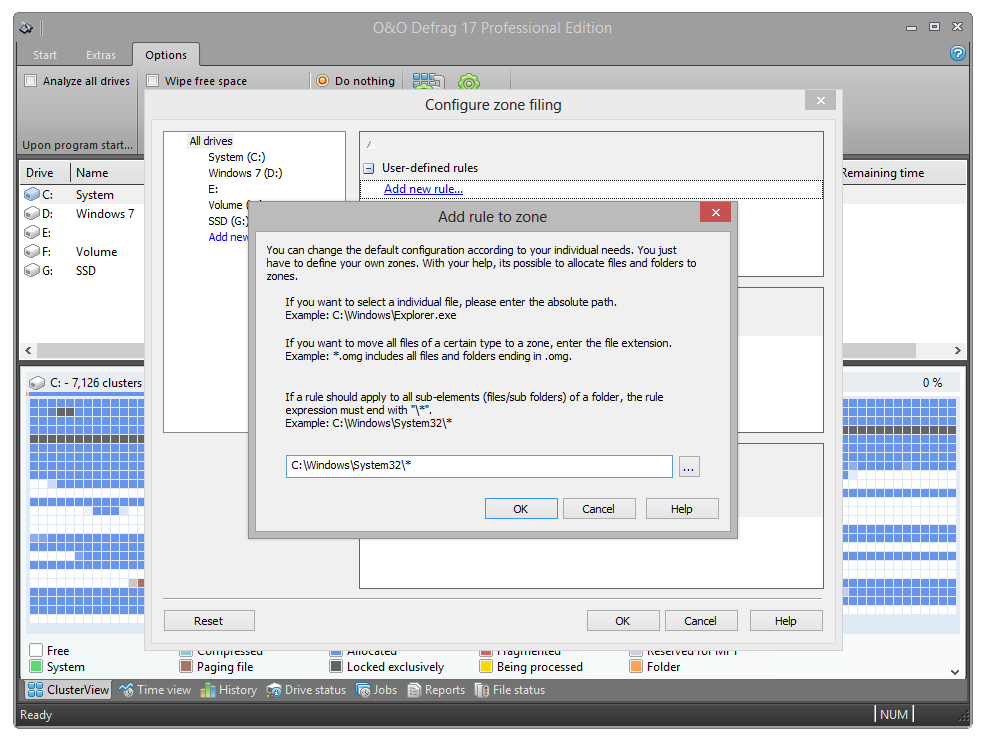
- If you want to create new rules for individual drives, click Zone filing and under All drives click Add new.
- In the following dialog, select the drive for which you want to create a new rule. You have a choice between the System drive or All other drives (data volumes). You can also select individual drives for the list.
- Confirm your selection with OK.
The drives you selected will then appear in the list of drives. To create a new rule, you have to select the drive and on the right side of the program window, under User-defined rules for the separate zones, click Add new rule.
Notation for rules
In the following chart, you can find the correct syntax and examples for user defined rules to help you influence zone filing.
If you want to work on a file, then enter the absolute path.
Example: c:\windows\explorer.exe - only this file is worked on.
If you want to capture all of a folder’s sub- entries (files and sub- folders) by a rule, the rule expression needs to end with \*.
Example: c:\windows\system32\*.
If only one folder without sub folder should be captured, then enter it without an expression:
Example: c:\windows\system32.
If you want to move all files of a certain type to one zone, enter a star before the file ending.
Example: *.omg includes all files and folders ending in .omg. The star jumps over a number of symbols and searches for the expression which is located behind it.
Only files with a certain characteristic in their name and with the exact file ending are supposed to be captured.
Example: *test*123*.txt includes all text files which contain a "test" and "123" in their name. This means for example: test123.txt (the star can only jump over zeros) or also xtestyz123abc.txt.
Files can also be approached that are not constrained by where they are stored in a drive.
Example: The rule \file.txt finds all files which are called file.txt, and lie in the root directory of any drive. If no drive letter is given and the rule starts with a backslash, a path is intended that is independent from the drive on which the file it is located.
If you want to include all sub-folders of a folder, use the backslash in the beginning and at the end of the folder name and the star.
Example: \windows\* all sub-entries of all Windows folders on all hard disks
Further examples:
c:\hall?.txt - Here the question mark is any (not empty) symbol. It is also possible to cover c:\hallo.txt and c:\halli.txt or also c:\hall8.txt.