Extras
Check drive
In the Ribbon bar under Check drive, you have the possibility to check the drive for errors. You can find the corresponding report as usual under the tab Reports. Checking the drives corresponds with the Windows chkdsk function, yet, it only can run scans in the read-only mode, and thus cannot correct errors. In case of error, you need to run the chkdsk command manually.
It is strongly recommended to thoroughly check a drive if an error is detected. More information can be found in the Windows Help file.
You can cancel the check by clicking on stop in the Ribbon.
O&O ClusterInspector
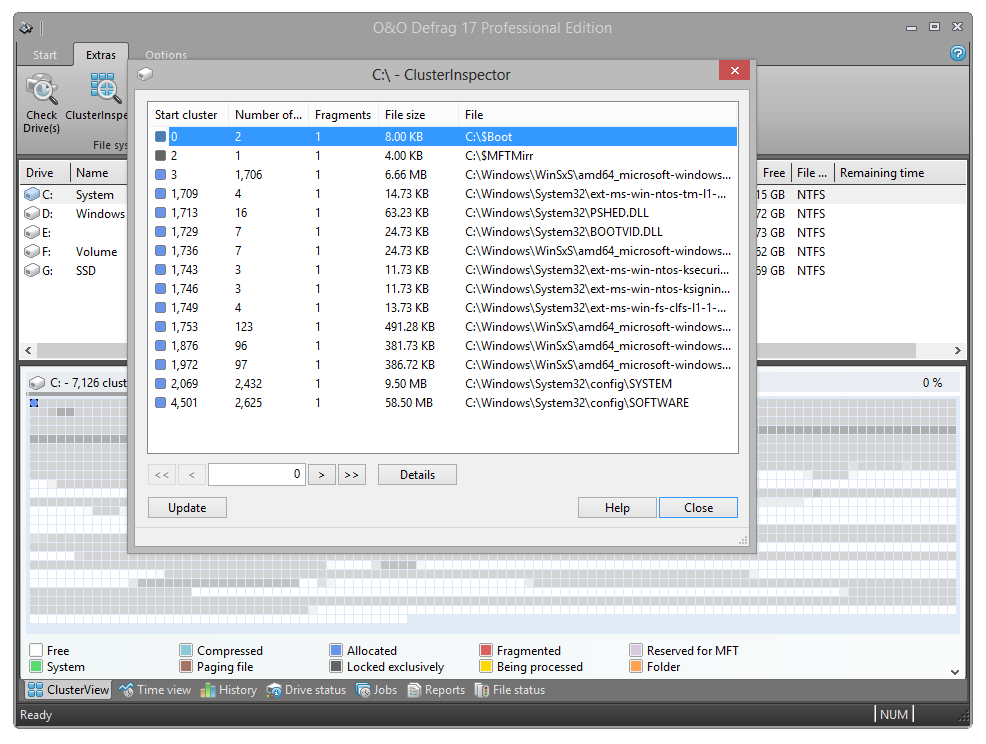
With the O&O ClusterInspector, O&O Defrag gives you a convenient tool for checking how the hard disk is being used.
- Access the O&O ClusterInspector by double-clicking on a block in the ClusterView. The O&O ClusterInspector will then show you the files located on the block.
- About 50 file entries will be displayed by default. To show the following files, click the arrows to control the currently selected hard disk section.
| Start cluster | Start of the currently displayed file section on the hard disk |
|---|---|
| Cluster number | Specifies, how many clusters are used by this file in this block |
| Fragments | Number of areas in which this file is divided. A fragment number higher than 1 means that the file is fragmented. |
| Size | Specifies how much physical area space the file occupies on the data volume. |
| File | Absolute path of the file |
A cluster is the smallest allocation unit that the operating system uses for storing of files on a disk.
Determine file position
If you want to find out where and how a certain file is located, click Determine file position in the Ribbon and select a file in the following dialogue. All areas occupied by this file will then be displayed by the ClusterView.