User interface
The main view of O&O Defrag consists of the following components:
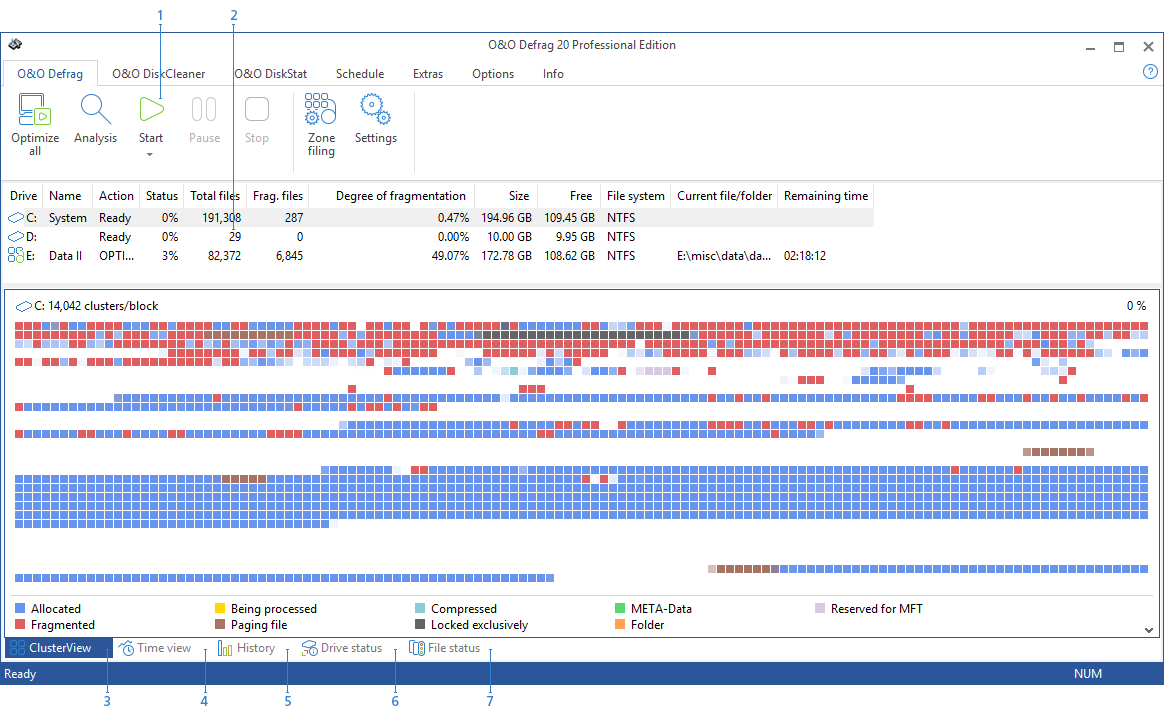
Key:
- Ribbon Bar
- Drive list
- Cluster View (see Figure)
- Time view
- History
- Drive status
- File status
Drive list
The drive list displays information about every drive and the action O&O Defrag is currently running on it. The columns of this list can be setup as you like. All you need to do is right-click the drive and click Change Columns.
The default display consists of the following: drive letter, status, progress of an action in percent, number of fragmented files, size of drive, amount of free space, file system, and the current file/folder.

Cluster view
The Cluster View displays a drive's allocation graphically.
- To see this, select one or more drives from the drive list and click ClusterView below the status window. Please note that by selecting multiple drives, you can view them in a split cluster view.
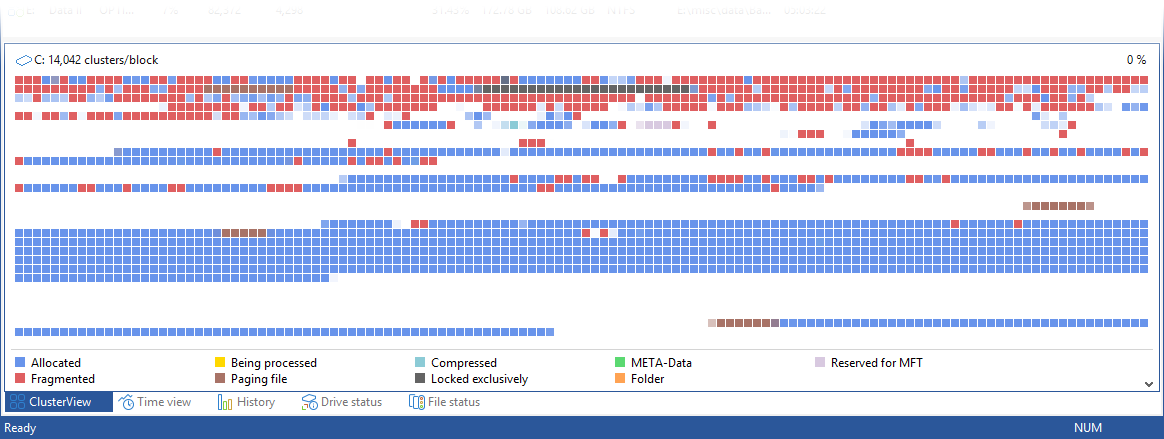
The display will show a certain amount of clusters* arranged graphically as a block. The number of clusters per block is indicated in the title line of the Cluster View. You can change the size of the blocks and the way they appear on screen. This can be done using the right-click menu. If shaded view is enabled, blocks will represent the actual allocation in a mixed color. If you choose not to use block shading, the block will be displayed in prioritized full color as listed below.
| Description | Explanation |
|---|---|
| Being processed | O&O Defrag is working on clusters contained in this block. |
| Locked exclusively | The block contains files that are exclusively locked by Windows or other applications (e.g. the registry). |
| Paging file | The block contains parts of the paging file. |
| Fragmented | The block contains parts of a fragmented file. |
| Folder | The block contains parts of a non-fragmented directory. |
| Compressed | At least one cluster is allocated by a non-fragmented compressed file (NTFS only). |
| Allocated | At least one cluster is allocated by a non-fragmented file. |
| System | At least one cluster is allocated, but could not be assigned to a file. |
| Reserved for MFT | This area is reserved for the Master File Table (NTFS only). |
| Free | All clusters are empty. |
* Note: A cluster represents the smallest logical allocation unit that the operating system can use for saving files on a disk.
Fragment filter
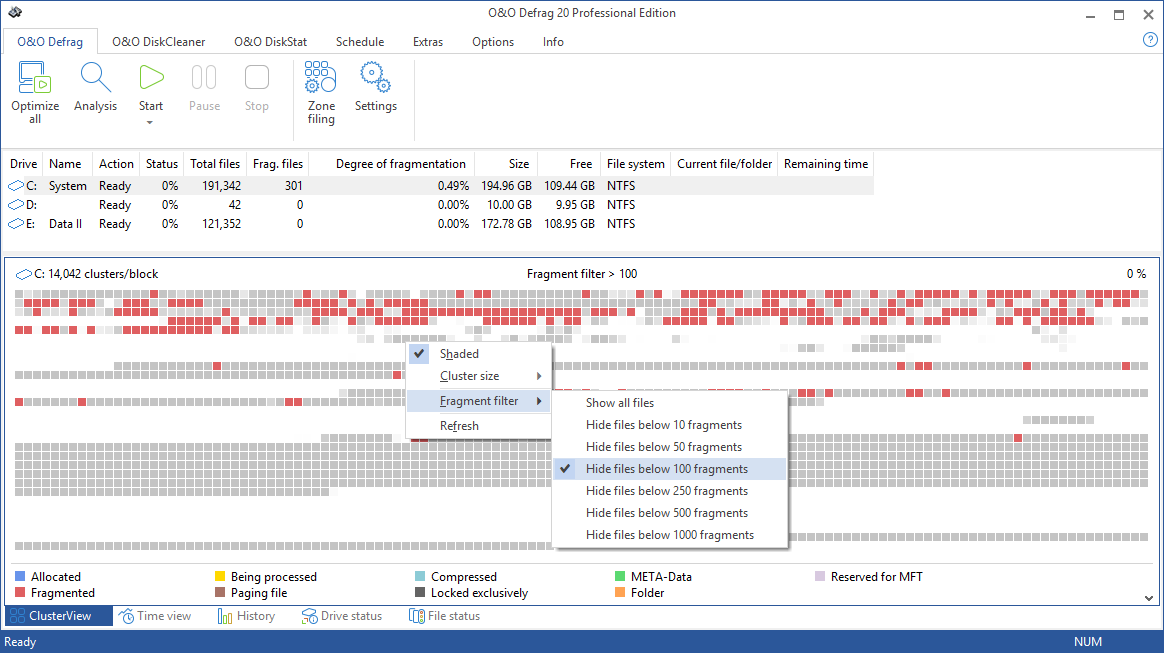
The fragment filter only displays those areas in red (according to the settings), which contain files that have more than X fragments.
With a right click within the block view you reach the menu of the fragment filter.
You need to perform an analysis before you can use the fragment filter. It might not be selectable with no prior analysis of the drive.
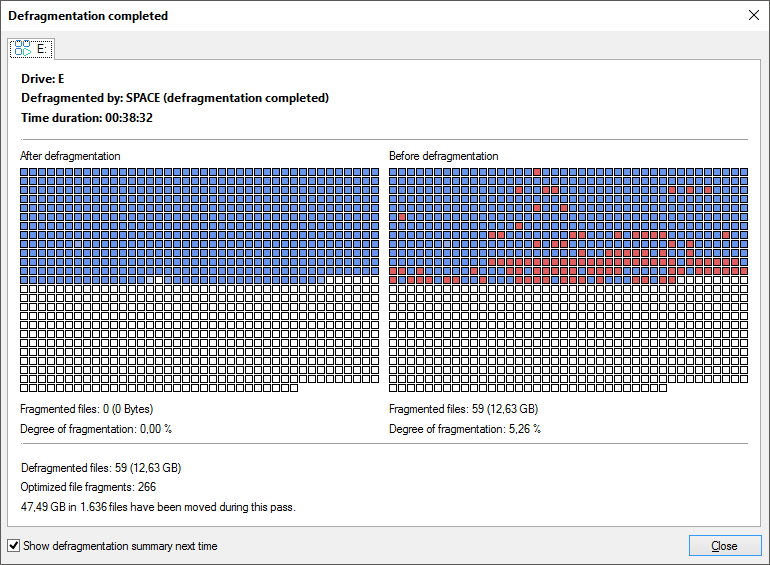
Defragmentation summary
After each defragmentation run you will be presented a comparison of the drive's allocation before and after optimization by O&O Defrag. The defragmentation summary clearly shows the difference a defragmentation makes.
Job view and reports
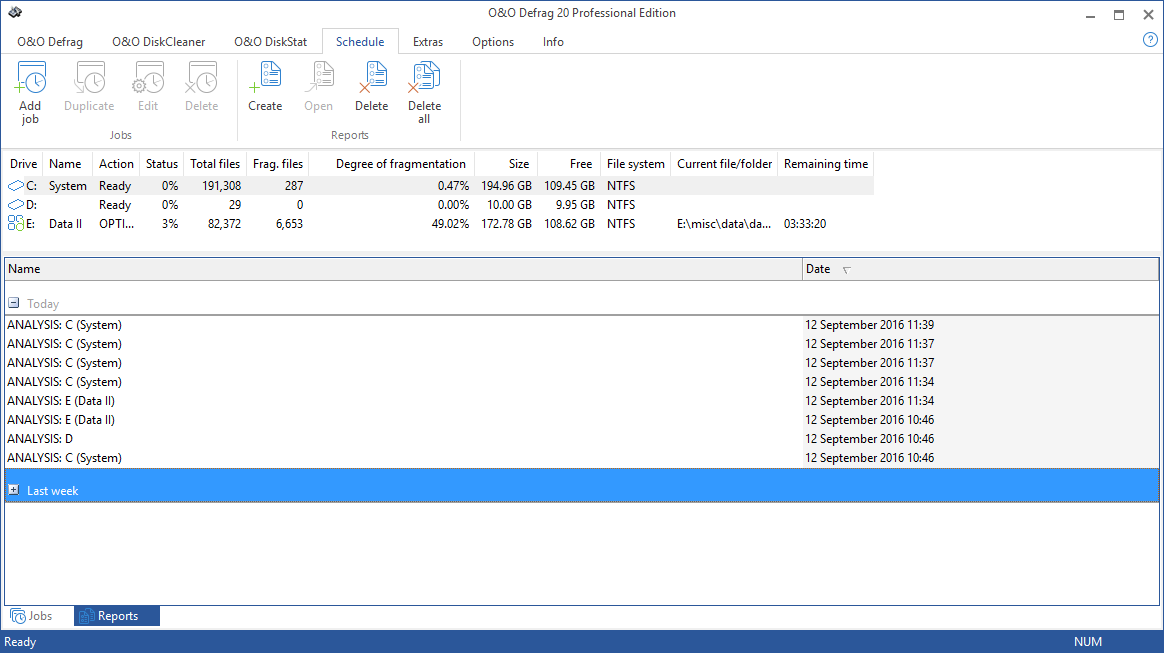
Job View
The job view lists all the defragmentation jobs assigned to the computer. Jobs can be edited, copied, or deleted by marking the job and selecting the desired entry in the right-click menu. You can find the Job view/Reports in the main task bar under Schedule by clicking on Jobs in the bottom left hand corner.
Reports
O&O Defrag stores and manages all reports in Reports. Once you've enabled the option for creating status reports, the results of all analyzing and optimization processes will be recorded. The reports are listed chronologically and grouped in folders. The information in brackets indicates the drive and job for which the report was created. The reports contain all the relevant information about a drive's database, see "Status reports".
- Double-click any report to have it displayed in your Internet browser.
Status views
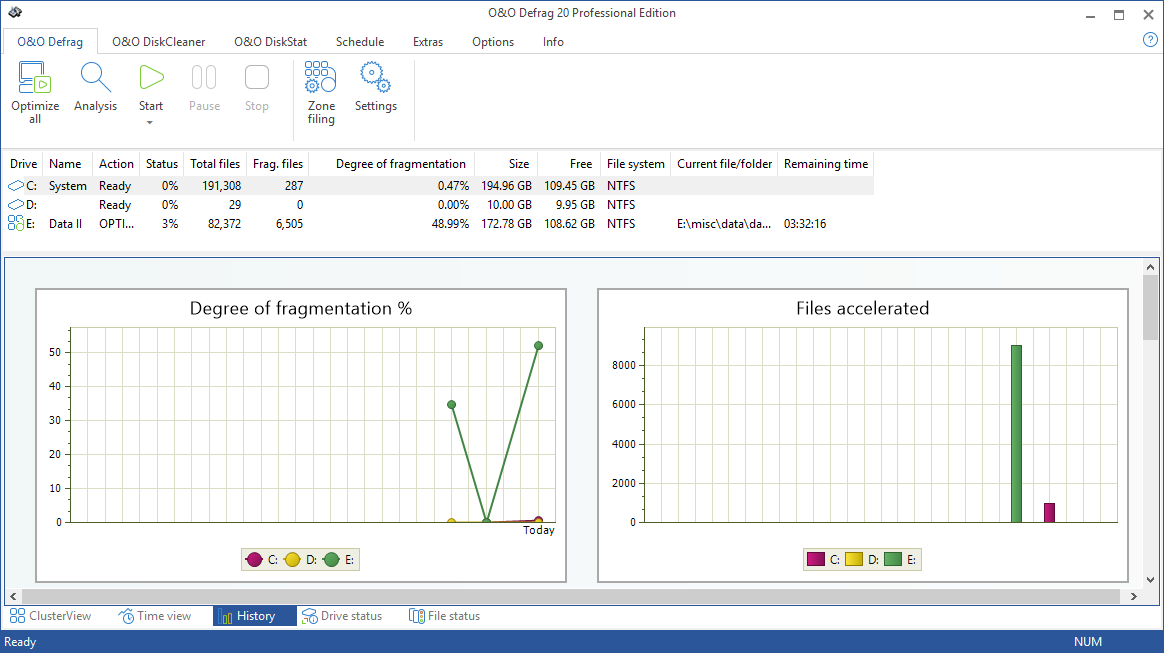
History
Thanks to clearly displayed statistics, you can tell what effect a regular defragmentation is having on your system and you can track the success over weeks and months. You can monitor how many files have been sped up and how many excessive file fragments have been put together, for example. Based on the, you can then adjust your settings to match the defragmentation to your computer habits in order to get the best results.
Drive status
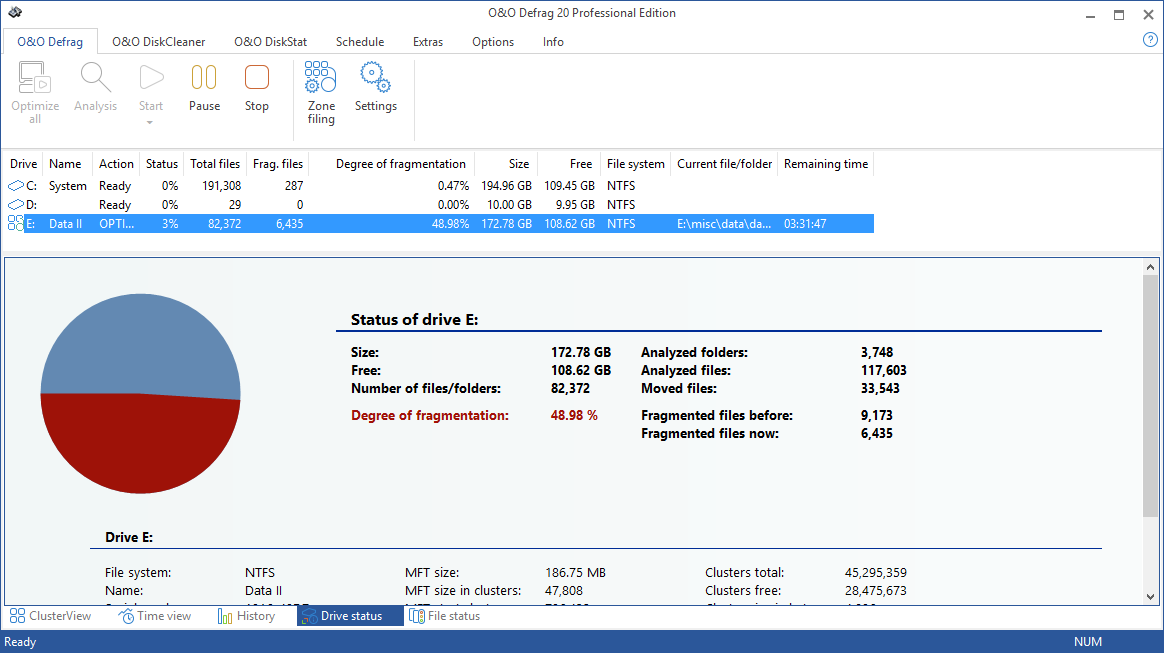
Displays information about the conditions of selected drives before and after defragmentation.
Here you can find information about your drive, the amount of space being used on it, and the file system. The refreshed pie chart will dynamically represent the proportional level of fragmentation during a defragmentation run.
The Status for the entire drive informs you about both the analyzed as well as the non-analyzed files and folders. A new evaluation occurs dynamically with each defragmentation.
File status
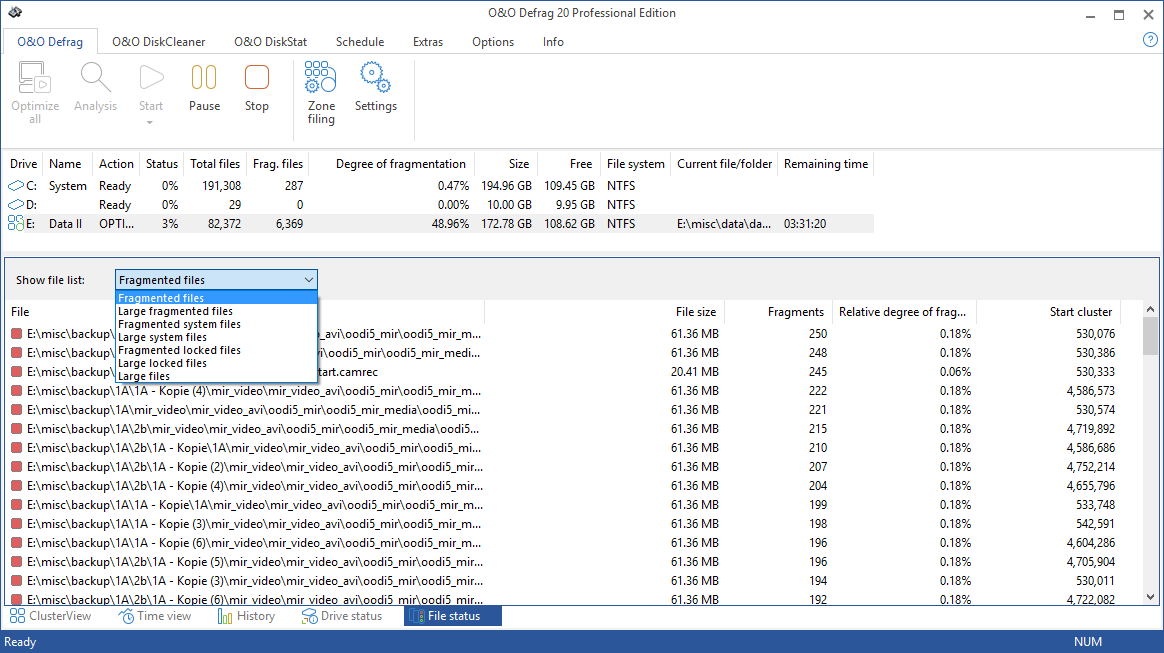
File Status provides an overview of the largest and most heavily fragmented files on your drive. The contents of this file system statistic can also be found in the status reports. You have to first analyze the file statistics of a drive in order to have them displayed here. This will occur after you click Analysis in the Ribbon bar.
Files can be listed according to various criteria with the Sorting drop-down menu.