Settings
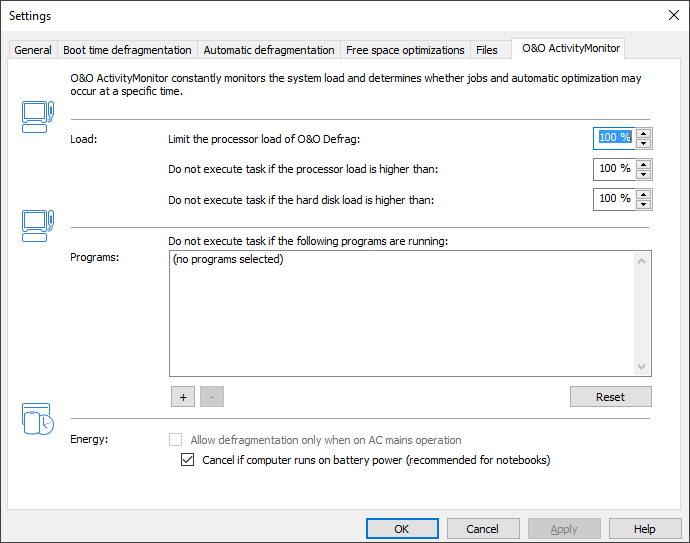
To adapt O&O Defrag optimally to your intended use, you can set different settings. The settings control the behaviour of O&O Defrag during the analysis and the defragmentation.
- Click Settings in the Ribbon bar.
General settings
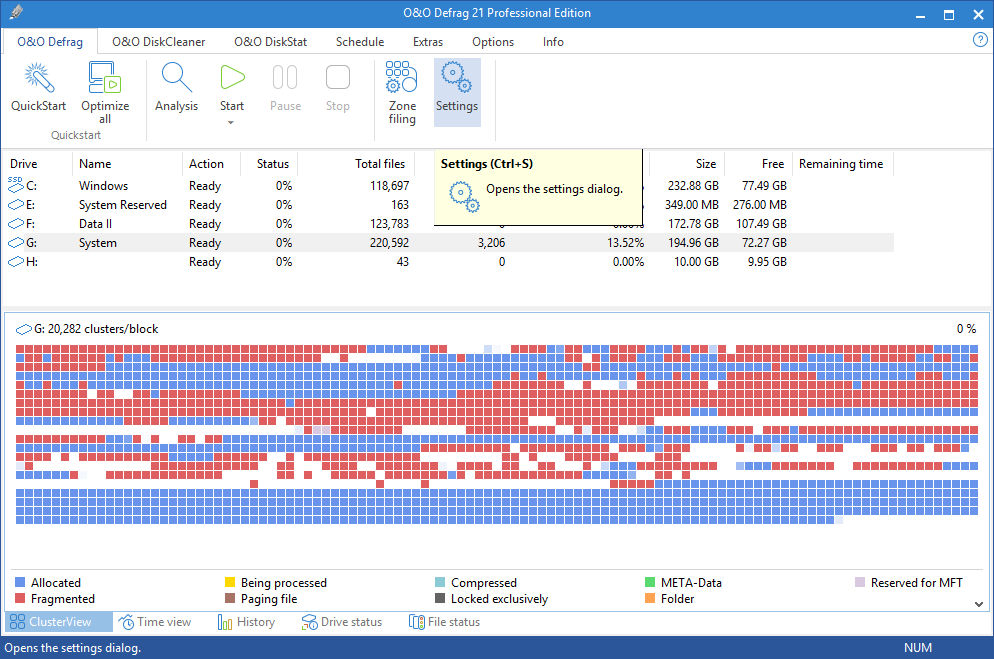
The settings control the behavior of O&O Defrag during analysis and defragmentation.
Chkdsk before the defragmentation and cancel if errors are found
You can have O&O Defrag check the integrity of your drives before a defragmentation. This check is like the Windows chkdsk function but errors that are found will not be corrected. These need to be corrected manually using the chkdsk function.
Please note: This option in O&O Defrag makes use of the native Windows chkdsk functionality. When activated, O&O Defrag executes a chkdsk on the selected drive(s) prior to running a defragmentation. Out of concern for data security and system integrity, O&O Defrag will refuse to initiate a defragmentation if chkdsk encounters a problem or error. A yellow warning triangle is displayed next to the affected drive.
A test of the connected drives in Windows can also be run manually. It is strongly recommended to thoroughly check a drive if an error is detected. More information can be found in the Windows Help file.
Defragment several physical data volumes at the same time
You can defragment your drives either parallel or sequentially. Sequential defragmentation means that one drive will be defragmented after the other, in alphabetical order.
During parallel defragmentation, partitions that are located physically on different hard disks are processed at the same time. This shortens the total time needed for defragmentation but leads to a higher system load by O&O Defrag. If you only have one hard disk in your computer, all partitions on it will be defragmented sequentially.
Considering the system parameters on how to allocate files.
Only valid for Windows 7: The layout.ini file is used as reference during defragmentation to allocate files optimally on the hard disk. The optimal sequence for start files proposed by the operating system will be considered in order to initiate the system start as quick as possible.
Under Advanced optionsyou may modify additional functional aspects of O&O Defrag:
- Include removable drive
Removable drives (e.g. ZIP, Jaz or DVD RAM) can also be defragmented. - Include external drives
It is also possible to defragment drives that are connected by an external interface, such as a USB or FireWire. - Show defragmentation summary
Normally, after each defragmentation, a popup presenting a ClusterView before and after defragmentation with fragmentation statistics is shown. You may deactivate this feature if you would like to suppress the summary popup. - Protect SSD drives from defragmentation
SSD-drives are subject to physical wear out of flash chips and this might be made worse by defragmentation. Because of their special construction, defragmentation will not increase performance of SSDs. They should not be defragmented, also see "Optimizing Solid State Drives". - File into zones
This option is disabled by default. If enabled, during defragmentation files will be placed in different hard drive areas (speed zones) according to specific file access patterns; for more information please refer to zones. - Disable automatic optimization
Automatic optimization is enabled by default. You may activate this function to prevent O&O Defrag from automatically optimizing your hard drives in the background. - Enable remote administration from same network
This feature is disabled by default. Upon enabling, all users from the same network are granted remote access to O&O Defrag on your computer. Your firewall will be automatically configured to allow incoming connections to the O&O Defrag service on your computer. You may find additional information in Work within the network.
Reports and Logging
You can create status reports in an HTML format. A maximum of 999 reports can be created and saved.
Please enable this function if you want to log all O&O Defrag activities into the Windows Event log. You can specify the detail level for the notification - whereby level 1 only logs errors and level 4 stores all the information available. Please bear in mind that this might lead to many log entries, which in turn overwrite entries by other programs or systems.
Tasktray
If you wish, the O&O Defrag icon may be placed on the tasktray to display the status of defragmentation.
The logged- in user may optionally use the advanced control possibilities.
For more information about the tray icon, see Tray icon and drive activity.
Settings for the Tray icon
Under Setting/General in the user interface you can specify various control possibilities for the tray icon.
Display the O&O Defrag icon in the notification area
This option allows you to set whether the TrayIcon should be displayed or not. If you change this option, you will need to login again to validate the new settings.
Enable enhanced control for logged in users
You can allow the logged in user to pause the defragmentation or to stop it completely. If you disable this option, the user will only receive information on the running defragmentation, he will not be able to control it.
Boot time defragmentation
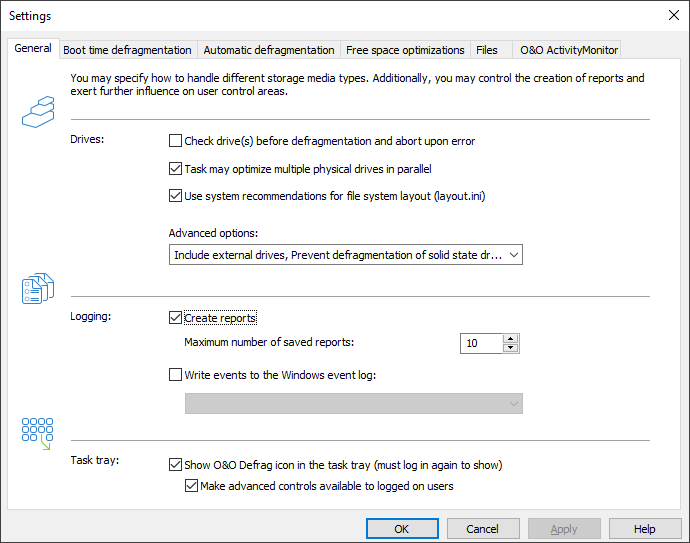
Defragmentation is executed in the background while the system is running and normally optimizes most files. Some system files, however, are locked by the operating system while it is running. These files can only be defragmented when they are not being used by the operating system. This is only possible at an early start phase of Windows, even before the graphical login prompt appears. At this point, no system operating processes are enabled and you cannot start any application. This phase is called Boot time defragmentation.
It is now possible, using this feature, to defragment a file which is being used exclusively by the operating system. Depending on the operating system, for example, this can be the swap file, the registration database as well as the MFT (Master File Table).
- The options for the boot time defragmentation can be easily set in the settings dialogue under boot time defragmentation.
- Please select whether you want to useboot time defragmentation regularly at every system start or one time only at the next system start.
You can also disable boot time defragmentation.
Files
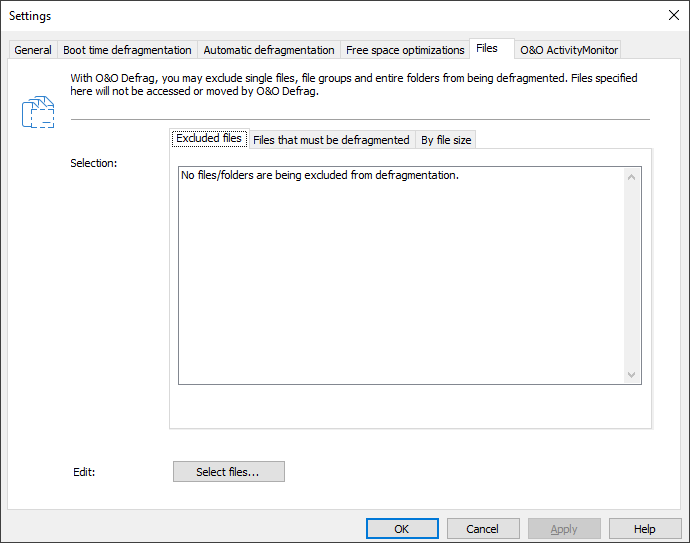
Under Files in the settings dialogue you can exclude files and folder from defragmentation. You can, for instance, exclude a complete folder, but still put certain files from it in the list of files to be defragmented.
In addition, when time doesn’t permit, you can also specify that large files should not be defragmented or moved.
Exclude files
Under Excluded files you can specify the files you want to exclude from defragmentation.
- Click Select files.
- Select the file or the folder you wish to exclude in the dialogue in the Explorer view and click Add. You can also allocate more files and folders to the selection.
- If you have made your selection, confirm your entries with Apply.
Include files at all costs
Under Files that must be defragmented you can specify the files that must be defragmented, even if they have been excluded previously due to a higher ranking condition.
- Click Select files.
- Select the file or the folder you wish to exclude in the dialogue in the Explorer view and click Add. You can also allocate more files and folders to the selection.
- If you have made your selection, confirm your entries with Apply.
By size
Optionally, if time doesn’t permit, you can also exclude very large files from the defragmentation. In the dialogue, please specify the size above which a file should not be optimized or moved during a defragmention.
O&O ActivityMonitor
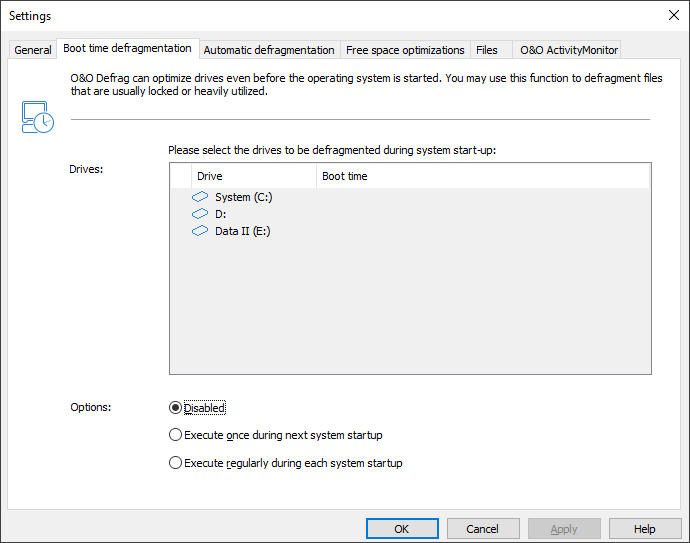
Under the O&O ActivityMonitor you can specify the CPU when optimization should start and the maximum CPU that O&O Defrag may use. The O&O ActivityMonitor periodically determines degree of use of the CPU. It controls the performance demand of O&O Defrag during a defragmentation and adapts it to the current state. You can thereby work undisturbed while your system is being defragmented in the background. O&O Defrag offers many ways in which you can make your defragmentation even more effective and efficient. The default configurations are already optimized for most systems, which means you won’t normally have to make any changes here. You may, however, also adjust the tuning options yourself.
The settings are valid for recurring jobs and automatically run defragmentation processes, see Automatic Optimization. You have the possibility to specify further settings of the O&O ActivityMonitor for a specific job in the job dialogue.
System load
Here you can specify that O&O Defrag should not exceed the load of the processor by a certain value during a defragmentation. In addition, you have the possibility to specify that an automated optimization not be started if the target drive is in use or other programs are using a high level of CPU.
Program list
Here you can specify that automatic optimization should not be executed if certain programs are running simultaneously. These might be imaging programs, a virus scanner, or even games.
Energy
Jobs can also be scheduled to run only when the computer is connected to a main power source - something very useful when using notebooks.
For notebooks we recommend enabling the option Cancel if computer runs on battery power.