Recommendations and FAQ
Defragment your system regularly!
Only defragmentation on a regular basis can ensure that you always get the best out of your system! Along with automatic defragmentation in the background, O&O Defrag offers you the option of scheduling defragmentation jobs that can be run whenever you decide.
Recommended use defragmentation plan
| Recommendation for: | Manual defragmentation | Automatic defragmentation | Screen Saver jobs | Scheduled jobs |
|---|---|---|---|---|
| Game computer operating for hours | + + | + | ||
| Private Desktop PC | + | + + | + | |
| Workstation Desktop | + | + + | + | + |
| Workstation | + | + | + + | + |
| Notebook running on battery | + | |||
| Video cut, Harddisk Recording | + + | + | ||
| Server with large files (> 4 GB) | + | + + | ||
| Server with many files (> 1 Mio) | + | + + |
| + | Very Applicable |
|---|---|
| + + | Extremely applicable |
For constantly running gaming computers we recommend manual defragmentation. Only the gamer himself can decide when he can afford to lose system performance as a result of defragmentation. Alternatively, we recommend configuring the O&O ActivityMonitor so that an automatic defragmentation will not start while a game is running.
For a regular desktop PC, where mainly Internet or office applications are used, or even some games are played, we recommend keeping the default setup of O&O Defrag. Automatic defragmentation makes sure that your system is always running at its optimal performance level – without any effort on your part.
For office computers requiring average performance, the rule for for private desktop PCs should apply: We recommend keeping the default setup of O&O Defrag as it is.
With video editing or hard disk recording systems the data throughput of the disk subsystem plays a decisive role. In particular with hard disk recording systems, some unwanted failures might occur which can render an entire recording session useless. We recommend manual defragmentation of drives before and after a session. Please do not use automatic defragmentation. It could start analyzing your drives while you are working!
For Servers used heavily during the week or in daytime, we recommend a nightly job which runs an Optimize/Quick as well as a complete Optimize on the weekend.
Don’t wait too long before you defragment!
As soon as you’ve installed your operating system, the file system will begin to fragment. Avoid reduced performance right from the beginning and install O&O Defrag as quickly as possible! Only then can you be sure that your hard disks will access your files quickly. You will also avoid unnecessary wear and tear on your hardware due to increased movement of the read/write head.
Avoid moving large numbers of files during defragmentation
O&O Defrag will calculate the best position for your files before and during the defragmentation. If you copy, move or delete files, these calculations will have to be carried out again. This will take time and lengthen the defragmentation time.
Automatic defragmentation with the threshold tool
Along with automatic defragmentation in the background, O&O Defrag offers you the option of scheduling defragmentation jobs that can be run whenever you decide. You can shorten the duration of a defragmentation by specifying a border value for its execution. This means that defragmentation will only take place when a particular degree of fragmentation is reached. You can thereby avoid unnecessary defragmentation runs. In the job dialogue under Drives, just enter a degree of fragmentation, e.g., 5%, upon which the job should be run.
O&O Defrag on notebooks
The Power Management enables you to prevent defragmentation if your notebook is running on battery power. The length of your battery’s life will therefore not be affected and you won’t have to stop the defragmentation manually. O&O Defrag recognizes the switch between main and battery power and will run the defragmentation according to your own configuration. You can read more about this in the section Settings.
Continue working undisturbed while defragmenting
Particularly in the case of workstations or servers that are under pressure all the time, it is important that defragmentation take place in the background without negatively affecting the day-to-day running of the system. In such situations, we recommend you use O&O ActivityMonitor for keeping an eye on the resource usage and automatically adjusting the burden placed on your system by O&O Defrag.
Data security and integrity
O&O Defrag guarantees you complete data integrity and security. Only functions that are implemented in Windows by the operating system itself are used for defragmentation and synchronization of all file accesses.
File attributes (Date, Time, System, Archive etc.) and the security settings for NTFS drives will not be changed. Access rights also remain unchanged. In addition, only one file per drive will be processed at any one time. This ensures that even in a worst case scenario, only one file will be lost (e.g. if there is a power cut). If you have more questions concerning data security, we can provide you with more information. Do not hesitate to contact us at: support@oo-software.com
Conflicts with shadow copies during defragmentation
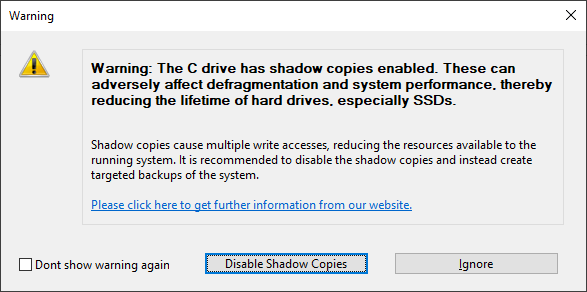
Shadow copies have been set by default starting from Windows 7. They are designed to protect against data loss by providing multiple versions of files and enabling the creation of restoration points. These features provide a continuous backup of the system. Along with all its obvious advantages, however, shadow copies do come with some drawbacks.
All changes to files are written multiple times and this ends up using additional resources. For HDDs this means write accesses are considerably slower and for SSDs, a shortened life expectancy as a result of multiple write accesses. This is why it’s advisable to make targeted backups of the system. These can be made while the system’s not being used to make sure there’s no loss in performance when you want to use the system. You can also save the backup on an external disk. Doing so reduces the number of write accesses on your system disk and will help increase its life expectancy. Your backups will also be unaffected by any possible defects in the system or the internal hardware.
The negative effects of shadow copies have a strong impact on defragmentation because files are constantly being moved during the process. Windows classifies such movement as deletion and so it creates a completely new shadow copy for every repositioned file. In view of the many files being moved during defragmentation, large numbers of new shadow copies must occupy additional disk space. This results in the disk now having less free space than it did prior to defragmentation. Such activity can cause older shadow copies to be overwritten by new ones. This can unfortunately also result in the system restoration points being deleted! The impact of this is especially obvious when running a COMPLETE defragmentation method.
O&O Defrag gives you the option of disabling shadow copies before defragmentation.
If you want to enable shadow copies after defragmentation, use the key combination Windows + R to access Run where you can enter sysdm.cpl and confirm with Enter. Switch to the System Protection tab and click Configure…. A new window will then open where, in the upper section, you’ll find the Turn on system protection option. Select this and confirm by clicking OK in the dialog. Shadow copies will now be enabled once again.
Existing system restoration points will be deleted by disabling system protection.
O&O Defrag and firewalls
At the start of O&O Defrag, my firewall notifies me of an attempted access. I receive the error "10061". Why does this happen and and how can I solve the problem?
The communication of the individual O&O Defrag program components (O&O Defrag Agent and user interface) is based on TCP/IP. This communication only runs inside your computer - without any access to the Internet or the network. Most firewalls, however, are programmed to recognize internal IP communication, so you receive a warning message.
You don't have to turn off your firewall! Simply open up port 50300. Since O&O Defrag automatically checks access permissions, there can be no external access over this port even if you are connected to the internet.
In most cases, it is enough to authorize O&O Defrag for exclusively internal communication when the software is started for the first time.
If this did not happen, however, including the files OODAG.EXE and OODCNT.EXE on your firewall’s list of trusted programs has also proven successful with all of the firewalls we have tested.
Please consult your firewall’s documentation for precise configuration procedures.
If you have configured your firewall accordingly and are still receiving Error Message “10061”, please verify that the services "O&O Defrag" and "Event Viewing" are enabled. If this is not the case, please enable these services.
Status notices and program output
Results logging of the defragmentation
O&O Defrag logs the start and stop times of defragmentation runs as well as any errors encountered. These are recorded according to the systems’ own settings for application logging.
How to start the event viewer when running Windows:
Please go to the Control Panel of your computer and select Administrative Tools/Event Viewer.
Notifications of boot time defragmentation
The chart below contains a list of all notifications possible during boot time defragmentation and their corresponding explanations.
| Output | Type | Explanation |
|---|---|---|
| Drive could not be opened | ERROR | The given drive could not be found by the system, or the file system is not supported. |
| File could not be opened | ERROR | The given file could not be found, is encrypted or has been exclusively locked by the system. |
| Not enough space to move | ERROR | Contiguous free space is required to move a file somewhere else on the disk, and this amount of space must be at least as large as the file. Defragmentation cannot take place because there is not enough free space available. |
| Could not be moved | ERROR | The defragmentation failed because of problems with the file system. The file is fragmented. |
| MFT could not be defragmented | ERROR | The defragmentation of the MFT failed because of problems with the file system. It is still fragmented. |
| Not enough space to move the MFT | ERROR | In order to defragment the MFT, contiguous free space at least as large as the MFT must be available. The defragmentation cannot take place because there is not enough free space available. |
| Could not write to partition | ERROR | During the MFT defragmentation a file system error occurred which blocked writing on the disk. The MFT has not been changed. The drive should be checked for errors. |
| Attribute error in the MFT. Please start chkdsk. | ERROR | Erroneous entries in the MFT were found during the defragmentation. The drive should be checked for errors. |
Why do the write access counters of my SSD increase with SOLID/Quick and SOLID/Complete?
SSDs change the computer’s status internally whenever anything is written or deleted. As a result, the change from 0 to 1 indicates a write access and a change from 1 to 0 a delete operation. Actual wear of the SSD occurs when changing from 1 to 0, which means only as a result of deletion. In most cases, however, deletion is necessary if anything needs to be written in any particular cell.
The SOLID/Quick method resets memory cells that contain obsolete data. These would have needed to be reset anyway at the next write access. The number of write accesses remains the same in the long run. Since the SSD won’t have to delete anything at the next write access, writing can now be executed much faster.
SOLID/Complete repositions current data so that fewer blocks are used and new data can be written faster, and with less fragmentation. Although this requires more write accesses at first, there will be fewer accesses needed in the future.
Why is the ClusterView different on HDDs and SSDs?
The ClusterView should display the hardware as exactly as possible.
An HDD is subdivided into clusters that correspond mostly to the size of pages in Windows. These are arranged approximately as they appear in the classic ClusterView.
This basic view is, however, too imprecise for SSDs. SSDs are also subdivided into clusters but they manage these clusters in blocks. This changes the type of allocation as well as the consequences of fragmentation.
If an HDD becomes fragmented, the speed and wear of the HDD are relatively unaffected by the fragments being combined in one group or arranged consecutively in a row. Small gaps don’t pose any problem although the fact remains that data arranged consecutively can still be read faster as a result of the read/write head‘s movements being kept to a minimum.
With SSDs it’s entirely different. When fragments are combined, there may be more blocks occupied than are actually needed. That’s why it’s important to combine all fragments and have data written consecutively so that any gaps can be removed. Doing so can potentially reduce the number of occupied blocks and thereby extend the lifespan and performance of the SSD considerably.
The new ClusterView displays the blocks on an SSD along with any clusters they contain. In extreme cases, a clear reduction in the number of occupied blocks will be visible. It’s also possible to read if there are any poorly occupied blocks present. There may, for example, be one block with two occupied clusters and another with three occupied clusters. These two blocks could then be combined.