Tray icon and drive activity
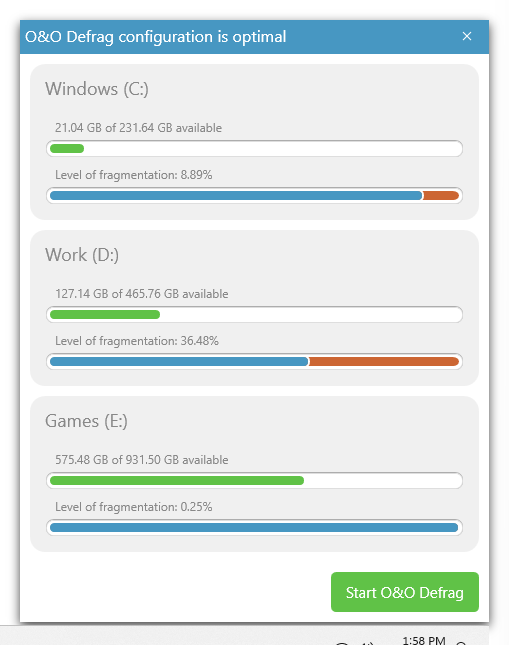
You can check the status of a running defragmentation using the tray icon (or Notification area icon) as well as the user interface. The tray icon is located on the Task bar.
- To check the current status of O&O Defrag, place your mouse cursor over the TrayIcon.
- You can also use the right-click menu to start and stop defragmentation, exit hibernation mode, and open the user interface.
- The tray icon can be closed using the right-click menu entry Close.
You'll be able to see the program's current activity displayed in the tray icon. By running your mouse over the tray icon, the tooltip will provide you with more information about the program's current status.

to reopen a closed tray icon, the user needs to login again.
Hibernation mode
You can set O&O Defrag in the hibernation mode using the right-click menu of the Tray icon. This makes sense if you need the full capacity of your computer for your applications, and want to make sure that O&O Defrag is not in operation during this time. We recommend closing the user interface to save load on your main memory.
- To set O&O Defrag into hibernation mode, right-click the Tray icon and click Hibernation mode.
- To exit O&O Defrag’s hibernation mode, select Exit hibernation mode in the right-click menu of the Tray icon, and reopen the user interface if needed.

Drive activity
The Deskband for displaying drive activity shows the read and write accesses on the computer. You can activate the drive activity here: Start > QuickStart > Show drive activity in the task tray. A search on the respective drive can be started by right-clicking.
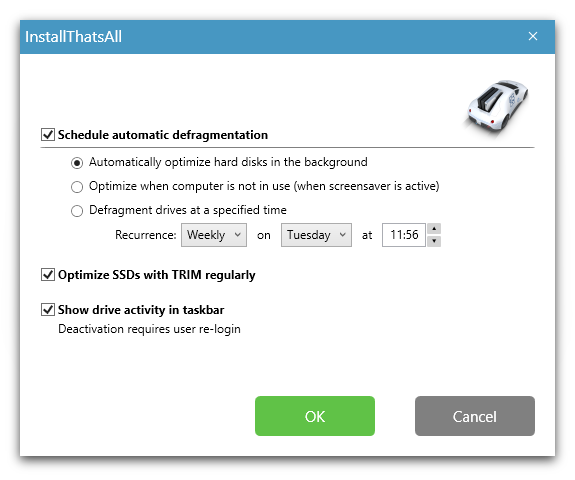
You can hide the drive activity by right-clicking on one of the drive letters in the task tray, for this select Close.
