Activity Monitor and power limits
O&O ActivityMonitor controls when maintenance may run and how much load O&O Defrag itself may cause. Use it to keep a maintenance task from interfering with work.
Application load versus start guards
| Control | Purpose |
|---|---|
| Limit the processor load of O&O Defrag | Caps the CPU load caused by its optimization. |
| Limit drive load caused by O&O Defrag | Limits the optimization's disk activity. |
| Do not start when the processor is busy | Prevents starting when total CPU load is above the limit. |
| Do not start while drives are busy | Prevents starting when total drive load is above the limit. |
| Do not start while these programs are running | Blocks starting while a listed program is present. |
A lower application load limit keeps more resources available but can lengthen a run. A start guard can leave a job waiting instead of making an already running job faster.
Configure global limits
Open Settings → Performance and set the own-load limits, start guards, and program list. Confirm the dialog. If the agent has not supplied its options, these controls can be unavailable until it reconnects.
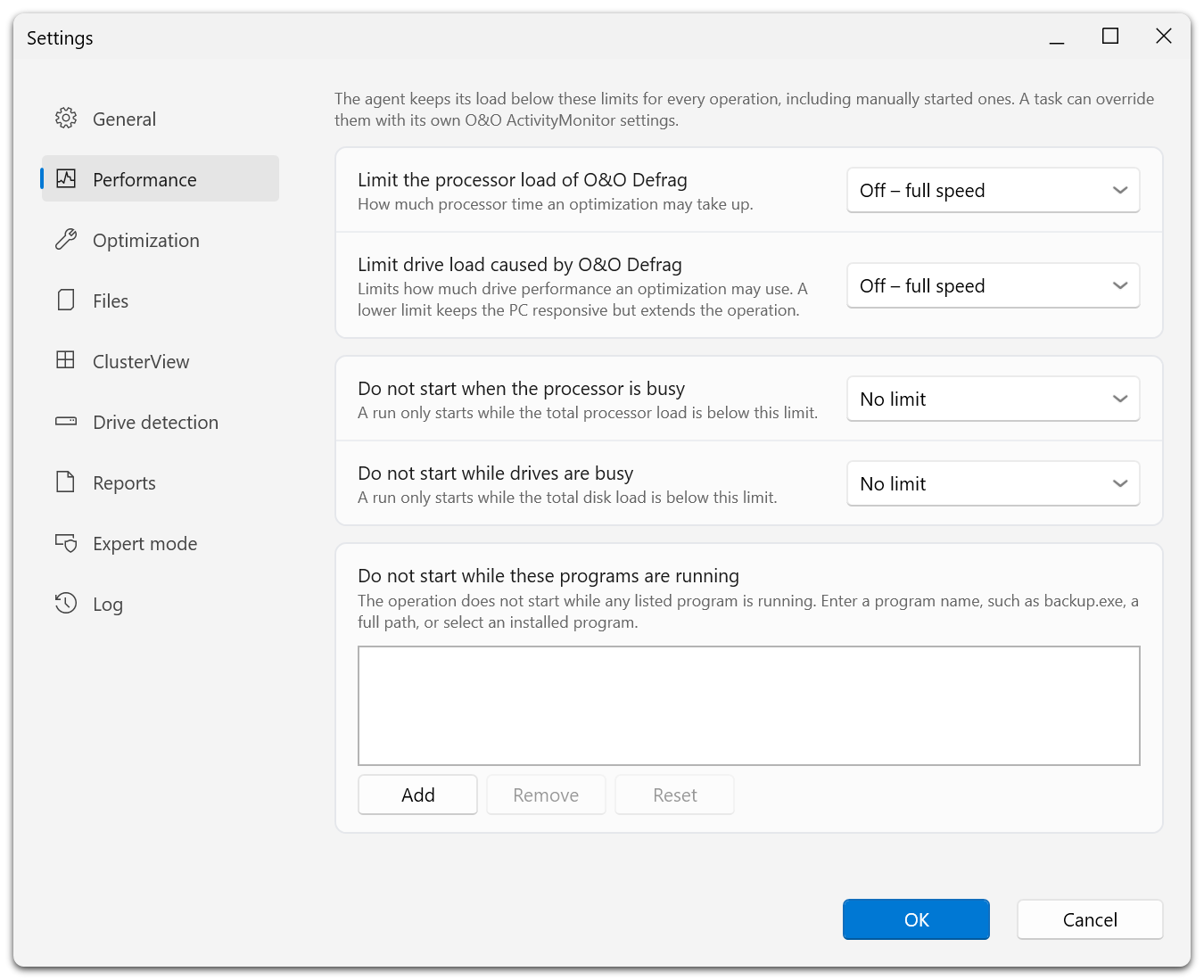
The first two settings cap the load O&O Defrag causes itself; Off – full speed removes that cap. The next two are start guards for the total load of the computer; No limit disables the guard. The program list at the bottom blocks a start while a listed program is running.
The two kinds of control answer different questions. The first pair limits how much load an optimization may cause once it runs. The second pair decides whether it may start at all.
Configure a job
- Open the job for editing.
- Select ActivityMonitor.
- Set CPU and disk limits for that maintenance window.
- Choose Add and enter a program name or a full path, or pick an installed program.
- Review the power options.
- Save the job.
For example, add the actual executable used by your backup application if optimization must not start while a backup is running. Use the executable name, such as backup.exe, rather than a friendly Start menu name. Remove deletes the selected entry and Reset restores the list's default.
Notebook and wake settings
Allow defragmentation only when on AC mains operation prevents starting on battery. Stop when the PC switches to battery power controls what happens if power is unplugged during the run; in the job editor it depends on the AC-only option.
Wake up computer from hibernation mode to execute this job requests a wake for the task. It depends on the computer's power capabilities and Windows configuration.
If a job does not start, inspect these settings together with its schedule, drive availability, and minimum fragmentation threshold.