Create and manage jobs
A job saves drive selection, methods, schedule, and run options. Use jobs for predictable maintenance windows or for different policies on different volumes.
Create a job
- Open Schedules and choose Create task.
- On General, enter a descriptive name and, if useful, a description. Leave Enabled on.
- Choose Once, Recurring, or Screensaver and complete the applicable fields.
- Open Drives → Drives and method….
- Assign a method to at least one drive and, if needed, a minimum fragmentation percentage.
- Review Schedule, Options, ActivityMonitor, and Files.
- Leave Batch disabled unless you need reviewed pre- or post-job commands.
- Choose Save.
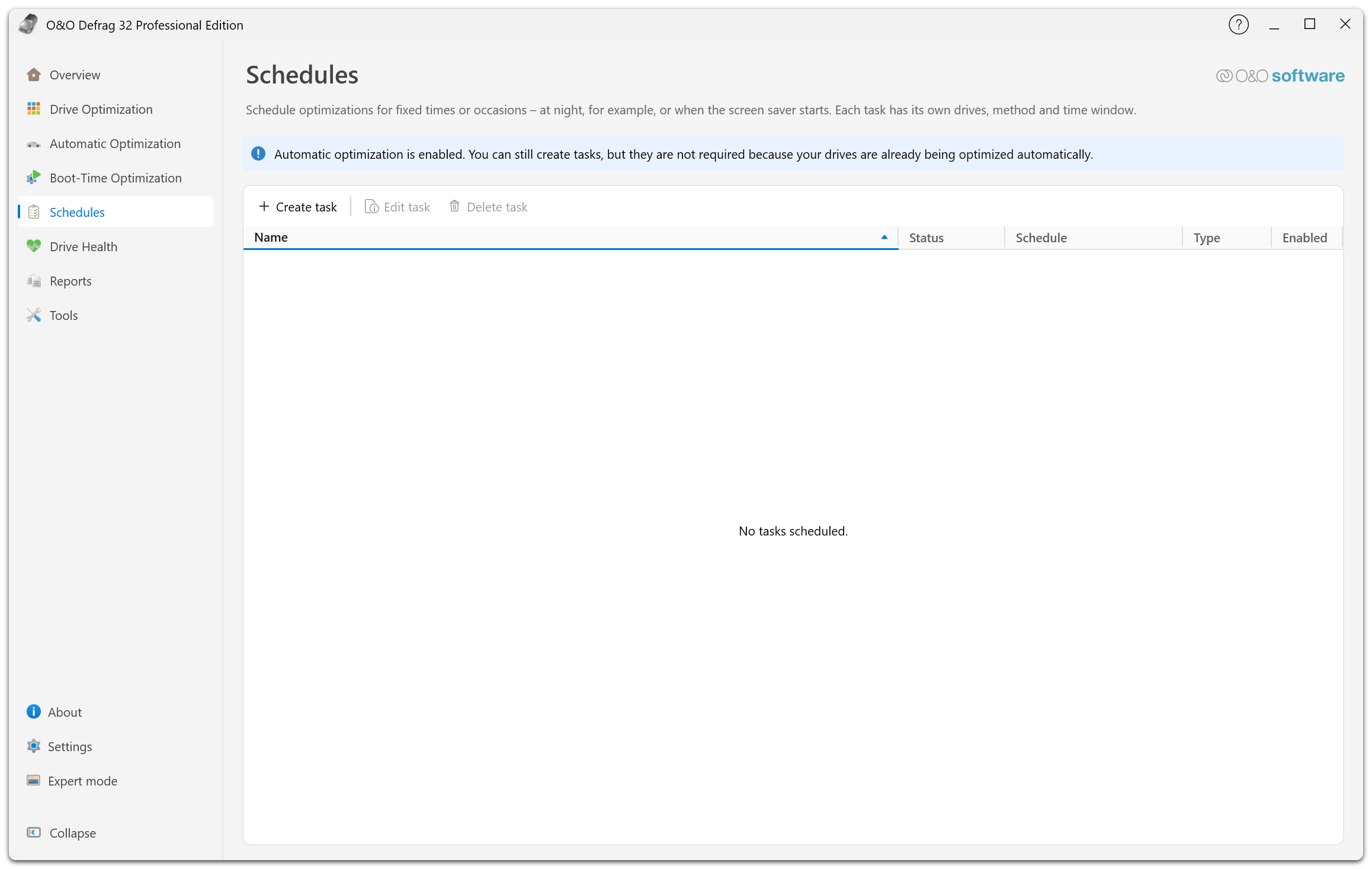
Create task, Edit task, and Delete task sit above the list; the two editing commands stay unavailable until you select a task. The list shows each task's name, status, schedule, type, and enabled state. The note at the top appears while automatic optimization is active: tasks remain possible, but they are not required for ordinary maintenance.
New jobs start from the current global optimization options. Existing jobs retain their saved options, so review them after changing global defaults.
Example: weekly data-drive maintenance
Give the task a name such as Weekly data-drive optimization. Select Recurring, choose a maintenance day and an appropriate start time, and assign a suitable method to the data drive. Enable reporting, set a maximum runtime if needed, and exclude processes that must not overlap.
Choose the method based on the media and results. Do not apply a traditional HDD sorting policy to an SSD only because the job runs weekly.
Inspect or modify
Select a job and choose Edit task to open its saved settings, update the relevant tabs, and choose Save. Cancel discards unsaved edits.
If a configured drive is offline, the drive editor can show it as not currently present. Its saved configuration remains part of the job; saving other changes does not make the missing drive available.
Delete
Select the intended job and choose Delete task. Review the confirmation. Deleting a job removes its scheduled configuration; use the drive's Stop control if an action is already running and you also want to end it.
Confirm that it ran
Inspect the job's last-run information and Reports. The Next run field does not calculate the next execution time; use the saved schedule and run history to verify the task. See Scheduling.