Boot-time optimization
Boot-time optimization runs O&O Defrag in the Windows Recovery Environment (Windows RE). No files are locked there, so files that Windows keeps open during normal operation can be optimized as well.
The Boot-Time Optimization page has two switches. The first prepares and enables the optimization environment; the second lets the next system start use it. The drive list below them decides what gets optimized.
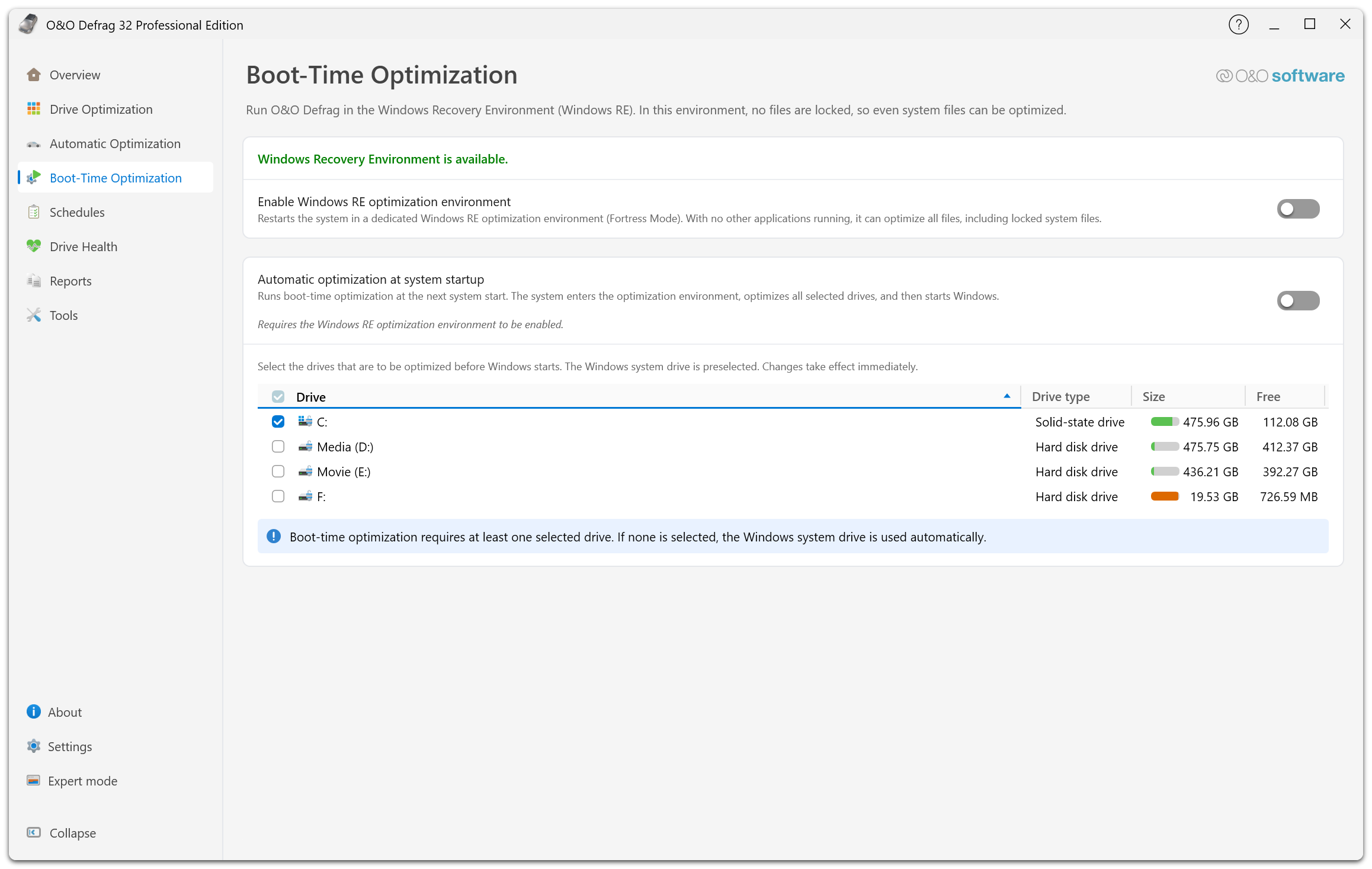
The line at the top reports whether Windows RE is available on this computer. Enable Windows RE optimization environment switches the environment itself on, and Automatic optimization at system startup stays unavailable until it is. The drive list applies to the boot-time run; the note beneath it explains what happens when nothing is selected.
Requirements
You need the full version, administrator rights, a usable Windows RE installation, and enough free space to prepare the optimization environment. The page states whether the recovery environment is available before you switch anything on. If you are prompted for elevation, restart O&O Defrag with administrator rights and try again.
Make a current backup before intensive maintenance, and save your work before the restart: the computer is unavailable while the optimization runs. If BitLocker is in use, read the BitLocker guidance first.
Enable the optimization environment
Switch on Enable Windows RE optimization environment. This prepares the dedicated Windows RE environment that O&O Defrag calls Fortress Mode, in which no other applications run and all files, including locked system files, can be optimized.
Enabling the environment does not restart the computer and does not optimize anything by itself. It makes boot-time optimization possible; the second switch decides when it happens.
Switch it off again to remove the environment. Automatic optimization at system startup depends on it and cannot stay on without it.
Optimize at the next system start
Switch on Automatic optimization at system startup. While it is on, the computer enters the optimization environment when it next starts, optimizes the selected drives, and then starts Windows.
The switch stays unavailable until the optimization environment is enabled; the page says so in the note under it. Switch it off again if the run should not take place.
This setting does not restart the computer. Continue working and restart when it suits you.
Choose the drives
The list under the switches selects what is optimized before Windows starts. The Windows system drive is preselected, and each row shows the drive type, size, and free space so you can judge the scope of the run. The check box in the column header selects every drive at once.
Changes to the selection take effect immediately, including while a run is already pending. Boot-time optimization needs at least one selected drive: if you clear them all, the Windows system drive is used automatically, so clearing the list does not switch the run off. Use the second switch for that.
After the run
Open O&O Defrag and review the result in Reports and logs. Files that remain fragmented may be excluded by file rules or deliberately skipped by the ROI settings; the recovery environment does not guarantee that every file or device can be optimized.
When Windows RE is not available
If the page reports that the recovery environment is unavailable, do not try to force a restart into it. Read the displayed error and the logs. Possible causes include missing recovery files, insufficient space on the system drive, a failure to mount or save the recovery image, and an incomplete installation.