Analysis and information views
Analysis shows file allocation and fragmentation without reorganizing files. Select a drive, then choose Analysis on the Start ribbon or from the context menu. Hold Ctrl to select more than one drive. The drive icon and progress bar show the operation's progress.
If report generation is enabled, a completed analysis produces an HTML status report that you can open in a browser.
For illustrated explanations of file fragments, scattered free space, and working space, see Drives, files, and fragmentation. These principles apply to both interfaces.
Read the information tabs
Under Start, use the tabs below the drive list to inspect the selected drive.
| View | Information |
|---|---|
| ClusterView | A block view of allocation on the selected volume, with its color legend. |
| Time view | Recent actions and optimization results for each drive. |
| History | Processed files, removed fragments, and the amount of data defragmented over time. |
| Drive status | Drive usage, file-system details, file and folder counts, and fragmentation before and after a run. |
| File status | Large files and heavily fragmented files that may warrant closer inspection. |
| S.M.A.R.T. | The health information the selected drive and its controller provide. |
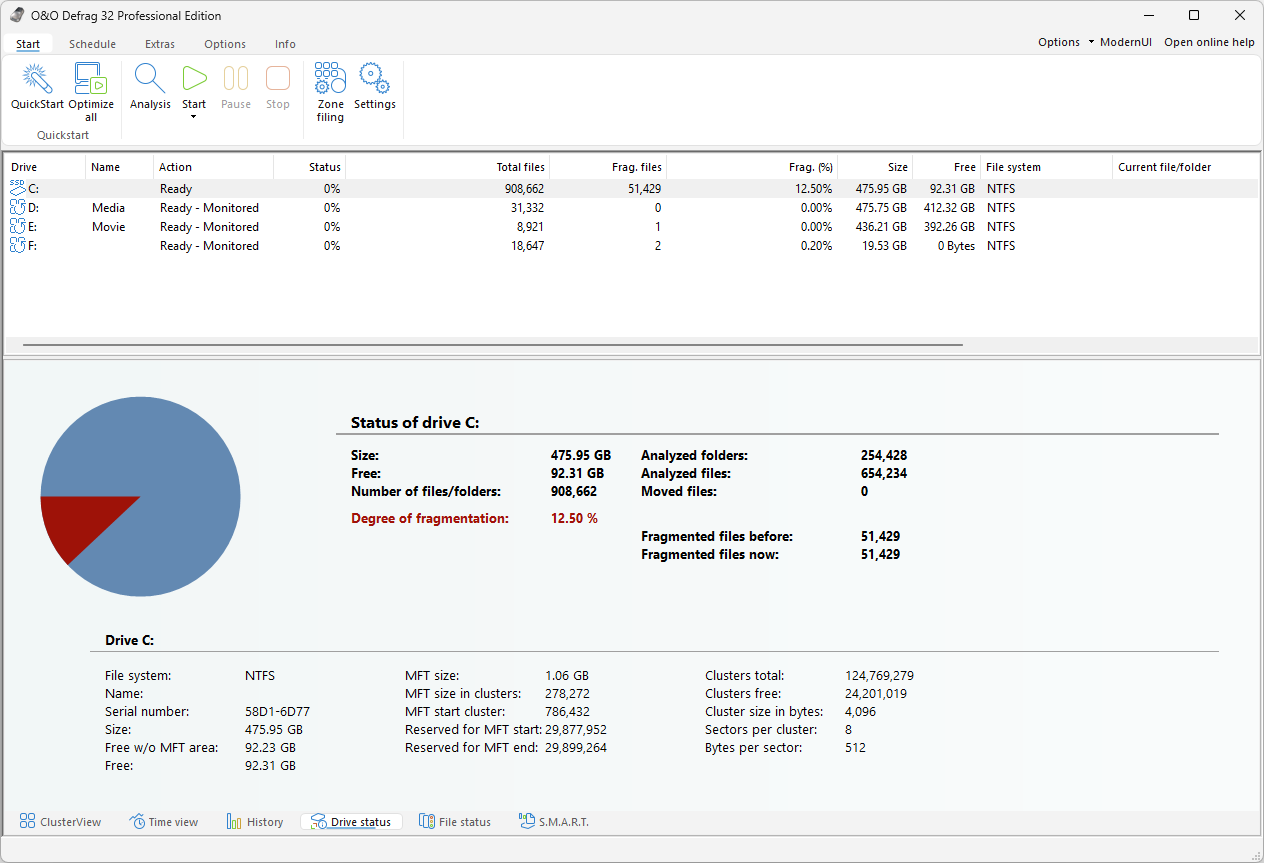
Drive status puts the summary for the selected drive next to a pie chart of its usage: size, free space, the number of files and folders, the degree of fragmentation, and the fragmented files before and after the last run. The lower half adds file-system details such as the MFT size and position, the cluster size, and the total and free cluster counts.
A fragmentation percentage is an allocation statistic, not a measured slowdown. Interpret it together with media type, workload, file sizes, and recent results. The first thorough run can take longer than later maintenance passes. Files can become fragmented again during normal work.
Inspect a block
- Analyze the drive and open its block view.
- Double-click a block to open O&O ClusterInspector.
- Review the files occupying that area. Use the navigation buttons when there are more entries than fit on one page.
- Select a file and choose Details to inspect its fragments and their cluster positions.
The inspector shows the start cluster, occupied cluster count, fragment count, allocated size, and absolute file path. Use its previous/next controls to page through results. A file with several fragments occupies several separate extents.
To locate a known file, choose Determine file position on the Extras ribbon and select the file. ClusterView highlights its occupied areas. These positions describe the volume's logical allocation; on an SSD they are not a direct map of physical flash cells.
Health information
Open the S.M.A.R.T. tab and review the information there separately from fragmentation. Useful measurements can include temperature, operating hours, reallocated or uncorrectable sectors, interface errors, spare capacity, wear, and critical warnings. Device and controller support determine which attributes are available.
Compare values over time and with the device manufacturer's interpretation. Missing data is not a zero value, and a good rating cannot guarantee a drive will not fail. Preserve important data and investigate rising errors before attempting repeated optimization. See Troubleshooting.