Automatic defragmentation
Automatic defragmentation monitors new and changed files and optimizes eligible fragmented files after write activity has subsided. Resource limits help keep the computer responsive; background maintenance still uses CPU and drive resources.
Configure background work
- Open Start → Settings from the ribbon.
- In General → Advanced options, clear Disable automatic optimization if you want background work.
- Open the automatic defragmentation page and review enabled drives and their quick and thorough intervals.
- Review file exclusions and ActivityMonitor limits.
- Confirm with OK.
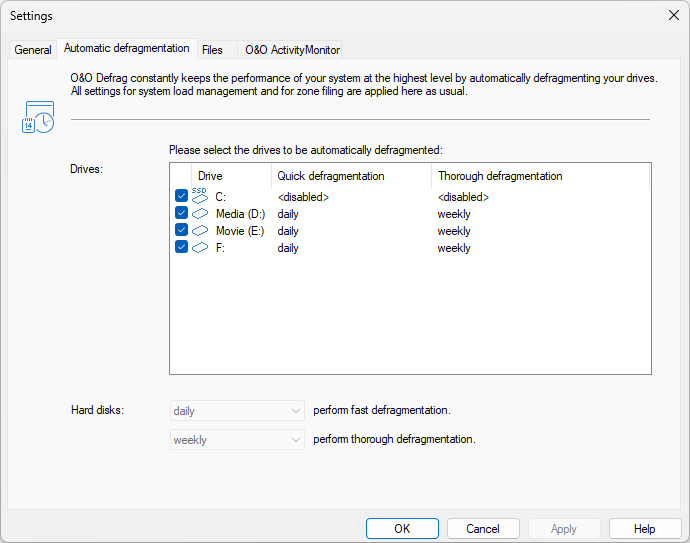
The list holds one row per drive, with a check box for the drive and its own Quick defragmentation and Thorough defragmentation intervals. <disabled> means that drive is left out of the interval concerned. The two menus below the list set the intervals applied to hard disks.
Review the drive list and each drive's enabled state. Removable and external drive inclusion, and the storage system's eligibility checks, affect what can run.
Frequently changed large files, such as virtual-machine containers, can make repeated maintenance expensive. Use file exclusions and suitable load and power limits for those workloads.
Optimize while away
For maintenance while away, create a saved task and choose the screensaver schedule under Scheduling. Work starts and stops in line with screensaver activity.
Screensaver activity is not the same as a computer being asleep or switched off. Check the configured Windows screensaver when these tasks do not start.
Scheduled times
Use Schedule → Add job for deliberate maintenance windows. Choose suitable weekdays, methods, thresholds, and end conditions. Avoid overlapping background work, scheduled jobs, and other storage maintenance.
Additional automatic optimizations
Where offered, configure SSD Optimization with TRIM to report unused regions to supported SSDs. Thin Provisioning can report reduced allocation demand on supported virtual or SAN volumes. These operations are separate from sorting or defragmenting files.
The configuration can offer regular execution or execution after defragmentation. Check the selected interval and storage support; a request does not guarantee that an enclosure, controller, or virtualization platform will reclaim capacity. See Storage maintenance.
To stop recurring activity, review both automatic settings and enabled saved tasks. Closing the interface or hiding the tray icon leaves the background service available.