File exclusions and inclusions
Open Settings → Files for global file rules. A scheduled task has a Files page for its own selection. Review both configurations when troubleshooting a particular run.
Exclude files and folders
- Open the Excluded files tab and choose Select files….
- Select the desired file or directory in the Explorer view.
- Choose Add and repeat for further entries.
- Confirm the selection with Apply and save the settings or task.
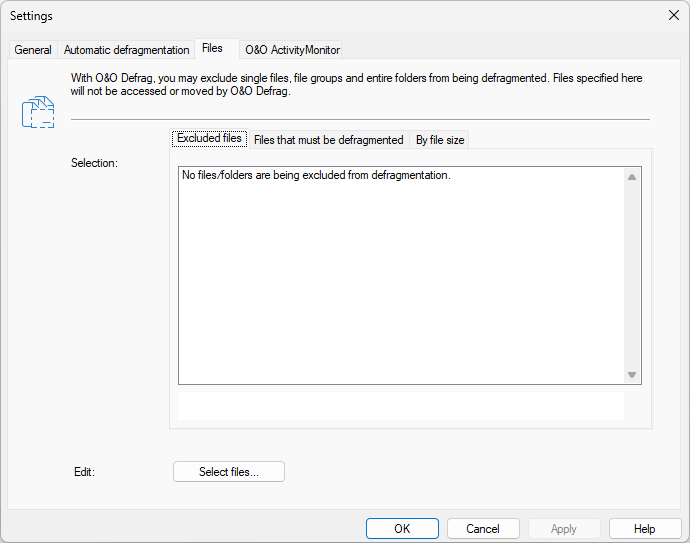
The page has three tabs: Excluded files, Files that must be defragmented, and By file size. The list states in words when nothing is configured, so an empty list is not a sign that the page failed to load. Select files… below it opens the picker for the active tab.
For example, excluding a frequently changing virtual-machine folder can avoid repeatedly moving large containers. Review the application's maintenance needs before selecting its files.
Explicitly include files
Open Files that must be defragmented, use Select files…, add the desired entries, and apply the change. Explicitly included files take precedence over a matching file exclusion. A folder can therefore be excluded while one particular file inside it is still included.
Inclusion expresses which files should participate; it does not bypass locks, file-system errors, or other limits that prevent moving a file.
Exclude by size
Open By file size and set the threshold that leaves very large files outside defragmentation and movement. This can shorten a run, but those files can remain fragmented. This is different from the speed-zone setting that moves large files to Zone 3.
After saving, analyze and review the next task's report. Check both lists and the size filter if a file is unexpectedly processed or skipped. For a one-time file action, see Manual defragmentation.