Installation, licensing, and first steps
Use the installer for your product version, Windows architecture, and edition. Professional Edition is for supported Windows desktop systems and cannot be installed as the Server Edition on Windows Server. Consult the installer and release compatibility information for the exact requirements.
Install
- Sign in with administrative rights and close other applications.
- Start the O&O Defrag setup program.
- Follow the installation dialogs and review the offered setup options.
- Allow setup to prepare the required runtime components and background service.
- Complete setup and restart if requested.
- Open O&O Defrag and review automatic defragmentation.
After an update or upgrade, check automatic maintenance settings, especially if you previously disabled them. A closed application window does not mean the background service is inactive.
Register the full version
At first start, use the registration dialog, or choose Info → Register now in the ribbon. Enter your name, company, and license key exactly as supplied in the purchase confirmation. Avoid extra spaces and confusion between characters such as 1 and I. Wait for licensing confirmation.
The registration assistant displays the remaining evaluation period for your installation.
Follow the installed registration assistant's activation steps. Contact O&O support if licensing fails.
Version and updates
Open Info → About O&O Defrag to find the exact version and license information. The Info ribbon also states the current program version and the date of the last update check, and Check for updates… starts a new one.
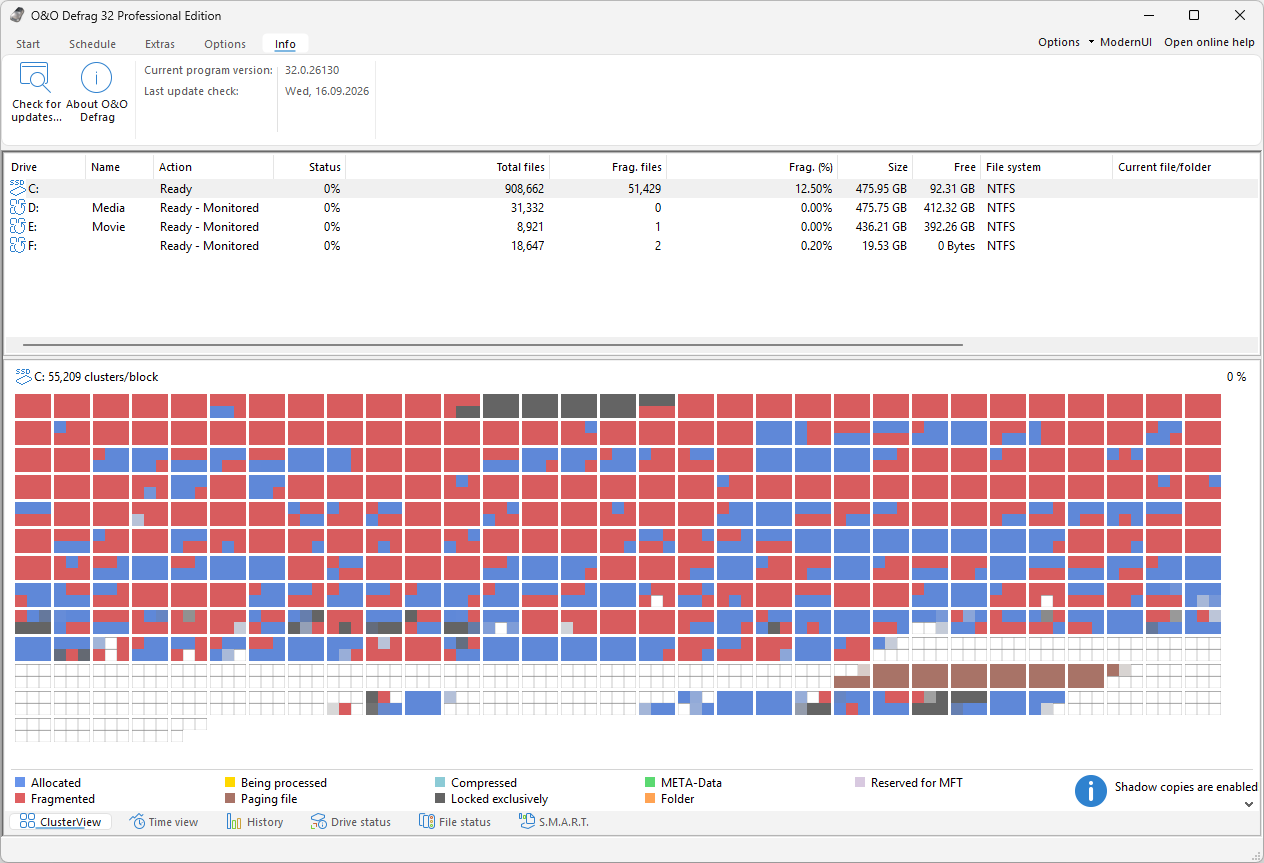
The ribbon shows Check for updates… and About O&O Defrag next to the current program version and the date of the last update check. Quote that version in any support request.
Finish active jobs before updating, and keep the interface and agent at matching versions. Keep license keys out of public reports and screenshots.
First analysis
- Select a drive in the drive list.
- Choose Analysis on the Start ribbon or from the context menu.
- Wait for completion and review the drive and file information.
- Select a method appropriate to the detected media type before starting optimization.
The agent must be able to access the volume. A mapped network share is not a local disk. USB, RAID, virtual, and encrypted drives may expose different capabilities. Unlock encrypted volumes and check the reported drive type before maintenance.
Uninstall
Open Windows Settings → Apps, select O&O Defrag, and choose Uninstall, or use the installed entry in Programs and Features. Follow the uninstaller and restart if requested. To retain the application while stopping scheduled or automatic activity, change the relevant maintenance settings instead.