Classic UI guide
This guide describes the Classic UI in O&O Defrag 32: its ribbon, drive list, and detailed views. Availability depends on your build, edition, and license.
The Classic UI is retained for users who prefer its familiar layout and established workflows. The Modern UI offers almost all its features. See Modern UI and Classic UI to choose an interface.
If your window has Overview, Drive Optimization, and Schedules pages, use the Modern UI guide. In the Modern UI, choose Expert mode at the bottom of the navigation to open the ribbon interface. Settings → Expert mode can make the classic interface the default. Switching interfaces does not stop work already running in the agent.
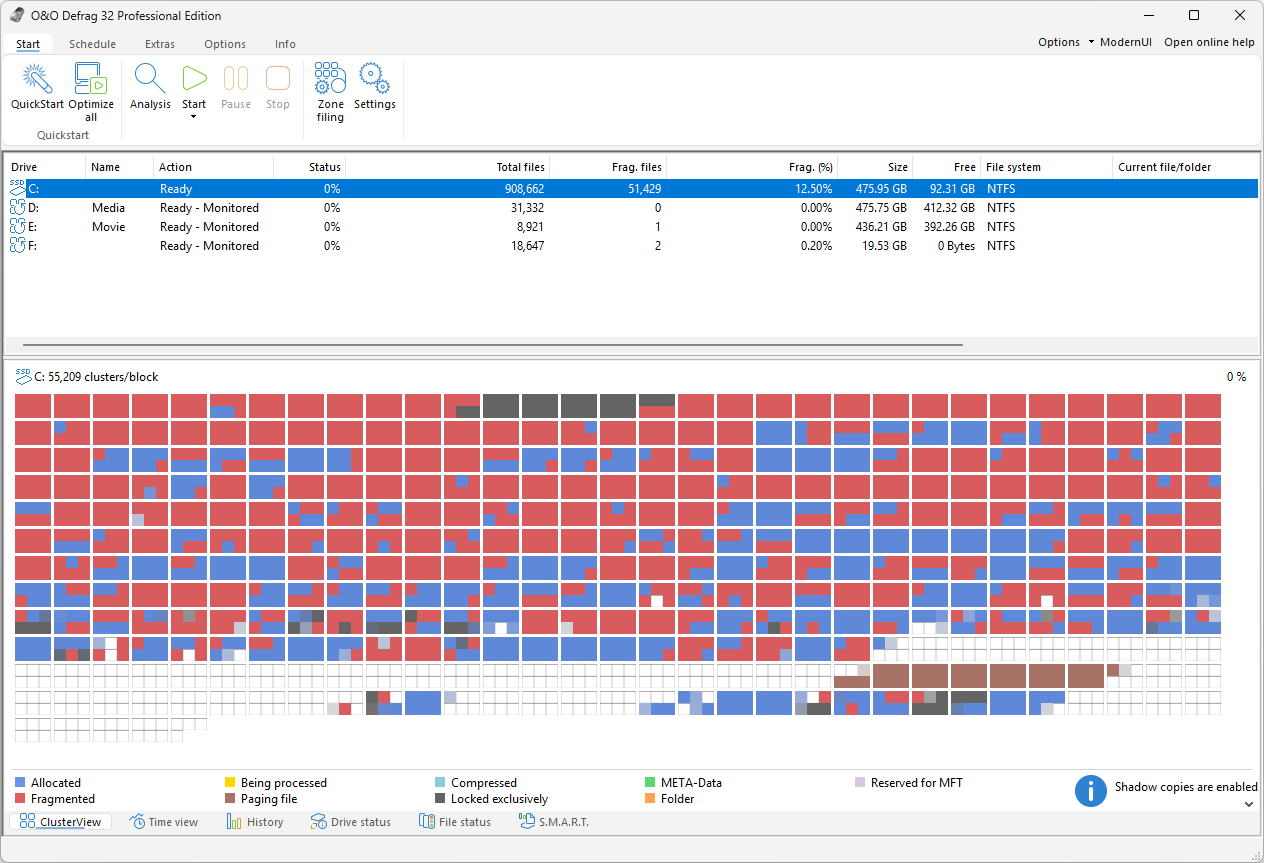
The window has three parts: the ribbon with its Start, Schedule, Extras, Options, and Info tabs, the drive list in the middle, and the information tabs at the bottom — ClusterView, Time view, History, Drive status, File status, and S.M.A.R.T. ModernUI in the top right corner returns to the modern interface.
Find a task
| Goal | Topic |
|---|---|
| Install, register, or update | Getting started |
| Analyze a drive and inspect files | Analysis and information views |
| Start, pause, or stop a run | Manual defragmentation |
| Select a strategy and file placement | Methods and speed zones |
| Set up background maintenance | Automatic defragmentation |
| Run at a particular time or with the screensaver | Scheduling |
| Control load and choose files | Settings and file rules |
| Review results | Reports |
| Check a drive, maintain SSDs, or transfer settings | Extras and storage maintenance |
| Remove temporary files | O&O DiskCleaner |
| Use tray controls or view drive activity | Notification area and drive activity |
| Run commands or scripts | Command-line operation with OODCMD |
Navigation
Use Start for drive actions and the information tabs. Use Schedule for saved tasks and reports, Extras for drive checking, storage maintenance, and the XML import and export, and Info for version and licensing. Settings on the Start ribbon opens the global configuration; a scheduled task also has its own settings. Confirm configuration dialogs with OK or Apply as offered.
Before starting an action, check the selected drives. Hold Ctrl to select several drives. Progress and the animated drive icon show activity; the background service can continue working when you close the interface.