Manual defragmentation
Analyze a drive first so you can choose a method based on its media type and current state. HDD methods can consolidate files and free space or apply a sorting policy. Use SSD-specific maintenance for SSDs; see Methods.
Optimize selected drives
- Select the drive in the drive list. Hold Ctrl to select several drives.
- Open the Start button's submenu in the ribbon.
- Choose the required method. Check speed-zone settings before using an OPTIMIZE method.
- Watch the drive icon and progress bar.
- Use Pause to interrupt work temporarily or Stop to end the current operation.
- After completion, review the before/after information and report.
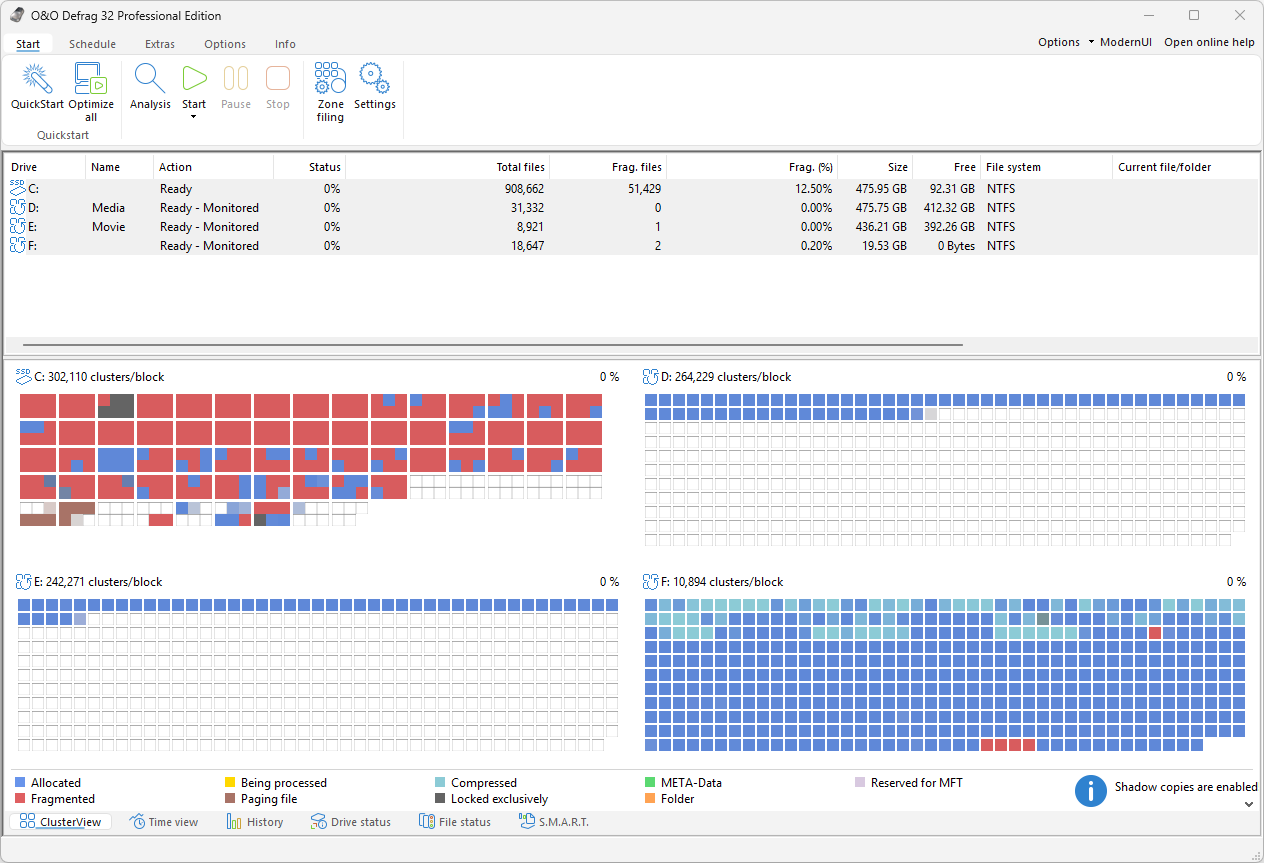
With more than one drive selected, ClusterView shows a separate block view per drive, each with its own cluster-per-block ratio and progress value. The chosen method applies to every selected drive, and the Action and Status columns in the list report each drive separately.
The main Start action runs OPTIMIZE when zone methods are active and SPACE otherwise. Select a method explicitly when its identity matters. Selecting all eligible drives applies the chosen action to all of them. Parallel processing is controlled by General settings, so multiple selected volumes need not run simultaneously.
Duration depends on the amount and arrangement of data, free working space, the selected method, and competing activity. Avoid large copying or moving operations during a run when possible; they change the layout being optimized.
Individual files and folders
Where the O&O Defrag shell extension is installed, right-click a file or folder in Windows Explorer and choose Defragment. This starts work immediately for the selected item. Analyze afterward and check the fragmented-file list to verify the result.
Do not confuse this one-time action with the persistent inclusion list in file rules. An inclusion overrides matching file exclusions but cannot make every locked or otherwise ineligible file movable.
Free working space
Defragmentation needs free space to move data. Leave sufficient working space for the files you want to optimize; the amount needed depends on file sizes, allocation, and the selected method.
The size of files and contiguous free areas matters as well as total free space. A file larger than the available contiguous space can need several passes or remain fragmented. Use DiskCleaner to review unnecessary files, or move data you no longer need on that volume.
Locked and encrypted files
Files in use, file-system metadata, exclusions, and insufficient working space can leave fragmentation behind. Investigate the file status before repeating a complete run. For maintenance outside normal Windows, use the Modern UI boot-time guide. Make sure BitLocker recovery information is available before restarting into a maintenance environment.