Scheduled and screensaver tasks
Use Schedule to define when maintenance runs and what it does. A task stores drive selection, methods, timing, conditions, and reporting options.
Create a task
- Open Schedule → Add job in the ribbon.
- On General, enter a descriptive name and an optional description, and leave Job enabled selected.
- Under Drives, select each target drive and its method.
- Set a minimum fragmentation level if you want to skip drives below that threshold. 0% removes this threshold restriction; other execution conditions still apply.
- Review zone settings, file rules, and task-specific Settings.
- Configure O&O ActivityMonitor load, program, and power conditions.
- Set the Schedule, confirm with OK, and check the saved entry in the task list.
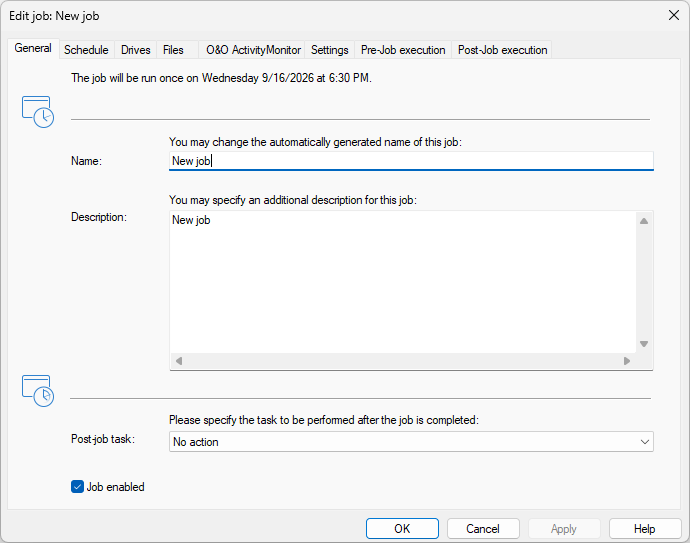
The tabs run from General through Schedule, Drives, Files, O&O ActivityMonitor, and Settings to Pre-Job execution and Post-Job execution. The sentence at the top of General states in words when the job will next run. Post-job task is the completion action, and Job enabled keeps the saved definition while switching its execution off.
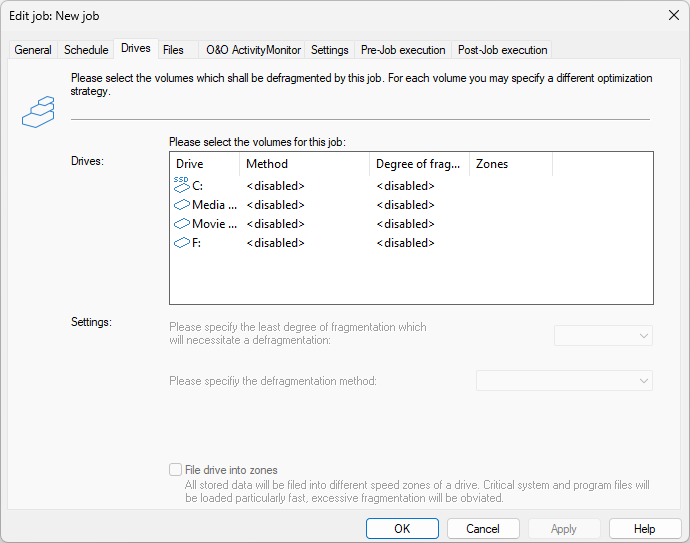
Each volume has its own Method, Degree of fragmentation threshold, and zone setting. <disabled> leaves that volume out of the job, so at least one row has to carry a method before the job can do anything. The two menus under Settings apply to the row you select in the list.
Names help identify reports but need not be unique. Give duplicated tasks distinct names so their results are easy to distinguish.
Schedule choices
| Choice | Behavior |
|---|---|
| One time | Runs at the specified date and time. |
| Recurring | Runs on the chosen weekdays and times; repetition can add several executions per day. |
| On screensaver | Starts and stops in line with screensaver activity. |
First run on and Last run on define the validity period. Maximum runtime limits how long a run may continue, even if work remains. Later executions can continue maintenance; do not treat reaching the limit as a completed optimization.
Enable Run later if not possible at the start time if missed executions should be attempted after the computer becomes available. Drive availability, power, and other conditions can still prevent or delay execution. A computer that is switched off cannot run a task; wake from standby applies to supported sleep states.
Conditions and task settings
Use ActivityMonitor to limit CPU usage, wait while the target drive is busy, or block a task while selected programs run. Choose AC-only operation and pause-on-battery as appropriate.
The task's Settings page includes the read-only pre-check, parallel physical-disk processing, Windows file-layout hints, removable/external drive inclusion, SSD protection, and HTML/event reporting. Inspect these saved values when a task behaves differently from a manual run.
Final action
The Shut down final action shuts down Windows after the task completes. Select it only for an intended unattended maintenance window, with other work saved. Review final actions when duplicating a task.
Edit and manage tasks
- Edit: select the task, choose Edit from its context menu, change the settings, and confirm with OK.
- Duplicate task: create a copy, open it, and review its name, drives, schedule, commands, and final action before enabling it.
- Disable: retain the task's configuration while preventing its scheduled execution; enable it again when needed.
- Delete task: confirm removal of the selected saved task. Stop any active execution deliberately before deleting its definition. Recreate the task if needed later. Centrally managed or protected tasks may not be editable or deletable locally.
Batch commands before and after a task
Open Pre-Job execution or Post-Job execution and enable its command field. Enter commands directly or use Import to load command text from a file. Paths, programs, and files must exist on the target computer.
Commands run through the O&O Defrag Agent as SYSTEM, with extensive local privileges. They do not run in your interactive desktop account; mapped drives and user-specific settings may not be available. Use absolute paths and verify commands independently before attaching them to a maintenance task.
If a workflow stops an application or service before maintenance, plan how it will be restored if the job fails or is interrupted. Do not assume a normal post-task step will cover every failure. Review reports after the first scheduled execution.