General settings and ActivityMonitor
Open Settings on the Start ribbon and confirm changes with OK or Apply. The dialog has four pages: General, Automatic defragmentation, Files, and O&O ActivityMonitor. Saved tasks have their own settings; inspect the task as well as the global configuration when behavior differs from what you expect.
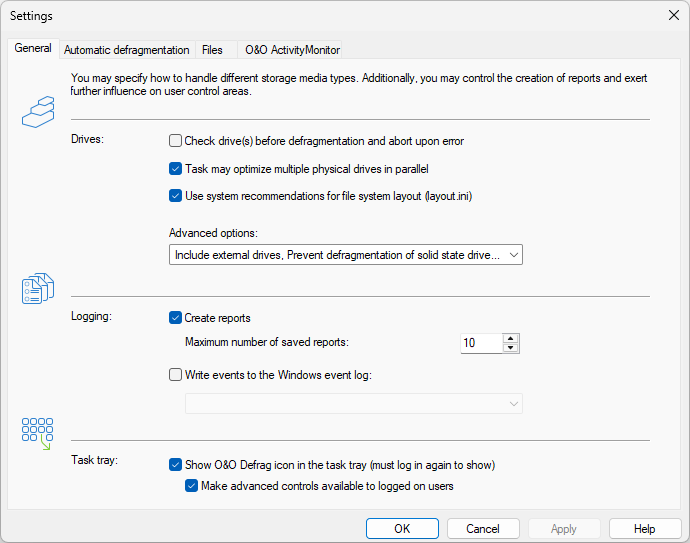
Drives holds the pre-check, parallel processing, and file-system layout options; the remaining drive options are collected behind Advanced options, which summarizes the enabled ones on its own button. Logging controls report creation and event logging, and Task tray the notification-area icon.
General
| Setting | Effect |
|---|---|
| Check drives before defragmentation | Performs a read-only file-system check. Errors prevent defragmentation of the affected drive; this option does not repair errors. |
| Defragment multiple physical disks in parallel | Allows work on separate physical disks at once. Sequential processing reduces concurrent load. |
| Take system file layout into account | Uses Windows layout information, where available, to guide placement of startup files. |
| Include removable drives | Makes eligible removable media available for the configured operation. |
| Include external drives | Includes eligible externally connected volumes. This is separate from automatic background maintenance. |
| Show defragmentation result | Displays the before/after result and history after completion. |
| Prevent defragmentation of solid state drives | Restricts SSD defragmentation. Review the offered SSD-specific actions before changing protection. |
| File into zones (not recommended to use with SSDs) | Enables the zone placement policy for HDDs. |
| Disable automatic optimization | Disables the corresponding automatic background optimization. Review saved schedules separately. |
| Enable remote administration from same network | Lets other computers on the same subnet manage this installation. Leave it off unless that access is intended. |
Two drive letters can belong to the same physical disk. Parallel work on unrelated letters does not necessarily mean there are independent hardware resources.
O&O ActivityMonitor
ActivityMonitor limits optimization according to current workload. Open its page in Settings, or in the task editor to configure an individual task.
- Load: Limit the processor load of O&O Defrag caps the load the optimization itself causes. Do not execute task if the processor load is higher than and Do not execute task if the hard disk load is higher than are start guards for the total load of the computer. In all three fields, 100 % means no limit.
- Programs: use + and - to maintain the list of programs during whose execution maintenance should not run, and Reset to restore the default. Backup software, games, and other intensive applications are common candidates.
- Energy: Allow defragmentation only when on AC mains operation and Cancel if computer runs on battery power (recommended for notebooks) conserve notebook battery capacity.
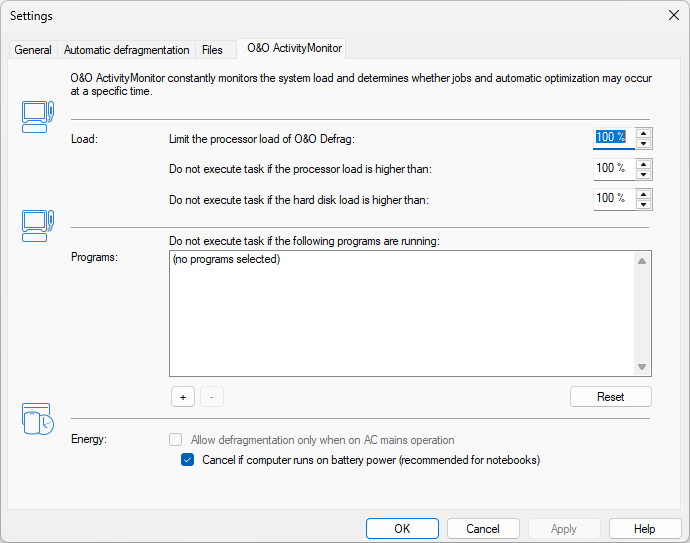
The three percentage fields answer different questions: the first limits the load O&O Defrag may cause once it runs, the other two decide whether it may start at all. The program list states in words when nothing is selected.
Tasks may also offer wake from standby. Enable it only for a schedule where waking the computer is intended. A paused or waiting task may be responding correctly to one of these guards.
Reports, event logging, and tray controls
Enable HTML report creation and choose retention under General settings. Event logging offers increasing detail, from errors at level 1 to full information at level 4. More detailed logging creates more entries; preserve needed diagnostics before retention removes them. See Reports.
Show O&O Defrag icon in the notification area controls the tray icon and can require a new Windows sign-in to take effect. Extended control for the logged-in user allows that user to pause or stop operations; otherwise the icon can be limited to status. See Notification area.
Use file rules for exclusions and large-file limits. Base settings can be transferred through XML import/export.