Extras and storage maintenance
The Classic UI includes maintenance commands in the ribbon. These differ from the separate applications offered on the Modern UI Tools page.
Check a drive
- Select a drive.
- Choose Check Drive(s) on the Extras ribbon.
- Wait for the result, or use Stop to cancel the check.
- Review its report under Schedule → Reports.
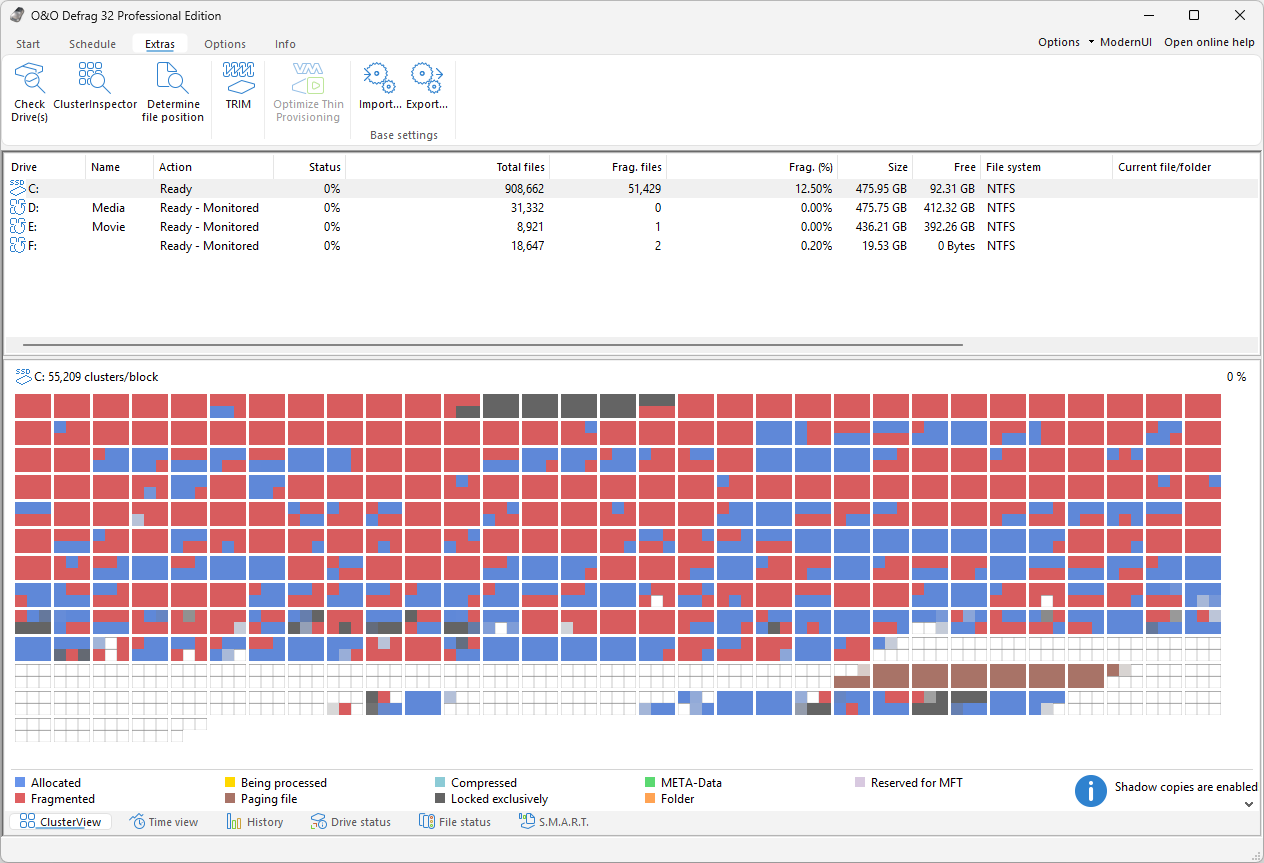
The Extras ribbon collects Check Drive(s), ClusterInspector, and Determine file position for inspection, TRIM and Optimize Thin Provisioning for storage maintenance, and Import… and Export… under Base settings. A command that the selected drive or the storage system does not support stays greyed out, as Optimize Thin Provisioning is here.
This check corresponds to a read-only file-system check. It does not automatically fix errors. If an error is found, protect important data and arrange an appropriate repair before trying defragmentation again. This command is distinct from the separate CheckAndRepair application.
SSD TRIM and thin provisioning
TRIM reports unused regions on supported SSDs. It does not sort files or securely erase selected content. Device, controller, connection, and driver support all matter. RAID and USB configurations can expose different capabilities; do not infer support solely from the SSD model.
Use Extras → TRIM, or configure its interval in automatic optimization.
Optimize Thin Provisioning reports unused allocation on supported virtual and SAN volumes so the underlying storage can reclaim it. Select the eligible target and use the ribbon command, or configure periodic execution where offered. Actual reclamation depends on the storage platform and is not guaranteed to shrink a virtual disk file immediately.
Import and export base settings
- In the main window, open Extras → Export… under Base settings.
- Choose a destination and an XML filename, such as
ood_settings.xml. - Confirm to save the base configuration.
To load a configuration, use Extras → Import…, select the compatible XML file, and confirm. Export the current settings before replacing them, then review drives, file rules, automatic maintenance, and remote access after import.
Base settings are not a backup of every saved job or report. Do not assume a Classic XML configuration is an import format for the Modern UI.
Other tools and maintenance environments
Use O&O DiskCleaner for integrated Classic UI cleanup and ClusterInspector for file-allocation inspection. The drive activity display is another separate status tool.
Open Boot-Time Optimization in the Modern UI to enable the Fortress Mode environment and let the next system start optimize the drives you select. Switch the startup option off there when you no longer want it. Read Boot-time optimization and Fortress Mode for instructions and BitLocker guidance before proceeding.