ClusterView and ClusterInspector
ClusterView displays a block map of a selected drive. Use it to explore file placement and free space after an analysis.
Read the map
Use the legend shown with the map. It distinguishes free and allocated regions and file states such as fragmented or unmovable data. Colors can change with the selected theme.
A screen block represents a range of clusters; it does not necessarily equal one file or one fragment. With shading enabled, a block's color can reflect a mixture of states. The map is a visual summary, so use the inspectors for exact file information.
The map describes logical allocation on the Windows volume. On an SSD, the controller manages the underlying physical placement, so adjacent map blocks do not prove that data occupies adjacent flash cells. See File layout and internal SSD maintenance.
Inspect a block
- Analyze the drive in Drive Optimization.
- Select a block in ClusterView.
- Open ClusterInspector using the inspector control.
- Review the files associated with that area.
The inspector can show the file name and path, logical size, size on disk, starting cluster, cluster count, fragment count, fragmentation, and ROI factor. One fragment means the stored extent is contiguous. A sparse or compressed file can have a logical size different from its allocated size.
No cluster selected means you need to select a block. An empty list before analysis does not establish that the area is unused.
Adjust the display
Open Settings → ClusterView to change:
- Shading for mixed cluster contents.
- The 3D effect.
- Emphasize the selection by dimming: dim the other blocks, or give the selected ones a colored border instead.
- Block size and Automatic DPI adjustment.
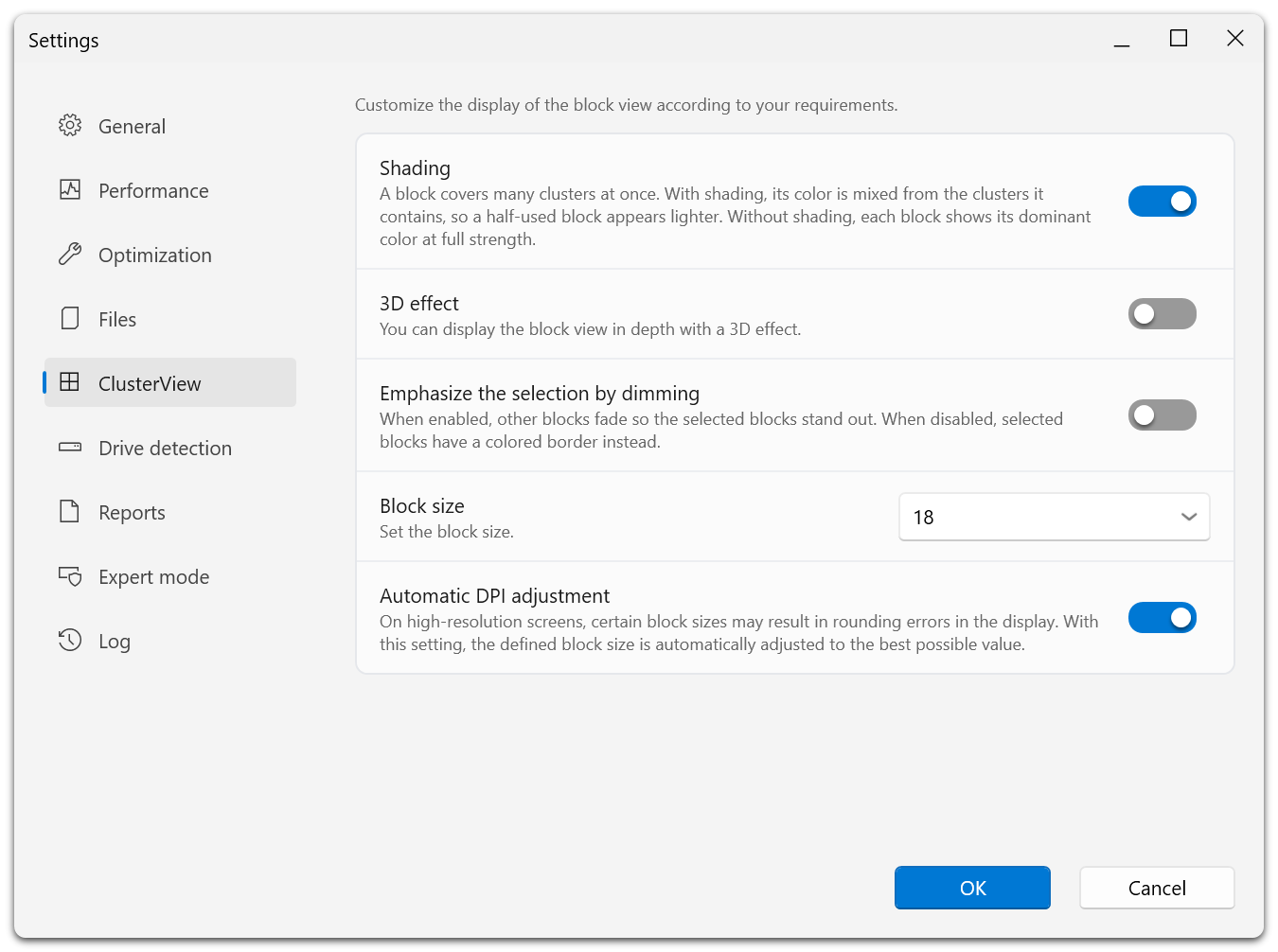
Each option explains what it changes. With shading on, a half-used block appears lighter because its color is mixed from the clusters it covers; with shading off, every block shows its dominant color at full strength. Automatic DPI adjustment avoids rounding errors in the block grid on high-resolution screens.
These preferences do not modify the drive. Choose a larger block size if the map is difficult to read, or a smaller size to show finer spatial detail.
For a ranked file list, use FileInspector. For an explanation of files intentionally omitted from fragmentation coloring, see ROI factor.