Read the dashboard
The Start page summarizes the condition of your drives and provides actions for findings. Its overall rating describes drive fragmentation and related findings; it is not a benchmark of the CPU, memory, or the entire computer.
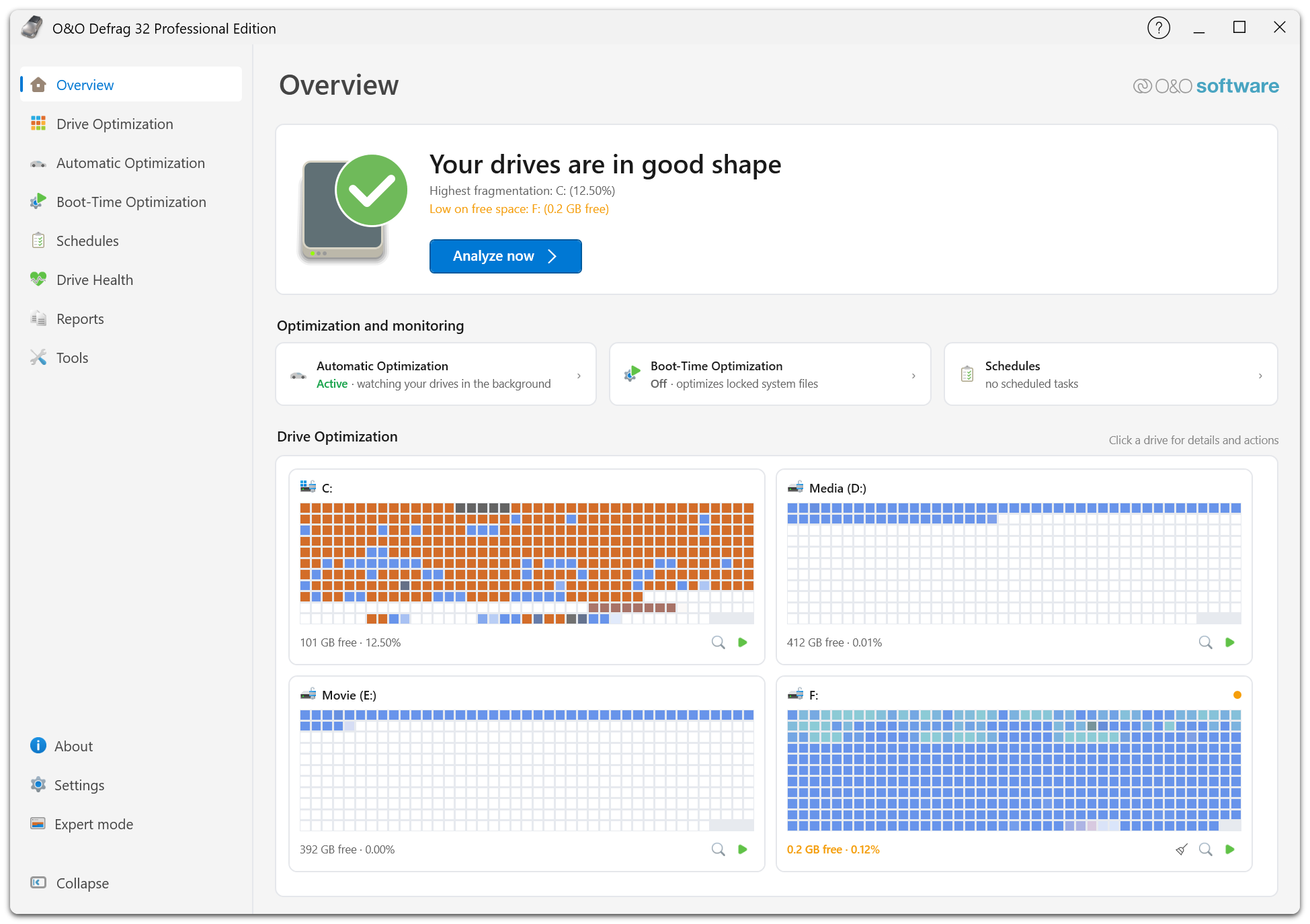
The banner at the top states the overall rating and names the findings behind it, here the highest fragmentation value and a drive that is low on free space. Optimization and monitoring summarizes automatic optimization, boot-time optimization, and schedules. Below that, each drive has a card with its block map, free space, and fragmentation value.
Read a drive card
A drive card identifies the volume and summarizes stored data, free space, fragmentation, and the last analysis. Select a drive for details and actions. The magnifier icon on the card opens the drive in the cluster view; the green arrow starts an optimization for it.
If a drive has never been analyzed, choose Analyze now on the banner first. Old analysis results can be useful context, but analyze again when substantial files have changed.
Respond to findings
| Finding | What to do |
|---|---|
| Never analyzed | Analyze the drive before deciding on optimization. |
| Fragmentation needs attention | Review the Optimization Advisor and its suggested method. |
| Low on free space | Review files and cleanup opportunities; optimization does not create capacity. |
| Automatic maintenance disabled | Review Automatic optimization and any scheduled jobs before enabling it. |
| TRIM notifications disabled | Review the Windows TRIM setting in Automatic optimization. |
| Windows and Defrag schedules overlap | Decide which application should manage scheduled maintenance. |
When the dashboard offers Leave it to O&O Defrag, it asks to disable scheduled Windows drive optimization. Review and confirm that change only if you want Defrag to handle maintenance. Windows' own optimization schedule can be enabled again through Windows.
A paused Windows schedule does not mean SSD delete notifications are disabled. See SSD TRIM.
Monitoring indicators
The maintenance area summarizes automatic optimization, boot-time optimization, and active scheduled jobs. The boot-time card reports whether the next system start will optimize your drives. Open Boot-Time Optimization to change the drive selection or switch the run off.
While analysis or optimization is running, the dashboard shows activity instead of a final result. Wait for completion before judging the new rating. If the rating remains poor, inspect the individual findings; low free space, for example, requires a different response from file fragmentation.
For broader Windows performance checks, open O&O SpeedCheck from Tools.