Drive health and S.M.A.R.T.
Drive Health displays health information that the storage device and Windows make available. S.M.A.R.T. is the drive's own monitoring information; it is separate from file fragmentation.
Check a drive
- Open Drive Health.
- Locate the relevant physical device in the list.
- Double-click it to open Drive health details.
- Review the overall rating and available attributes, values, and descriptions.
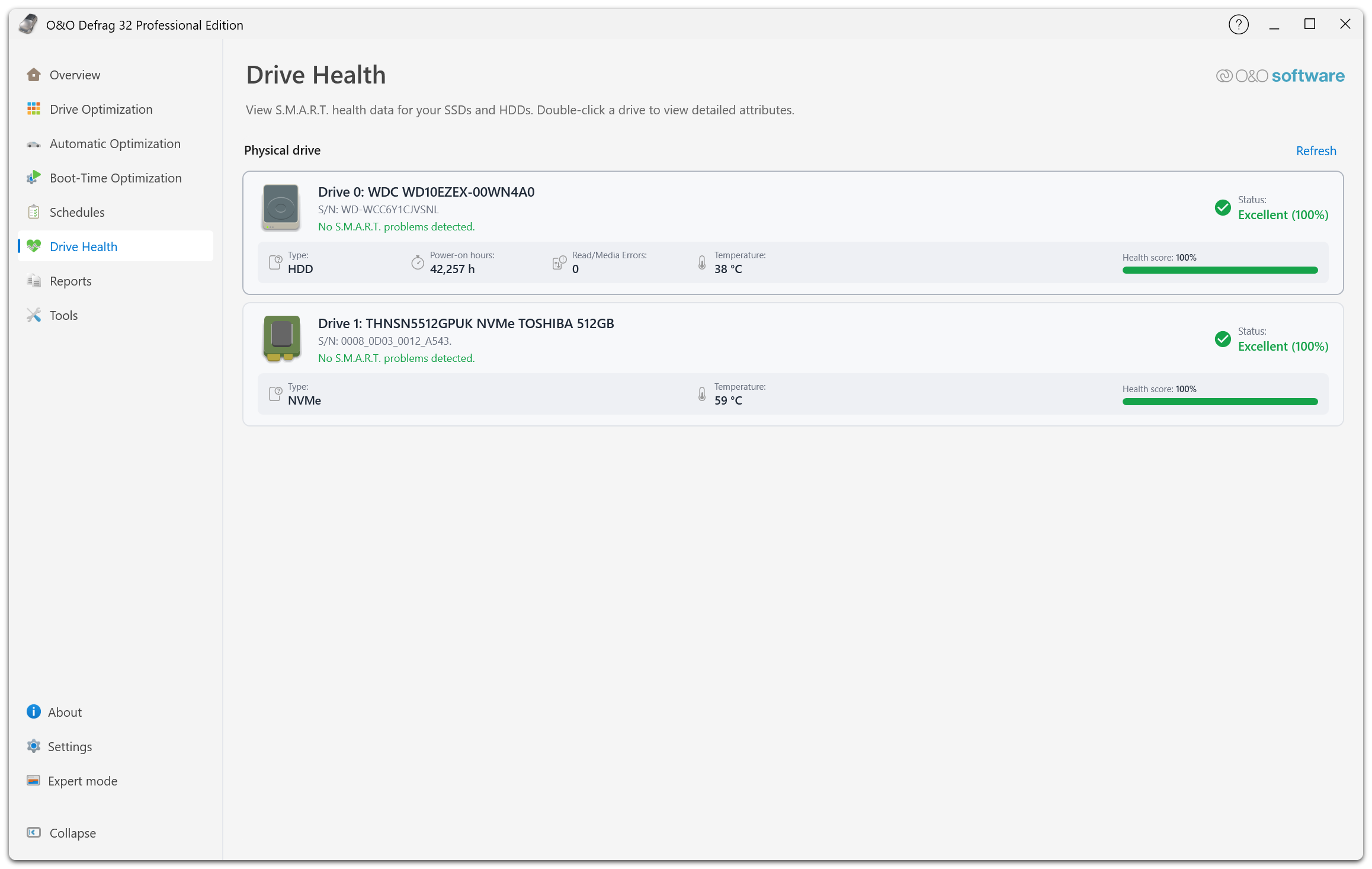
The page lists physical devices, not drive letters. Each card names the model and serial number, states whether S.M.A.R.T. problems were detected, and shows the readings the device provides — here type, power-on hours, read and media errors, and temperature. Refresh in the top right re-reads the values.
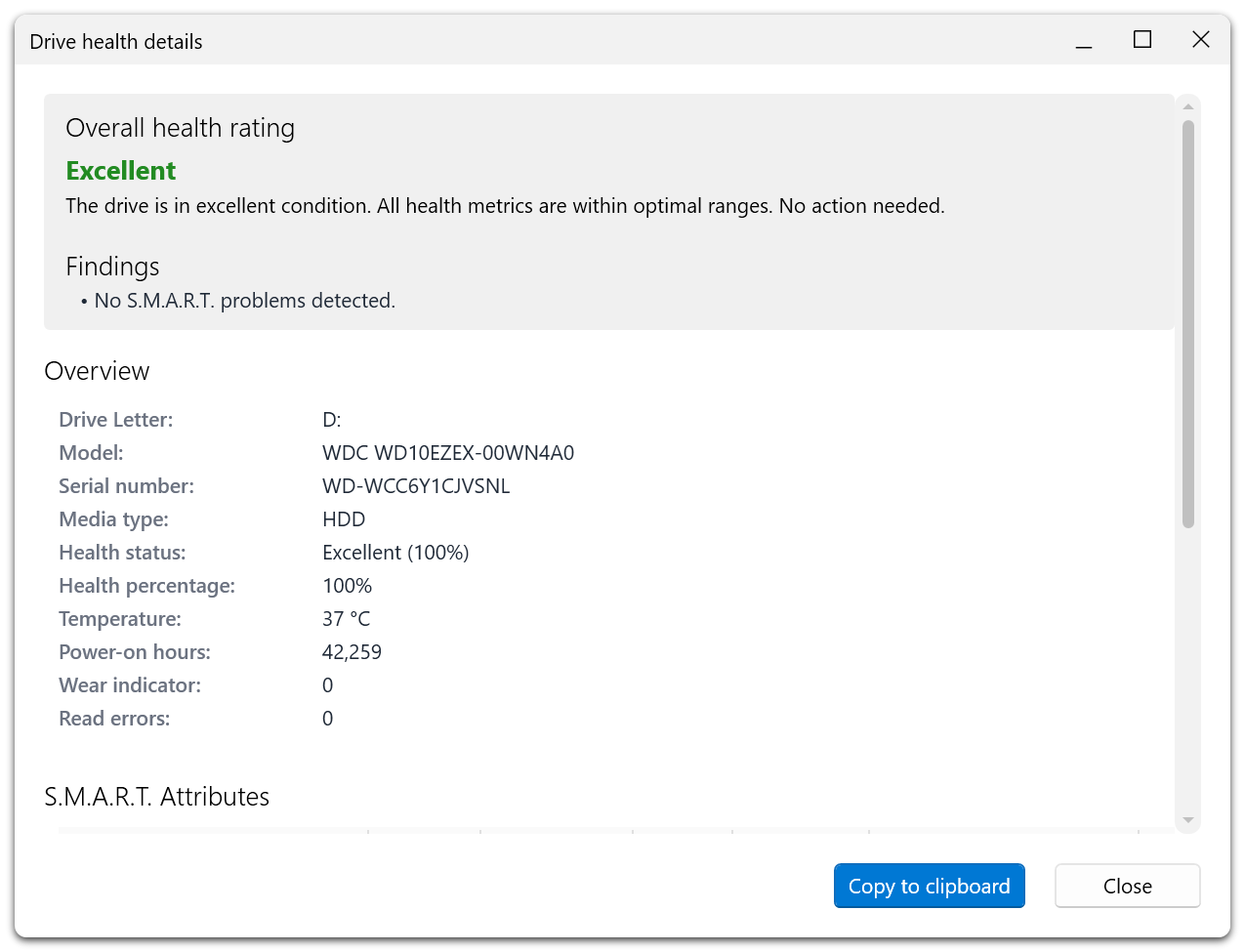
The detail window opens with the overall rating and the findings behind it, followed by an overview of the device and the full list of S.M.A.R.T. attributes. Copy to clipboard collects this information for a support request.
A physical disk can contain several volumes. When comparing information with Drive Optimization, make sure you are looking at the correct physical device rather than assuming each drive letter is a separate disk.
Interpret the result
A good health rating means the available measurements did not produce a warning. It does not guarantee that the device cannot fail. A missing value means information was not available, not that the value is zero.
Attribute availability and meaning vary between SATA, NVMe, USB, RAID, and other controllers. Some bridges do not pass through all health data. O&O Defrag cannot display measurements the storage stack does not expose.
Useful readings can include temperature, power-on hours, reallocated or uncorrectable sectors, interface errors, spare capacity, wear, and device critical warnings. Use the device manufacturer's meaning and limits for each attribute; a single temperature range or raw counter interpretation does not apply to every drive. Compare changes over time as well as the current value.
If the drive reports a problem
- Preserve important data in a backup or a recovery process appropriate to the symptoms.
- Record the device name, rating, and concerning attributes.
- Check the hardware manufacturer's diagnostic guidance.
- Avoid repeatedly running heavy optimization to try to clear a hardware warning.
- Use Copy to clipboard in the detail window and contact support if you need help interpreting what Defrag displays.
File-system checking can address file-system errors, but it cannot repair worn-out flash or damaged mechanical components. See Check and repair.
The fragmentation rating on the dashboard and the health rating answer different questions. A neatly organized drive can have a hardware problem, and a healthy device can contain fragmented files.