Find your way around
The modern interface groups work by task. The main navigation changes the view; the toolbar offers actions for the current drive selection.
Main views
The navigation on the left lists the views in the order below. About, Settings, and Expert mode sit at the bottom of the same column, and Collapse narrows it to icons.
| View | Use it to |
|---|---|
| Overview | Review drive condition, findings, and maintenance status. |
| Drive Optimization | Select drives, analyze or optimize them, and inspect the block map. |
| Automatic Optimization | Configure background maintenance and SSD TRIM. |
| Boot-Time Optimization | Enable the Windows RE optimization environment, let the next system start use it, and choose the drives it optimizes. |
| Schedules | Create, inspect, modify, and delete scheduled tasks. |
| Drive Health | Inspect available S.M.A.R.T. health information. |
| Reports | Review the history and results of completed actions. |
| Tools | Open additional O&O applications. |
The Optimization Advisor and method selection controls help you choose an action for the selected drives. The main window's status area shows current activity and connection information.
Selection matters
Before using an action, check which drives are selected. Some commands apply to more than one drive at once. A drive already running an action may be unavailable for another action.
In ClusterView, selecting a block selects an area of the drive, not the entire file system. Use ClusterInspector to identify its contents.
Settings and help
Open Settings to change application preferences and global optimization defaults. Most settings are applied when you confirm the dialog; read any separate confirmation or restart prompt.
Press F1 for context-sensitive help. Some views open the general help overview. In that case, use this guide's sidebar to locate the topic. The About dialog provides product version and log access.
Classic interface and Expert mode
Choose Expert mode at the bottom of the navigation to open the classic interface. In Settings → Expert mode, you can configure the application to start in the classic interface by default.
The classic interface uses a ribbon and detailed views, so the position of a control may differ from the modern instructions. Both interfaces work with the Defrag agent; check for existing activity before starting another operation. Choose ModernUI in the top right corner of the classic window to return to the modern Overview page.
Follow the separate Classic UI guide for ribbon procedures. Both interfaces share the tray and OODCMD applications.
Appearance and keyboard use
Use Settings → General for available language and appearance choices. Display mode offers light, dark, and high-contrast presentation and follows the Windows setting by default. Use Tab to move focus, Space to toggle a focused checkbox, and the dialog buttons to save or cancel.
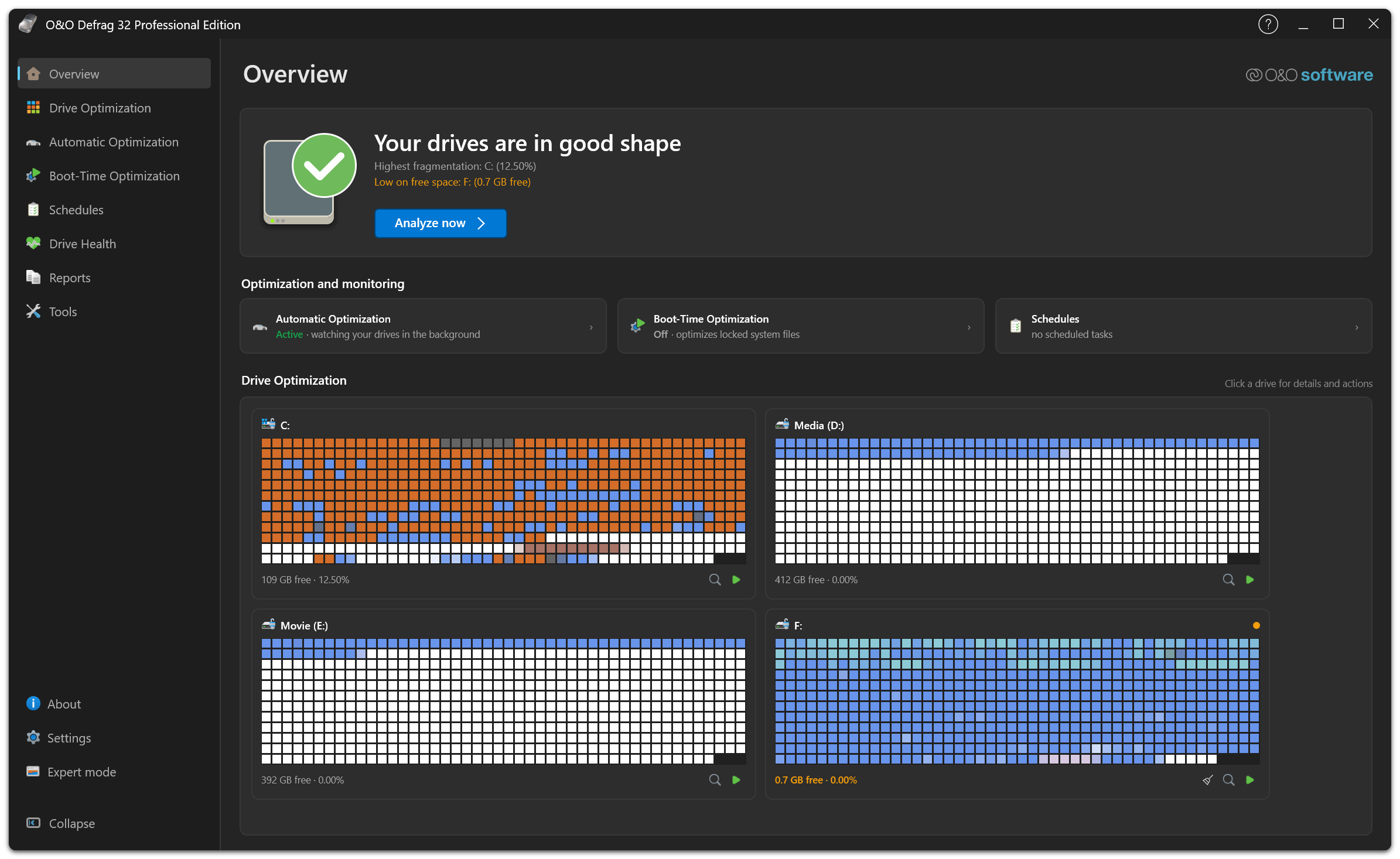
The same window in dark mode. The navigation on the left keeps its order in every display mode; only the colors of the interface and of the block maps change.
Adjust block size, shading, and selection emphasis under Settings → ClusterView. These settings change the display, not the arrangement of files.