Modern UI and Classic UI
Modern UI and Classic UI are two interfaces for the same O&O Defrag product. They share the background agent, installation, and license.
Modern UI: the main interface for version 32
The Modern UI in O&O Defrag 32 offers almost all the features of the Classic UI and is the recommended starting point for both everyday and advanced maintenance.
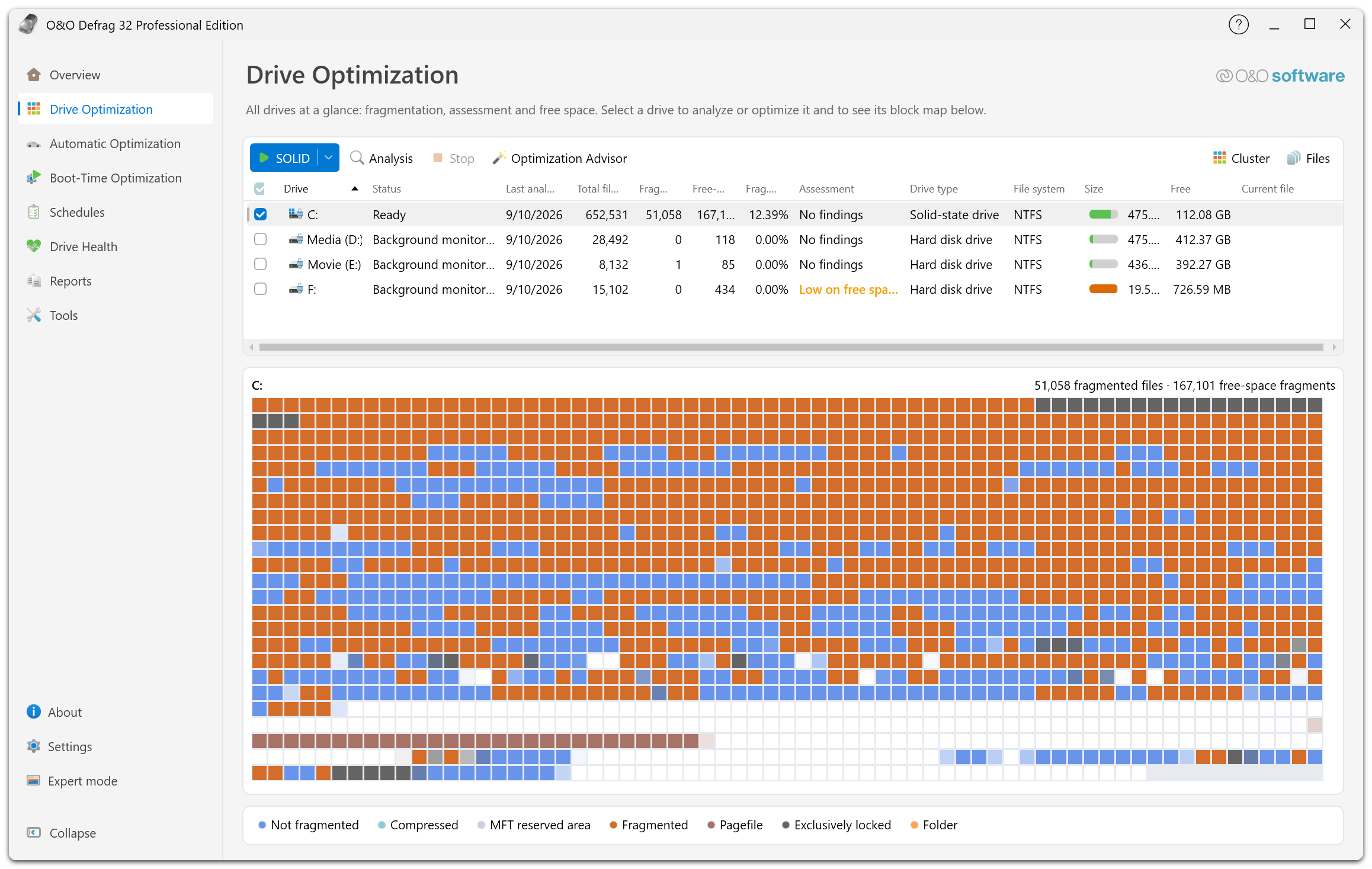
The Drive Optimization page of the Modern UI, here with a drive C: as an example.
Its task pages cover drive optimization, automatic and boot-time maintenance, schedules, health, reports, and tools. The Optimization Advisor helps you choose an action.
Advanced controls include methods, zones, file rules, job-specific settings, resource and power limits, pre-job and post-job commands, and file and cluster inspection. Start with the Modern UI guide.
Classic UI: a familiar interface
The Classic UI is retained primarily for historical reasons, preserving familiar controls and established workflows. For most tasks, choosing it is a matter of familiarity and preference.
Its Start, Schedule, Extras, Options, and Info ribbon tabs sit above a drive list and a row of information tabs. See the Classic UI guide.
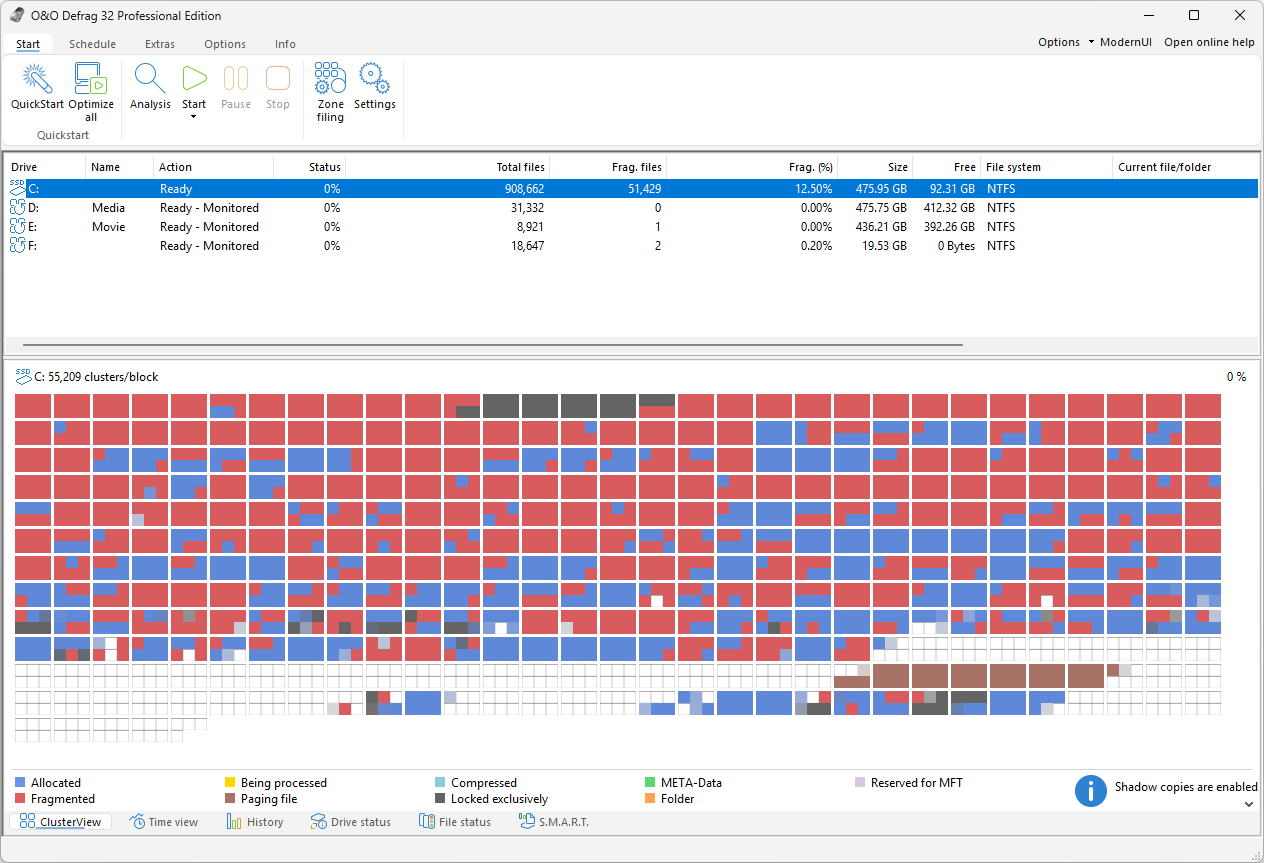
The Classic UI with the ribbon, the drive list, and ClusterView, here with a drive C: as an example.
Features and workflow differences
The interfaces cover largely the same maintenance tasks, but their controls and tool integration differ.
| Area | Modern UI | Classic UI |
|---|---|---|
| Analysis and optimization | Task pages, Advisor, methods, and detailed inspectors. | Ribbon commands, methods, and detailed drive/file views. |
| Automatic maintenance and jobs | Background maintenance, schedules, zones, file rules, and job conditions. | Corresponding settings and task dialogs in the ribbon interface. |
| Reports and health | Dedicated Reports and Drive Health pages. | Reports and detailed drive-information views. |
| Cleanup and supporting tools | Separate applications launched from Tools, including SystemCleaner and DriveLED. | Integrated DiskCleaner and Extras commands. |
One specialized workflow still belongs to the Classic UI: importing or exporting base settings as XML. Available features also depend on the edition, license, and storage capabilities.
Both interfaces use the same OODCMD command-line tool and notification-area application.
Switch interfaces
- In the Modern UI, choose Expert mode at the bottom of the navigation to open the ribbon interface.
- In the Classic UI, choose ModernUI in the top right corner to reopen the Modern UI.
- In the Modern UI's Settings → Expert mode, enable Expert mode to start in Classic UI by default. Disable it to use Modern UI at startup.
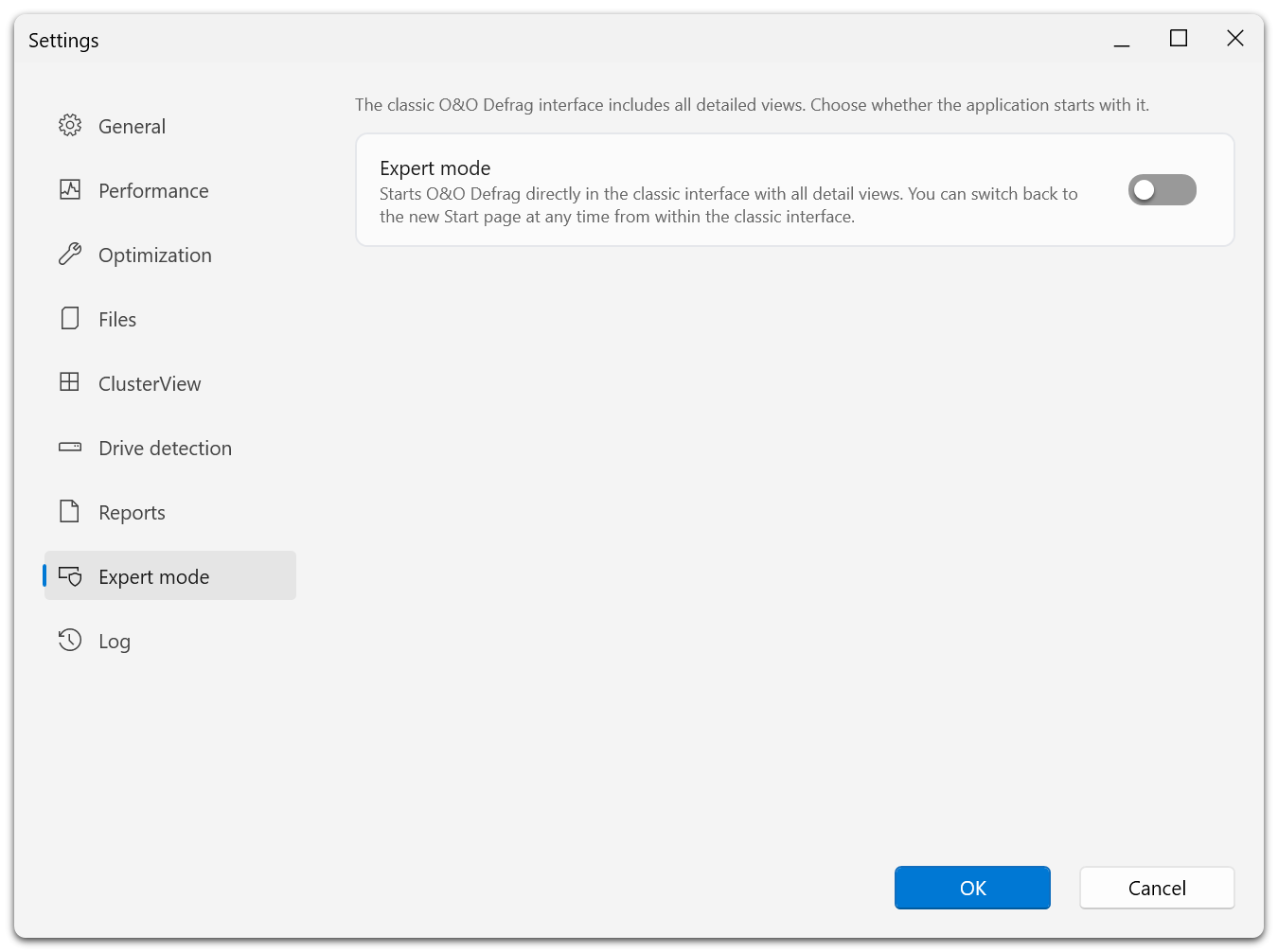
This setting decides only which interface opens at startup. You can switch in either direction while the application is running, and switching does not stop work the agent has already started.