Welcome to O&O Defrag
Thank you for choosing O&O Defrag! We're delighted that you've placed your trust in our product. Our aim is to help you get the best from your storage, with clear guidance, intelligent optimization, and automatic maintenance that fits the way you work.
Whether your computer uses a traditional hard disk, a SATA SSD, or a fast NVMe SSD, the way Windows stores files matters. O&O Defrag analyzes that layout and helps you choose worthwhile improvements. This guide explains why optimization matters and takes you from your first analysis to advanced maintenance.
O&O Defrag 32 offers the Modern UI and the Classic UI with its ribbon. Both share the same engine and license. This help starts with the Modern UI, the recommended starting point: Your first optimization. If you work with the Classic UI, go to the Classic UI guide. Modern UI and Classic UI compares the two.
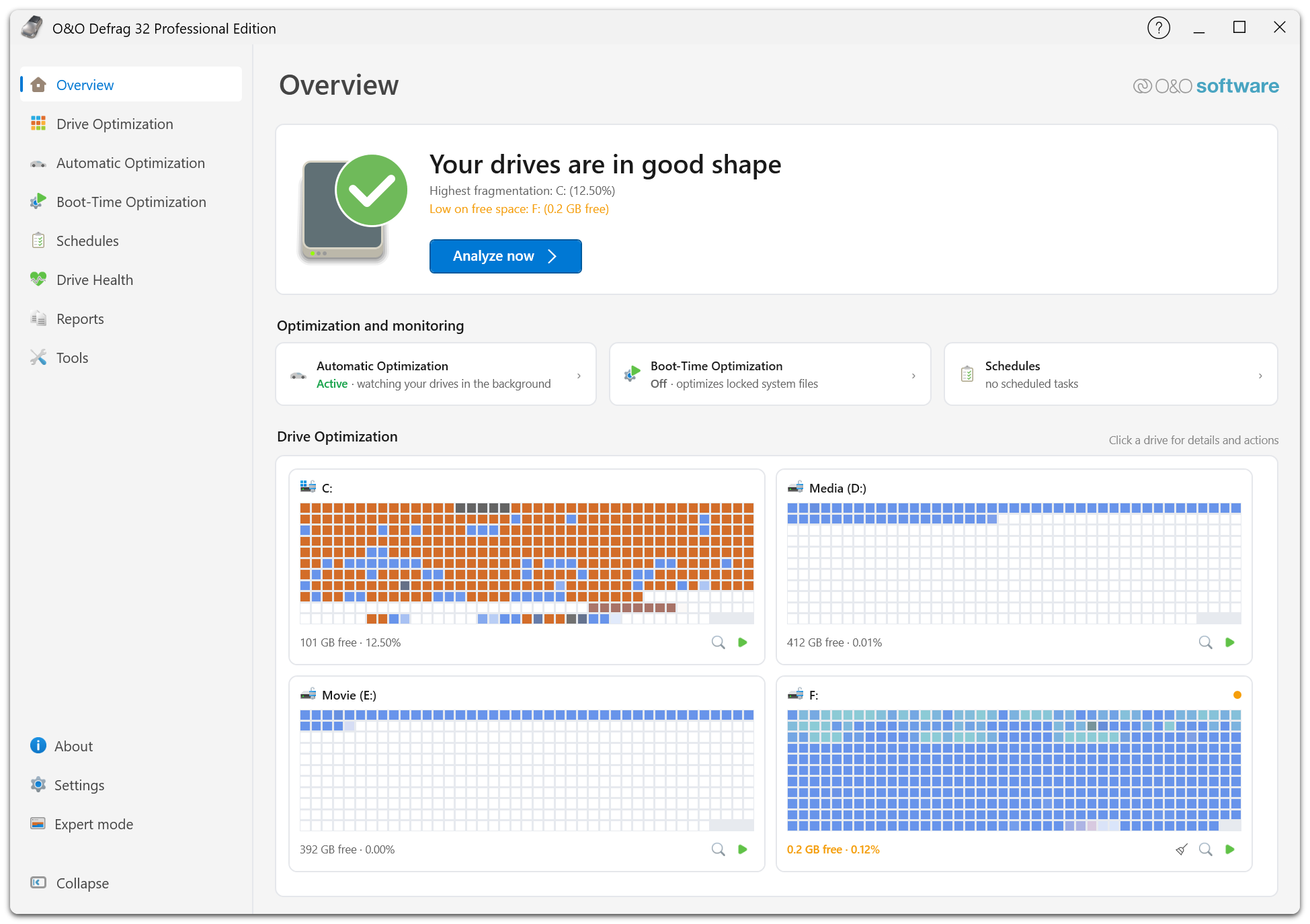
O&O Defrag opens on Overview and answers the obvious question first: are your drives in good shape? Below the verdict it names the findings behind it — here the highest fragmentation value and a drive running low on free space — and Analyze now starts the first check. The cards underneath summarize background maintenance, and every drive gets its own block map. Read the dashboard goes through the page part by part.
Why HDDs need defragmentation
As files are created, extended, and deleted, Windows can store a file in several separate pieces. This is fragmentation. On a mechanical hard disk, reading those pieces can require repeated movement of the read/write head and waiting for the platter to rotate into position.
Defragmentation brings file fragments together, reducing those mechanical delays. Consolidating free space also gives growing and newly created files more room to stay together. This makes defragmentation an essential part of maintaining performance on actively used HDDs, particularly when files become heavily fragmented. Applications, file copies, backups, and other work that reads substantial amounts of data can benefit.

Each square represents an allocation unit in a simplified volume layout. Colors and letters identify the files; pale squares are free space. File C initially has two fragments. Afterwards, each file occupies one contiguous region. File contents and the amount of free space stay the same. See Drives, files, and fragmentation for how fragmentation develops.
Why SSDs and NVMe drives benefit from optimization
SSDs have no moving heads, but Windows still has to manage the locations of a file's data. Each file has a list of allocated regions, often called its extent list or fragment list. Many small fragments can turn a large read into more individual I/O requests, increasing CPU work in the file system and storage drivers. Fast NVMe hardware does not eliminate this software overhead.
Targeted file optimization can reduce that work by consolidating excessive fragmentation. The benefit depends on fragment sizes, access patterns, and the storage system. A large file in a few large pieces is a different case from a small file split into thousands of pieces.
O&O Defrag's SOLID methods take this distinction into account. The ROI factor weighs the benefit of consolidation against the data that must be rewritten, helping avoid unnecessary writes. TRIM complements file optimization by telling an SSD which storage regions are unused. See SSD optimization and TRIM.
Use measurements as guidance
The principle behind O&O's fragmentation benchmark is straightforward: read the same amount of data in contiguous and fragmented layouts and compare the results on your own drive. This helps show why file layout can matter even on flash storage. A benchmark illustrates a particular workload; it does not predict the speedup of every application.
Open O&O VisualDisk from Tools for the detailed fragmentation benchmark. O&O SpeedCheck provides broader Windows performance checks. Review the benchmark's setup prompt: it creates temporary test files to measure the effect of fragmentation.
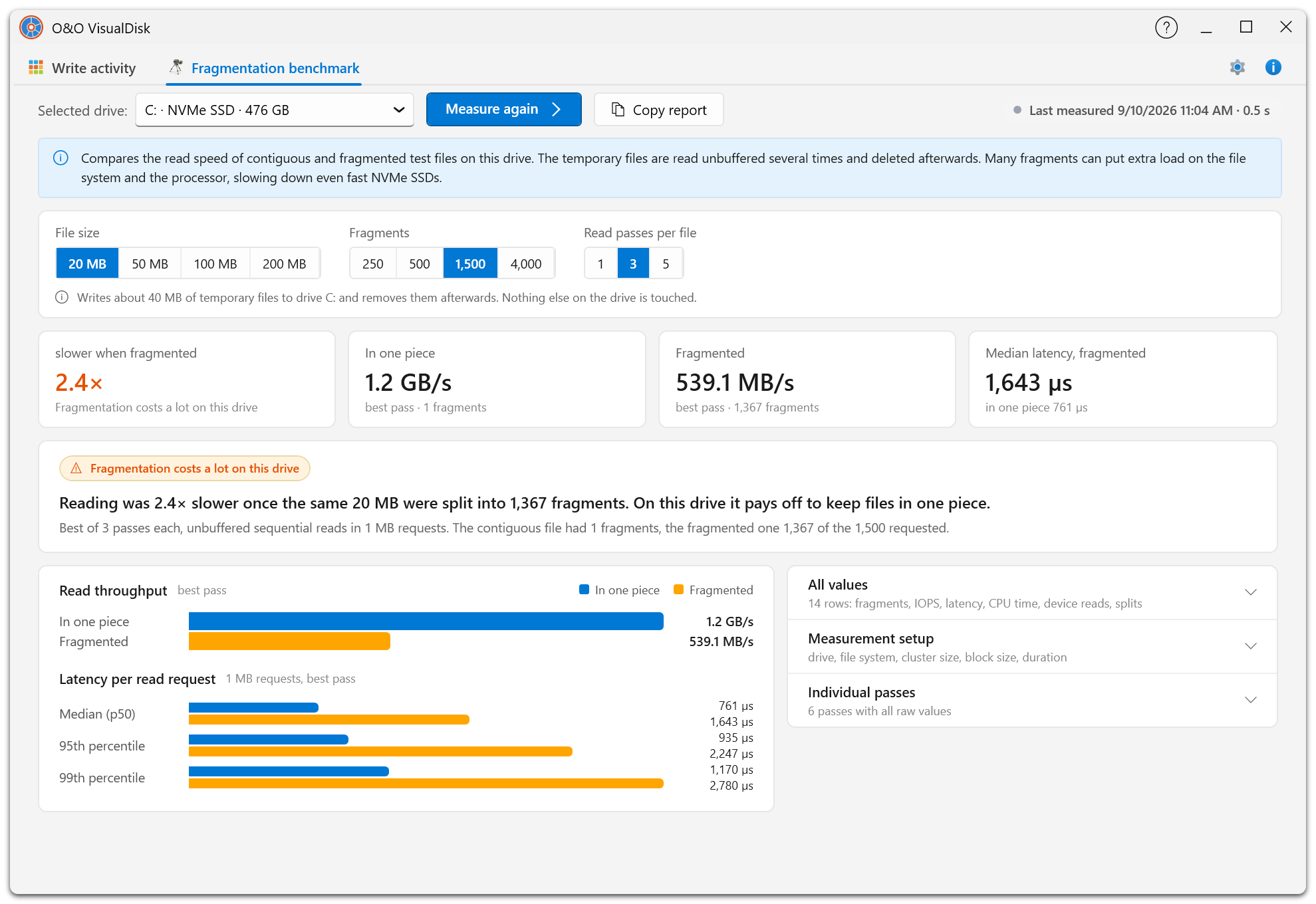
The benchmark reads the same amount of data twice on the drive you select: once from a contiguous test file and once from a fragmented one. You choose the file size, the number of fragments, and the number of read passes; the result compares throughput and latency for the two layouts. In this measurement on an NVMe SSD, reading the same 20 MB took 2.4 times as long once it was split into 1,367 fragments.
Optimized throughout: application and engine
For O&O Defrag 32, we've optimized the application as a whole, from the interface and live drive views to background communication and the optimization engine. These improvements serve a practical goal: useful maintenance with a responsive interface and careful use of system resources.
- Clear guidance: Overview and the Optimization Advisor help you understand drive condition and choose suitable actions.
- Efficient operation: Streamlined drive-view rendering and coordinated status updates keep progress easy to follow during maintenance.
- Intelligent optimization: The engine's SOLID methods consider the benefit and write cost for each file, with detailed inspection and reporting to explain the result.
- Maintenance that fits your work: Automatic optimization, schedules, and resource and power controls help you plan when and how optimization runs.
Get started
Start with the Modern UI guide and Your first optimization. The Modern UI offers almost all Classic UI features and is the recommended starting point for everyday and advanced work.
If you prefer the ribbon interface, use the Classic UI guide. Modern UI and Classic UI explains both layouts and how to switch. For terminal or script use, see Get started with OODCMD.
Use the navigation bar to choose a guide and its sidebar to find a task. The downloadable PDF includes both guides. Keep a current backup and save your work before maintenance that restarts Windows. For help, see Support and more from O&O.