Reports, logs, and history
Reports describe completed drive actions. Logs record diagnostic events from the application and service. Use reports to assess maintenance results and logs to investigate errors.
View reports
- Open Reports.
- Locate an entry by its date, drive, and action. Narrow the list with the drive filter in the top right.
- Select the entry and choose Show, or double-click it.
- Review the action result and available before/after statistics.
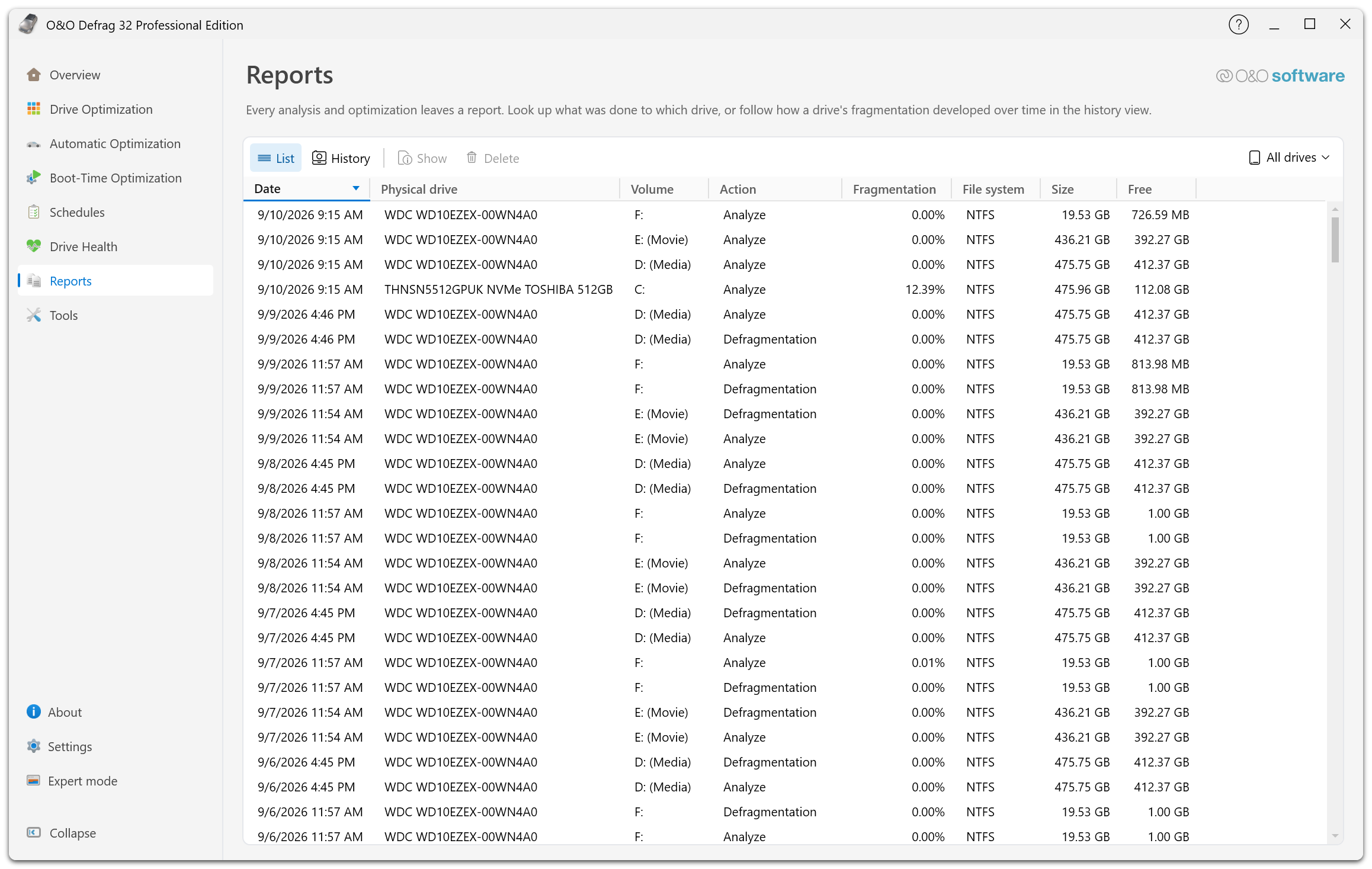
List shows one row per completed action, with its date, physical drive, volume, action, fragmentation, file system, size, and free space. History switches to the development of a drive's fragmentation over time. Show opens the selected report, Delete removes it, and the drive menu on the right limits the list to a single drive.
Analysis, optimization, and different method passes can produce different kinds of information. Confirm that two reports describe the same volume and comparable actions before comparing values.
The ROI reporting option affects fragmentation figures. A report from a different version or settings policy may not be directly comparable.
Enable reports and set retention
Open Settings → Reports, enable Create reports, and set Maximum number of saved reports between 1 and 999. Saved jobs have corresponding report settings.
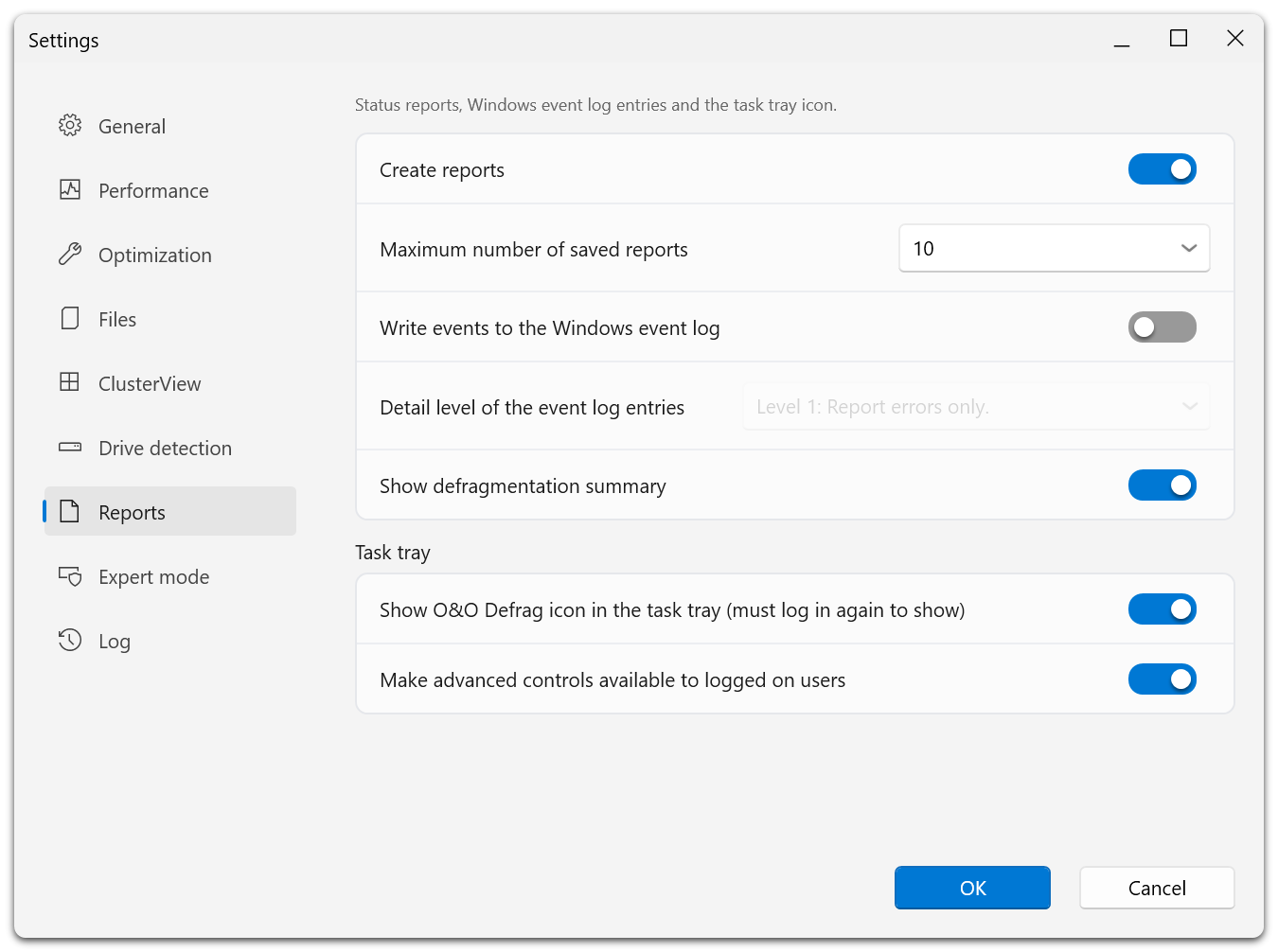
The same page holds the Windows event log options and, under Task tray, the notification-area settings. Detail level of the event log entries stays unavailable until Write events to the Windows event log is on.
A job that uses an analysis/report-only method requires report creation. Its checkbox is forced on.
Delete selected entries from the Reports list when they are no longer needed. Deleting report history does not undo an optimization. Retain information needed for support before deleting it.
Windows event log
Enable Write events to the Windows event log and select the detail level:
- Errors only.
- Warnings and errors.
- Information, warnings, and errors.
- All provided information.
Use Windows Event Viewer to inspect the resulting entries. Higher detail produces more records; choose the level needed for your investigation.
Application logs
Enable logging in Settings, reproduce the problem, and open the log viewer from About O&O Defrag. The main diagnostic files include OODefrag.log, OODefragTray.log, and, when enabled, OODefragEngine.log.
Normal logs are kept in the application's log folder under local application data. Use the viewer to locate the actual path for your installation.
In Windows RE, logs are written to an available writable fixed drive where possible, commonly C:\OO Software\OO Defrag\Logs\. Drive letters can differ there. If no persistent drive was writable, recovery-environment logs may not survive a restart.
Share useful diagnostics
Record the error time, drive, action, method, version, and reproducible steps. Review logs for file paths, user names, and license information before sharing them. See Contact support.