Correct drive detection
O&O Defrag uses information supplied by Windows to identify HDDs and SSDs. A storage controller, RAID configuration, or USB enclosure can sometimes expose an incorrect or incomplete type.
Verify before overriding
Check the physical device model and its manufacturer's specifications. If a drive letter belongs to a virtual or layered storage device, establish what the reported type represents before overriding it.
A manual override changes how O&O Defrag treats the drive. It does not change the hardware or make unsupported device commands work.
Change the type
- Finish active optimization tasks.
- Open Settings → Drive detection.
- Locate the drive by letter and label, and check the type shown in Drive type.
- Open the menu in Drive detection for that row and select the correct media type.
- Confirm the settings and follow any service restart prompt.
- Wait for reconnection, then review the drive list and Advisor.
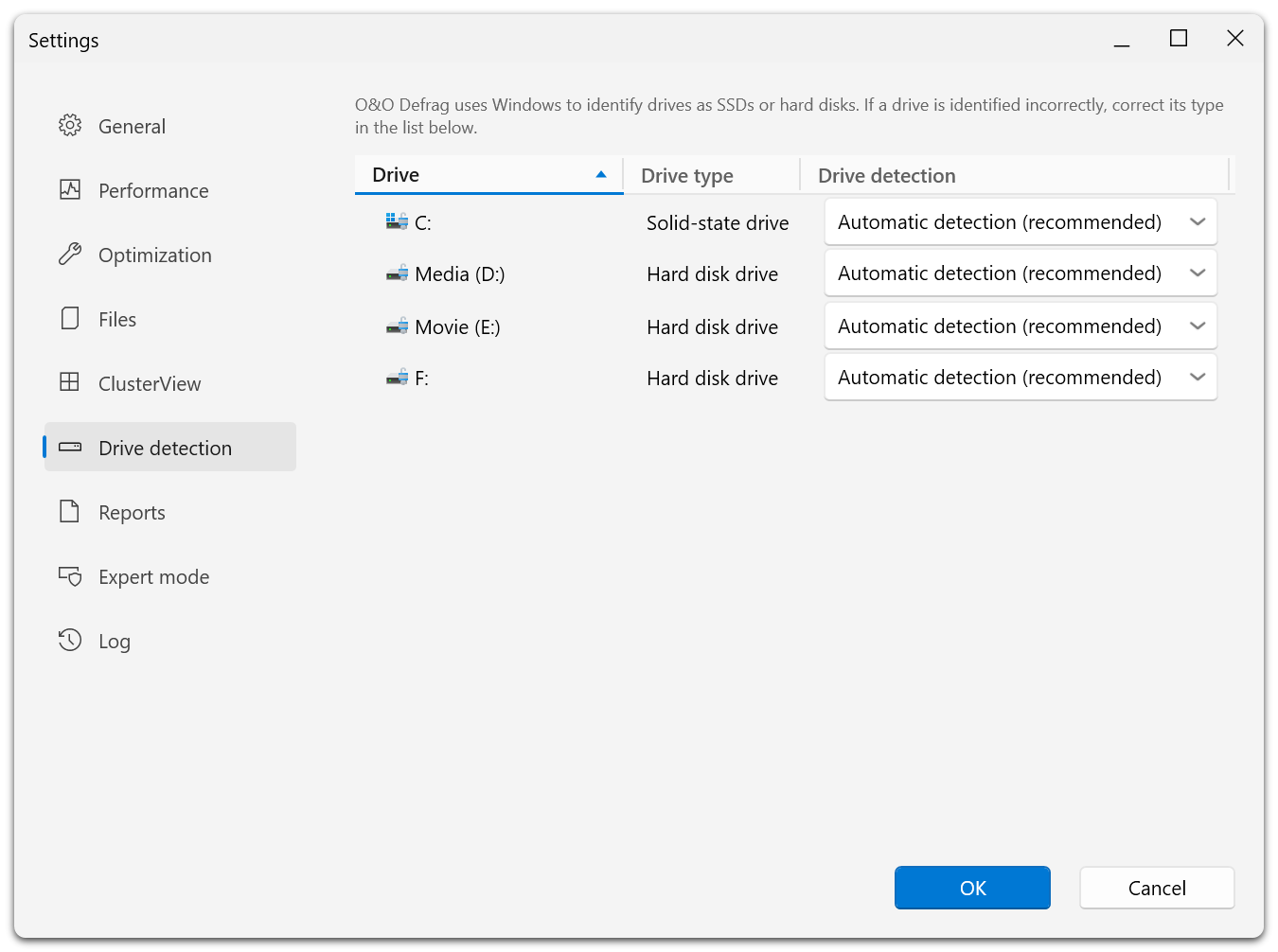
Drive type shows what O&O Defrag currently works with. Drive detection is where you change it: every row is set to Automatic detection (recommended) until you override it.
Choose Automatic detection (recommended) again if the manual value is no longer appropriate, for example after changing the underlying device or enclosure.
After correction
Review SSD protection, TRIM, and scheduled methods for that volume. A job that explicitly specifies a traditional HDD sorting method should be reconsidered if the target is actually an SSD.
If the drive is missing entirely, start with Drive missing or unavailable. A media-type override cannot make disconnected or inaccessible storage appear.