Settings reference
Open Settings from the application's settings control. Select a page, make the required changes, and confirm the dialog to apply them. Cancel discards the dialog's pending changes. A separate confirmation or restart prompt explains changes that need additional action.
Automatic optimization and boot-time optimization are configured on their own main views. On Boot-Time Optimization, the two switches and the drive selection take effect immediately.
The dialog has the pages General, Performance, Optimization, Files, ClusterView, Drive detection, Reports, Expert mode, and Log. Confirm with OK or discard with Cancel.
General
Language sets the interface language and follows the Windows language by default; restart the application after changing it. Display mode chooses light, dark, or high-contrast presentation and follows the Windows setting by default.
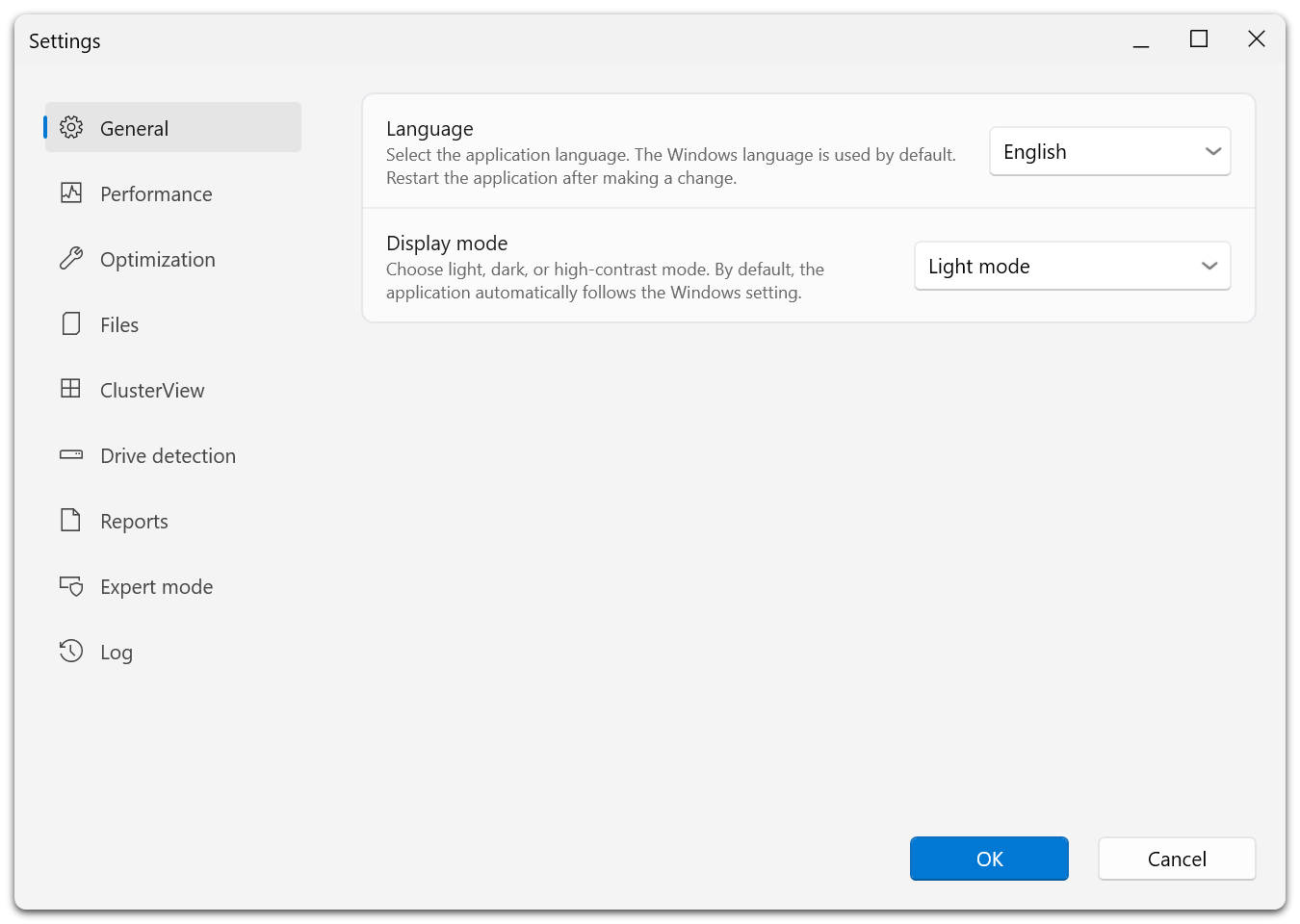
The page list on the left stays visible on every page of the dialog, so you can move between the groups of settings without leaving it.
Performance
Set Defrag's CPU and disk load limits, overall-load start guards, blocked programs, and stopping on battery. These are global defaults; jobs can have their own settings. See Activity Monitor.
Optimization
| Setting | Purpose |
|---|---|
| Check drive(s) before defragmentation and abort upon error | Check for file-system errors before moving files. |
| Optimize multiple physical drives in parallel | Allow simultaneous work on separate physical devices. |
| Use system recommendations for file system layout (layout.ini) | Use available Windows layout guidance. |
| Only optimize files whose benefit justifies the write operations (ROI factor) | Skip low-benefit rewriting with SOLID and SOLID/Complete. |
| Do not report fragmentation that the ROI factor leaves untouched | Align reported fragmentation with the ROI policy. |
| Include removable drives / Include external drives | Include these drive categories in eligible operations. |
| Prevent defragmentation of solid state drives | Prevent SSD defragmentation under these options. |
| Skip drives containing shadow copies of other systems | Avoid those drives. |
| Disable automatic optimization | Disable background optimization in the agent options. |
| File drives into zones (not recommended to use with SSDs) | Enable zone filing across volumes. |
| Enable remote administration from same network | Permit management from other PCs on the same subnet. |
Only enable remote administration for an administration setup you actually intend. It opens the agent to other computers on the subnet; it does not turn a network share into a locally optimizable disk, and O&O Defrag itself offers no console for managing another computer.
New jobs inherit global defaults when created. Review existing jobs separately after changing these settings.
Files
Manage excluded paths, forced-inclusion paths, and the large-file limit. Matching inclusions take precedence over exclusions. See File rules.
ClusterView
Change block size, DPI adjustment, shading, the 3D effect, and selection emphasis. These affect visualization only.
Drive detection
Correct the media type when Windows reports it incorrectly. Confirming a changed type may require the agent to restart, so finish active work first. See Drive detection.
Reports
Enable report creation, set a retention count between 1 and 999, choose Windows event-log detail, and control the summary and tray options. See Reports and logs.
Expert mode
Expert mode starts O&O Defrag directly in the classic interface with all its detail views. You can return to the modern Overview page from the classic interface at any time, so this setting decides which interface opens at startup rather than which one you are allowed to use. See Interface.
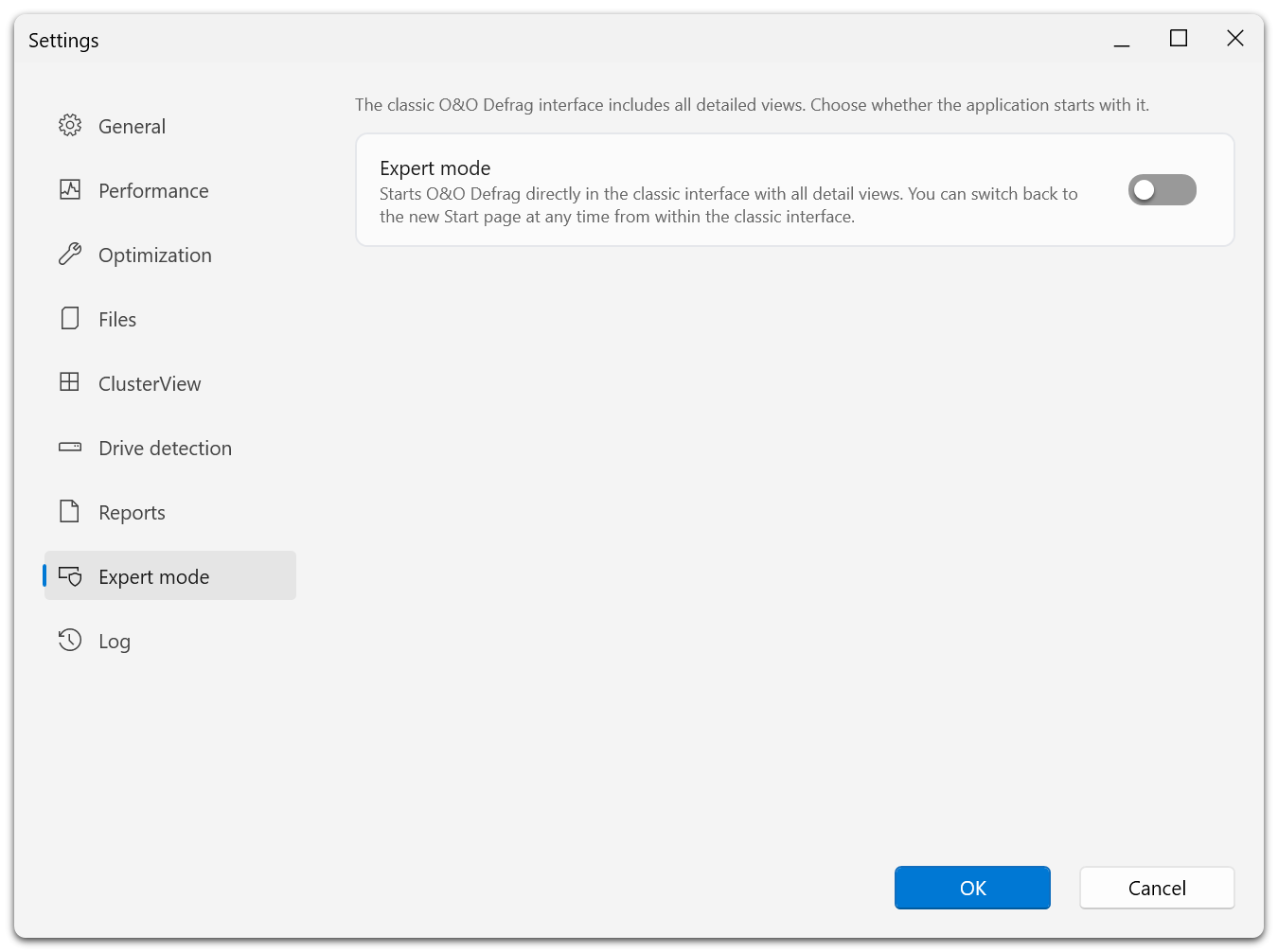
A single switch. With it off, the application opens on the modern Overview page.
Log and advanced diagnostics
Enable Enable logging on the Log page when investigating a problem. The page also names the folder the log files are written to. The advanced page, available when opening Settings with Shift held, includes engine logging and resetting user settings.
Use reset only when you intend to restore preferences and have the necessary license information. It can require an application restart and re-entry of licensing data. For ordinary troubleshooting, start with logs rather than a reset.
Unavailable settings
Agent-backed pages stay unavailable until a valid current configuration is received. Wait for connection or update a mismatched service. Do not interpret a disabled control as the current value of the setting.