Additional O&O tools
The Tools page opens separate O&O applications for related drive and Windows tasks. The tools appear as application cards.
| Card | Tool | Use it for |
|---|---|---|
| Show accesses | O&O VisualDisk | Live read and write activity, and a detailed fragmentation benchmark. |
| Watch drive activity | O&O DriveLED | Drive-activity monitoring in a slim bar. |
| Check & repair | O&O CheckAndRepair | Checking and repairing Windows and file-system problems. |
| Check performance | O&O SpeedCheck | Broader Windows performance checks. |
| Optimize startup | O&O StartupManager | Reviewing and managing startup applications. |
| Remove apps | O&O AppBuster | Reviewing and removing unwanted Windows applications. |
| Clean up | O&O SystemCleaner | Reviewing cleanup opportunities and removing selected unnecessary data. |
Open a tool
- Open Tools.
- Select the application card.
- If the tool is missing, review the offered download and setup prompt.
- If an update is offered, review it.
- Continue in the tool's own window.
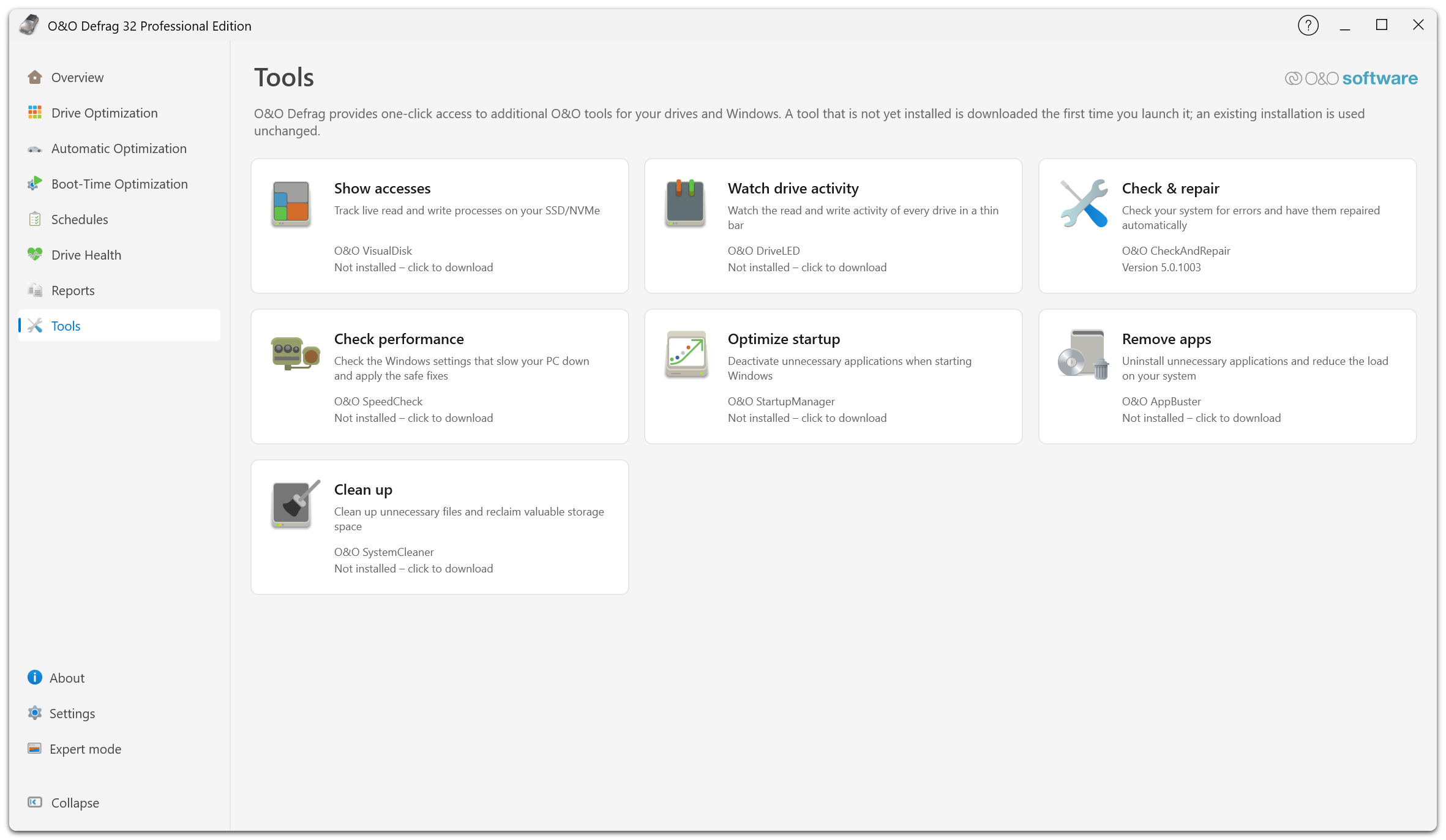
Each card names the task, describes it in one line, and states the application behind it. The line below the application name is its state: an installed tool shows its version, an uninstalled one shows Not installed – click to download.
An existing installation is used when found. A first-time download requires connectivity and an available package. Tool startup can be refused if signature verification fails; use the displayed error and support guidance rather than substituting an untrusted executable.
Downloads and update checks are suppressed in the recovery environment. Prepare needed tools during normal Windows use.
Scope of the guide
These tools have their own interfaces, help, update behavior, and action confirmations. A card in Defrag is a launch point; it does not mean the tool is built into the drive optimizer or covered by every Defrag license entitlement.
For cleanup and file-system checking, start with Cleanup and repair, then use the help in the selected application. The Classic UI provides integrated DiskCleaner controls.
The dashboard in current Defrag focuses on drives. Use SpeedCheck for broader Windows findings.