Cloning options
Under Clone drive/Cloning options you can specify further settings to clone drives. To specify the settings, you need to open the Cloning options window.
Ignore bad sectors
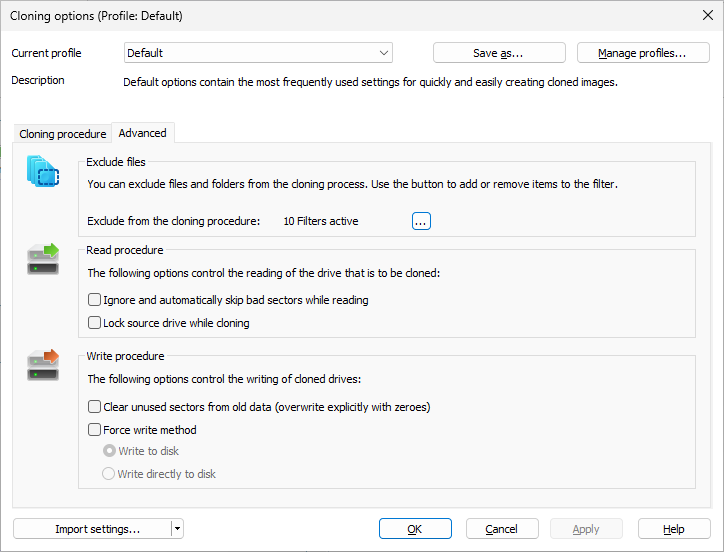
You can specify under Clone drive/Cloning options/Advanced whether the read process should be aborted or continued in case of error. If continued, the bad sector will be saved in the copy as an unused sector. The remaining data that are still readable will be present in the image.
Lock a drive
You can lock the drive you want to clone during the cloning process. This prevents interim changes to the drive being made during creation. The drive will no longer be displayed in Explorer and all applications will be closed. The drive is not locked by default.
- To lock a drive, enable it under Clone drive/Cloning options /Advanced/Read procedure
- If you leave a drive unlocked during cloning, because, for instance, you want to continue working on the drive, the original status will be “cached”, i.e. stored in the working memory buffer. The working memory buffer is however restricted. You can see how much is available in the Memory buffer display.
Locking a system partition is not possible. If you want to prevent temporary files from being written on a particular drive, make the entry NoSnapshotTmpFiles in the registry. More information can be found in the chapter Explanation of registry entries.
Please note:
Should you exceed the available working memory, the current changes will be written directly to the target drive. This makes the image inconsistent and may render it unusable.
To avoid overloading the memory buffer, close or stop all write procedures on the source drive, for example, running a defragmentation.
Set the read method
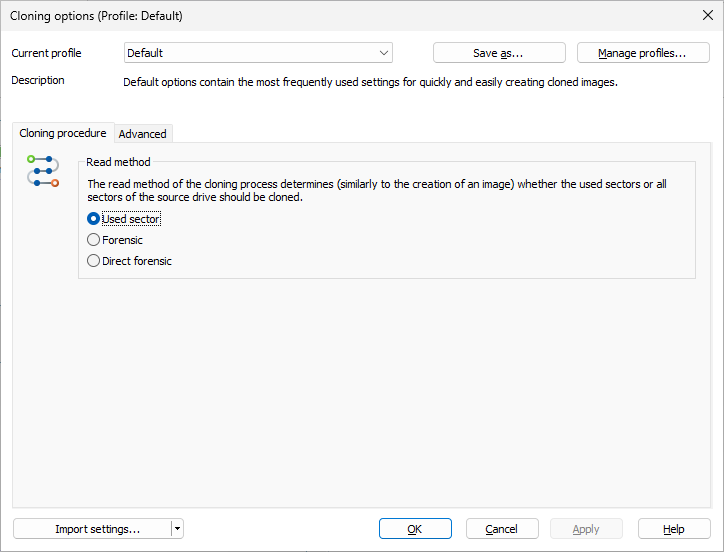
Under Clone drive/Cloning options, you can set your individual read method just as you can when creating an image. (Cloning method). The cloning methods are constructed in a way similar to the imaging methods.
It's possible to choose from “Used sector”, “Forensic” or “Direct forensic” methods. You can read more about this under Select imaging method.
Create a profile for cloning
Under Clone drive/Cloning options, you can reset the default settings for cloning or select an existing profile.
Under Current profile you can choose between Default or User-defined. If you wish to save your user-defined settings for cloning, please follow the instructions below:
- Select Save as and enter a name for the new profile.
- Under Manage profiles you can change or delete an existing profile.
Force the writing method
Under Clone drive/Cloning options/Advanced you can force the writing method. "Write to drive" is the default writing method used for the "Used sector" and "Forensic" cloning methods . "Write directly to disk" is the only writing method used during "Direct Forensic" cloning. You can, however, force a user-defined writing method.
Enable Force writing method and select the respective method.
Using the option Write to drive, data will be written to the drive with help from the operating system, and not from the offset to the disk.
With the option Write directly to disk, you can decide whether a restoration should be written directly to a disk, bypassing the file system driver. This function applies especially to encrypted disks and is required for restoring any disks that have been imaged using the direct forensic method.
Overwrite unused sectors
You can specify that unused sectors of the source drive be overwritten with zeros under Clone drive/Cloning options/Advanced/Clear unused sectors from old data. By enabling this function, you will not be able to restore data of the empty areas from the drive clone.
This function will be run during the next clone activity of the selected drive.
If you delete data normally under Windows, it still remains intact on the hard disk. The data will no longer be accessed by the operating system and remains invisible for the user. The space is declared as free area by Windows. This data can still be restored using special software. To make sure that nobody can restore data from the drive clone, enable the function Clear unused sectors from old data. After overwriting, not even specialized data recovery software will be able to restore this deleted data.