FAQ
When and how often should I make images?
We recommend imaging on a regular basis (at least once a month). The more regularly it’s performed, the more up-to-date the data contained within those images will be. As a guiding rule, you should always image an intact system.
Which drives should I image?
You should generally image all drives, meaning the system drive (Windows), primarily Drive C, and all remaining data drives where private and business data, e.g. customer data, photo collections or music are stored.
Where should I store my image?
Don’t save the image on the same hard disk where the imaged drive is located. It should be ideally stored on an external hard disk or a CD/DVD.
I just bought myself a new computer. If I take a complete image of my old computer, can I restore it to my new one?
Restoring data drives is not a problem even with differing hardware. However, system partitions can only be restored on differing hardware using the Start CD and the integrated M.I.R. You can read more about this in the chapter Settings for restoration on different hardware.
Do I have unlimited use of all functions with the trial version?
The trial version is not restricted – all program functions are fully operational.
When do I need the bootable CD from O&O DiskImage?
You will need the Start CD, if you want to restore your entire computer or a system partition. The Start CD can also be used, if the operating system doesn't start up anymore.
How do I save an image to CD/DVD?
- You must create an image file(s) and save it to your hard disk before you can write it to CD/DVD.
- When creating the image, under Drive imaging/Imaging options/File size, you should restrict the maximum image file size to the size of the intended removable medium where it will be saved.
- Should the image exceed the selected maximum file size, it will be split into several image files.
- You can then burn the image files to CD/DVD.
- Select Tools on the start page, then on Burn image file(s) and follow the instructions.
What do I do when my image is too big for a CD/DVD?
- If the Image you already saved to your hard disk is too big for the blank CD/DVD, you can, of course, still split the image file.
- Under Tools, open up Convert image file.
- Select the Image you wish to change by using Add.
- Merge incremental Images
- During conversion, one copy of the Image will be made while the original remains unchanged.
I have split the image and saved it on various disks (CD/DVD).
I want to:
- restore this image
- display drives from the image
- use the image as a base image for incremental imaging purposes
- merge incremental images
- convert the image file
Before you go ahead with any of the above named steps, we strongly advise you to save all parts of the Image in a folder on your hard disk. Please ensure the folder is not on the drive where you wish to restore the Image. Once you have done this you can complete the steps outlined above by simply following the instructions in the corresponding chapters of the User’s Guide.
Can I continue working during the imaging process?
You can continue working and making changes without any problem.
The working memory buffer is however restricted. You can see how much is available in the Memory buffer display. See Chapter "Lock a Drive".
Can I change an existing image?
Under Tools you can find the function Convert Image File. This enables you to change certain properties and contents of an existing image.
I have created an image of several drives. Can I extract the image from just one of those drives and store it separately?
Follow the instructions below:
- Under Tools select Convert image file.
- Select the image using Add and then select the drive you wish to separately image.
- Click Open and select a drive. After confirming with OK, click Start.
- After confirming with (OK) click Start.
- The old image remains unaltered.
What is the difference between a clone and an image?
Using the Clone drive function, you can make a 1:1 copy of a drive including all its stored data, without producing any image files. The storage volume /drive is saved directly without compression. The advantage of a clone as opposed to an image is that the detour through an image file is avoided. You can access the clone of a drive without having to restore the drive. You do, however, require a lot more storage space for a clone than for an image.
Important! When cloning your drive (source drive) the selected target drive will be overwritten. You should therefore save your copy on an external hard disk, either in an unused region or overwrite a previously selected drive purely for this purpose.
Why are temporary files created?
If you leave a drive unlocked during an imaging because, for instance, you want to continue working on that drive, the original status will be “cached”, i.e. stored in the working memory buffer. “Temporary files” are created in the process. The working memory buffer space is, however, limited. You can see how much space is available by looking at the memory buffer display.
What is the advantage of an incremental image?
An incremental image normally has a smaller data volume than a base image. In addition, you can identify the differences, more precisely, the changes made since the base image was created.
Why are partitions that weren't imaged displayed when mounting an image in Explorer?
In addition to saving data from the partition being imaged, O&O DiskImage also needs to save information about the disk on which that partition was originally located. All of this is required for mounting an image, converting it into a virtual disk, or performing any future restoration. There will also be information included about partitions that were not imaged. When mounting an image, just as when using a virtual hard disk after conversion from an image, Microsoft Windows uses this information to recognize that there were originally multiple partitions on the disk, and attempts to integrate them into the system. Because information/data about these partitions is missing, it's not possible to assign them to any file system. As a result, partitions that weren't imaged will be displayed as RAW, i.e., non-formatted.
Frequent questions on authentication
Where do I find the domain and user name to use for authentication?
If you are not sure, please proceed as follows:
- Call the command line under Run... in the Start menu. Enter the command cmd in the dialogue.
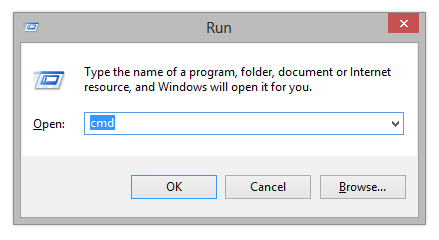
- Enter the command: echo %userdomain%%username% into the command line and confirm your entry with Enter. If your computer is not signed on to a domain, your computer name will appear instead of the domain name.

Where do I find the computer name for, running activities?
If you are not sure, please proceed as follows:
- Call the command line under Run... in the Start menu. Enter the command cmd in the dialogue.
- Enter the command: echo %computername% and confirm your entry with Enter.

How can I check my access rights on the target computer or the target folder?
If you are not sure if your entries are correct, you can view them under Program settings/Security and recheck them.
Alternatively, you can check your access rights on the target computer in the properties of the corresponding target folder under "Security" in Windows Explorer.
- Click in the context menu of the folder on Properties and then Security. All users with access to the folders will be listed.
Although I have already entered my authentication data for a network drive, I am asked once again for every activity.
It is possible that you are requested to re-enter your authentication data for an activity like the restoration of an network drive image. The reason for this can be traced back to Windows. Certain dialogs, e.g. the browser dialog are not originally from O&O DiskImage but from Windows. Because Windows doesn't have access to your O&O DiskImage authentication data, it is necessary to re-enter the access data for the selected drive.