Back up files
We strongly recommend backing up entire partitions or disks because doing so protects you from not including important data in the backup by mistake. There are some cases, however, where it may be useful to backup only certain files or folders. All features for backing up files and folders can be found under File operations.
A file backup can be created as a full backup or a backup of the changes. A full backup contains all the selected data. A backup of the changes contains only the data that has been added, changed, or deleted from the base. The base can be either a full backup or a backup of the changes.
Create a file backup
Do you want to backup individual folders or files instead of an entire drive? You can now do so with a file backup. Files are backed up directly during file backup. Compared to imaging a drive, file backup only includes the file information. No drive information is saved.
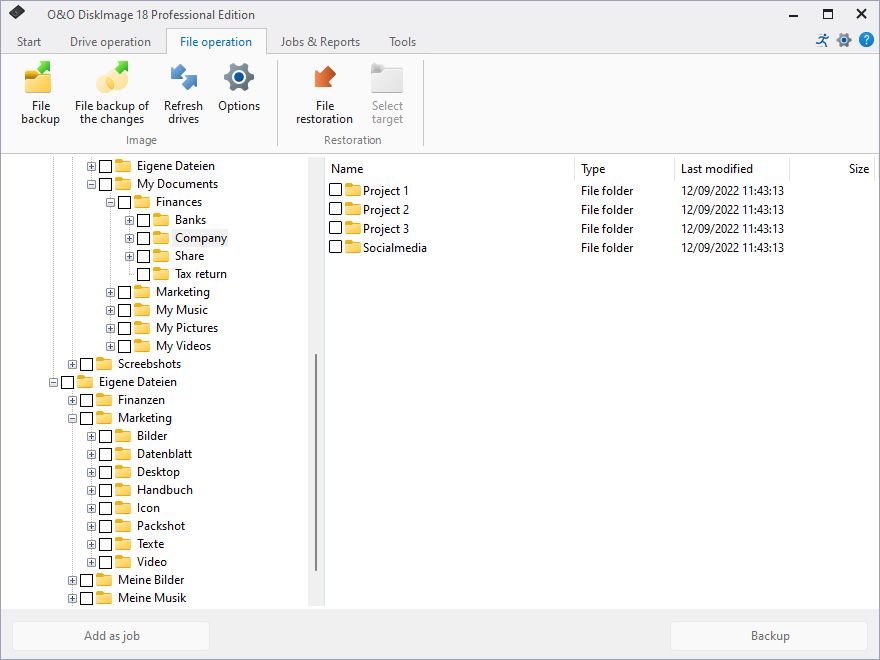
- On the start page of O&O DiskImage click File backup.
- Navigate to the folder you want to backup.
- Check the box next to those folders you want to backup. Multiple selections are also possible. You can also select an entire drive. All files located on the drive will be imaged.
- Then click the symbol Start file backup.
- If you don't want to use the default target path shown in the following dialog, please enter a new target.
- Click Start to continue with the file backup.
- A compressed file will then be created with the file extension OBK (*.obk).
Selection criteria
Before starting file backup, there's an option for selecting files or file types in the folder that you want to have included or excluded from the backup.
In the dialog, click Criteria and specify the settings you want.
You can specify further settings by clicking the icon File backup options. If you want to repeat the file backup at a later time, you can create a job for it. To do this, click the icon Add as job.