Manage jobs
Start the wizard
Edit a job
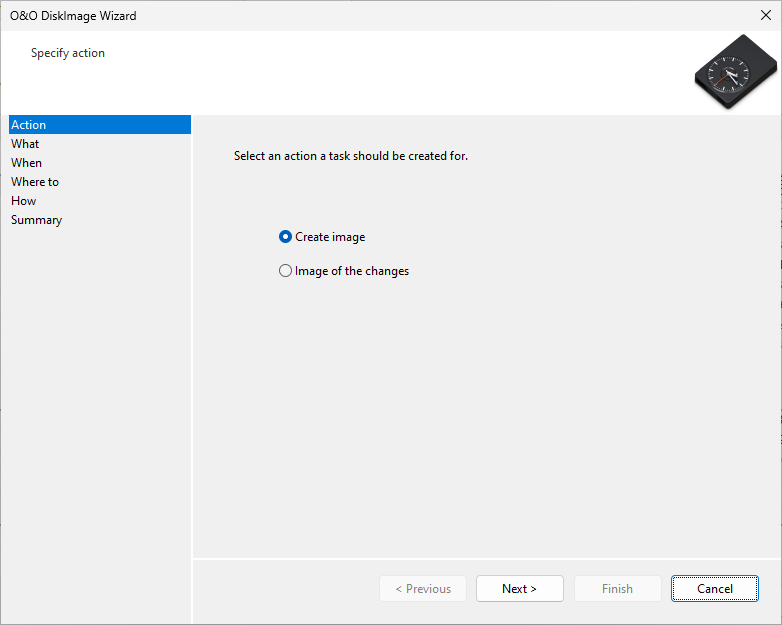
- To edit a job select Jobs and reports in the start page of O&O DiskImage.
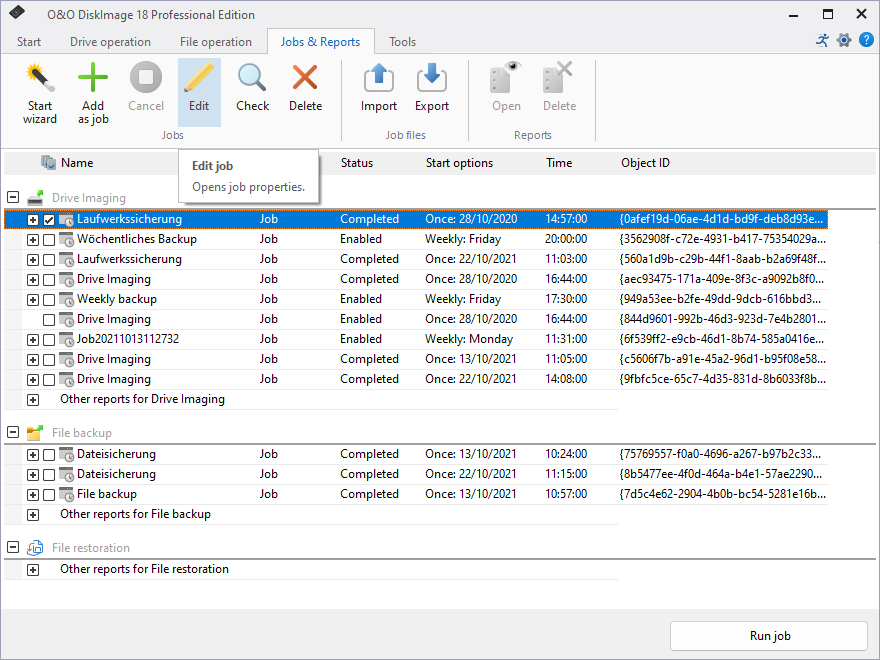
- You can change a job by selecting it in the job list and then clicking the symbol Edit.
- The Job assistant will then appear with the settings of the job.
- Make the desired changes in the properties and confirm the changes with OK.
- If you decide not to apply the changes, click Cancel.
For certain tasks, e.g. deleting or importing/exporting one or more jobs, you have to select the desired jobs in the list. Afterwards, you can run desired tasks on all selected jobs.
Delete a job
To delete a job select Jobs in the start page of O&O DiskImage. Mark the job you wish to delete with a check and then click on Delete.
Check a job
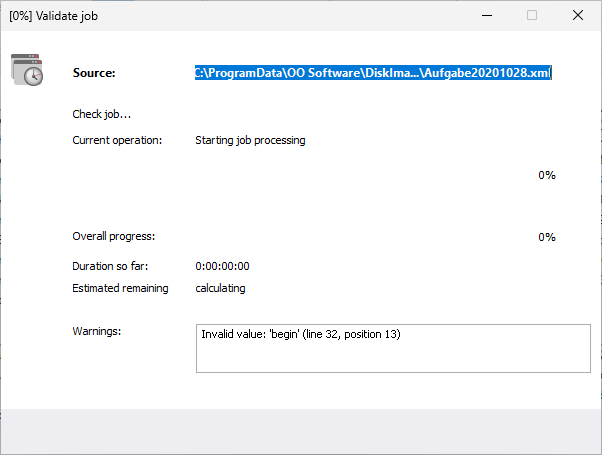
To check if the settings for a job are valid, i.e., to check if its contents and syntax can be executed on a local system, select Jobs and reports in the file menu on the Start page of O&O DiskImage. Then select the job you want to check and click on Check job.