Registry entries
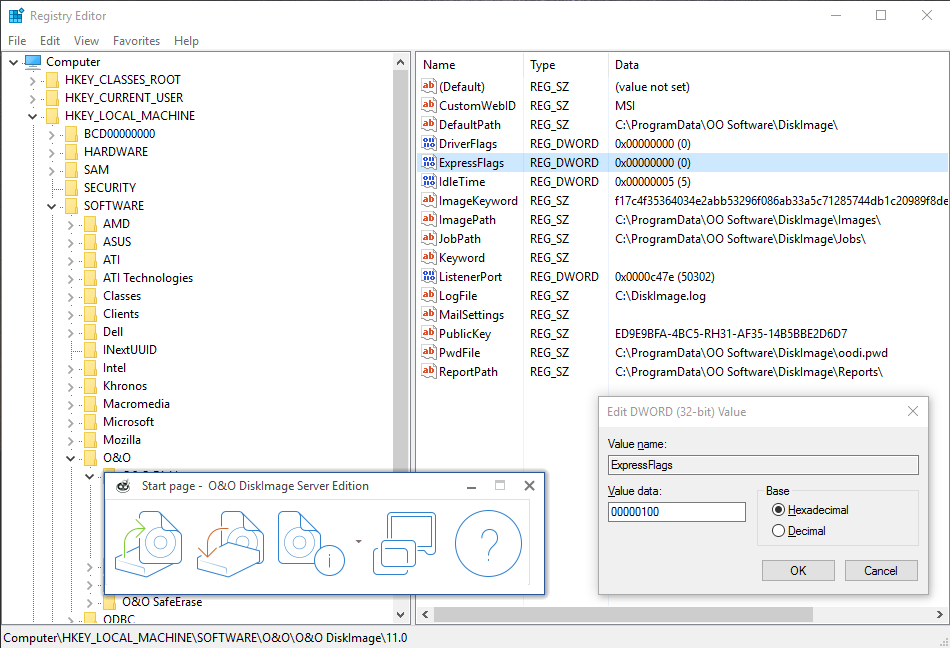
In the Windows registry, under HKEY_LOCAL_MACHINE\SOFTWARE\O&O\O&O DiskImage, you can configure certain settings for O&O DiskImage. Please note that changes in the registry can influence the functionality of O&O DiskImage and such changes will continue to be applied after restarting the computer.
| Name of the entry |
| ImagePath |
| JobPath |
| ReportPath |
| PwdFile |
| PublicKey |
| NoSnapshotTmpFiles |
| Version |
| ExpressFlags |
* Can also be controlled over the user interface. If you're not sure, make changes over the user interface. There you can find additional explanations and selection options.
** The format of image files was extended in O&O DiskImage 4. In addition to the imaged data, checksums are placed in the image so that an identity check can be carried out for data inside the image. Older versions of O&O DiskImage do not recognize this extended image format and would label the image as invalid. To help older versions of O&O DiskImage work with images created by a newer version, the new version can create an image using the "old" format.
Allocating objects
When cloning or restoring an image, the source and target can be linked differently. Source is the name for a drive or disk that is being restored from an image or that has been used as the base for cloning.
Terminology
- Disk: A hard disk or disk in general that contains one or more drives.
- Area: An area on a disk. It may be empty, contain disk information (MBR, GPT, LDM) or belong to a drive.
- Drive: A partition or a volume that is found on one or more hard disks.
Source and target may be linked in the following combinations:
| 1. |
| 2. |
| 3. |
| 4. |
| 5. |
| 6. |
| 7. |
| 8. |
| 9. |
Enable/Disable logging
If errors occur while creating or restoring images under Windows, enable logging in O&O DiskImage and try repeating the operation to see if the problem reoccurs. Logging can be turned on and off starting from O&O DiskImage 8:
Open O&O DiskImage, click the arrow at the top right next to the Help button and select Enable logging. This will restart the O&O DiskImage service and can take up to two minutes.
When the error reoccurs, send us the O&O DiskImage log file: click the arrow next to the Help button and select Save support information....
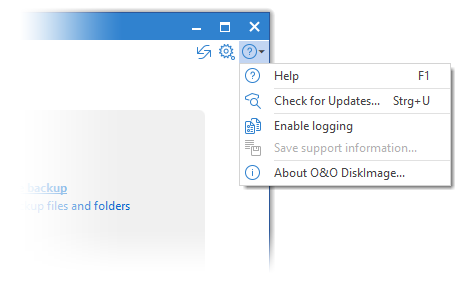
To disable logging, click the Help button at the top right and select Disable logging. This will restart the O&O DiskImage service and can take up to two minutes.